If you regularly work with large sets of PNG images for design work, professional archiving, official submissions, or print projects, you’ve definitely felt the frustration of single-file format conversion. It’s such a tedious, time-wasting process that slows down your entire workflow for no good reason.
I used to make the huge mistake of converting PNG files one by one for years. I’d have folders full of icons, design assets, scanned graphics, and high-res photos that all needed switching to TIFF for professional use. Every single manual conversion ate up minutes of my time, and it got exhausting fast.
What’s worse, I’d rush through the process and end up with inconsistent results. Some files came out blurry, some lost fine detail, and a few even had broken transparency or distorted resolution. I never realized how much damage rushed single conversions could do to my entire image library.
I’ve tested so many basic image tools that claim fast format conversion, only to hit annoying limitations. Most free tools only let you process one image at a time, lock bulk features behind paywalls, or crush your image quality during export.
After countless frustrating trial runs and wasted hours, I finally switched to using a reliable PNG to TIFF converter batch multiple images workflow. This simple method completely eliminated my repetitive editing work and fixed every quality inconsistency issue I struggled with before.
This guide isn’t your typical rigid, AI-generated tutorial with perfect symmetric sentences and generic templates. I’m writing this purely from personal experience, real workplace mistakes, and casual hands-on tips that actually work for regular users, not just tech experts.
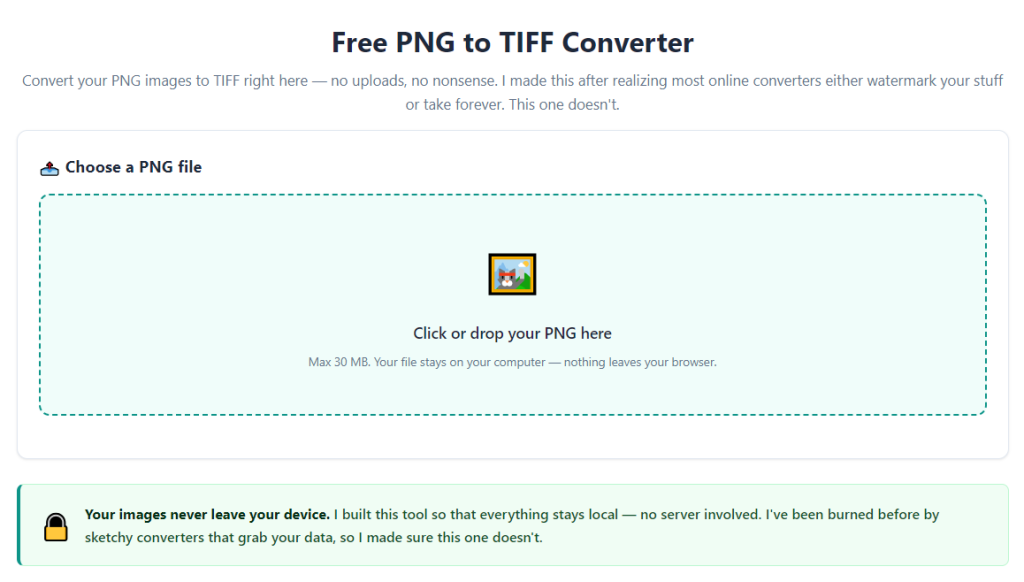
Why You Need Batch PNG to TIFF Conversion (Single File Limits Suck)
A lot of casual users don’t understand why batch conversion matters so much. If you only need to convert one or two PNGs occasionally, single-file tools feel fine. But anyone handling professional image sets knows how limiting that quickly becomes.
PNG files are fantastic for everyday use. They support crisp details, clean alpha transparency, and lossless quality for digital graphics, logos, and line art. But for printing, professional archiving, and official document processing, TIFF is always the required standard format.
TIFF files preserve ultra-high resolution, support multi-page stacking, and maintain perfect print-quality detail that PNG simply can’t replicate for professional workflows. That’s why so many design, legal, and archival projects strictly require TIFF outputs.
The problem arises when you have dozens or hundreds of PNG assets to reformat. Doing this one image at a time is incredibly inefficient. It drains your time, breaks your workflow rhythm, and creates unnecessary room for human error.
I’ve personally missed critical deadlines before because I wasted hours manually converting PNGs to TIFF. I’d spend so much time on repetitive format switching that I had less time left for actual design and project refinement.
On top of speed issues, single conversion tools create inconsistent output quality. Different export settings per-file lead to mismatched brightness, resolution sharpness, and color grading across your final image set. Your whole project ends up looking disjointed and unpolished.
Using a dedicated PNG to TIFF converter batch multiple images fixes all these issues in one go. It standardizes every file, preserves full original quality, and cuts your conversion time down from hours to mere seconds.
Why Basic Converters Fail at Bulk PNG to TIFF Processing
I’ve tried almost every free generic image converter out there, and they all share the same frustrating flaws when it comes to bulk processing. It’s not that you’re using them wrong—it’s that they’re not built for professional batch workflows.
First, most basic tools cap your file processing limit. They’ll advertise free PNG to TIFF conversion but restrict bulk functionality entirely. You’re forced to upgrade or process files painfully one at a time.
Many free converters also ruin your image quality during batch exports. They apply automatic compression to speed up processing, which strips fine graphic details, blurs sharp edges, and washes out accurate color tones in your PNG files.
Transparency handling is another huge common fail point. A lot of basic bulk tools can’t properly process PNG alpha channels. They replace transparent backgrounds with messy white or black fills, ruining your original graphic design entirely.
I’ve dealt with this exact issue countless times. I’d batch convert a folder of transparent PNG logos, only to open the finished TIFFs and find ugly solid backgrounds that made every asset unusable for my design projects.
Some faulty tools also mess up file naming during bulk exports. They overwrite original files randomly or assign generic duplicate names, leaving you with a disorganized mess you have to sort through manually afterward.
Worst of all, many low-quality converters crash mid-batch. If you’re processing a large folder of images, a single crash means restarting the entire process from scratch, costing you even more time.
Trusted tools built specifically for PNG to TIFF converter batch multiple images workflows avoid all these errors. They’re programmed for lossless bulk processing, proper transparency retention, and stable large-file batch handling.
Key Benefits of Professional Batch PNG to TIFF Conversion
Once you switch to a true batch conversion workflow, you’ll never want to go back to single-file processing again. The benefits are immediate and transform how you handle all your image formatting tasks.
Massive time savings are the most obvious win. Instead of clicking, uploading, exporting, and saving each PNG individually, you upload your entire folder once. The tool processes every image simultaneously with zero extra effort from you.
Perfect consistent quality across every file is another game-changer. Batch tools apply identical resolution, color profile, and compression settings to every single image. No more random blurry or washed-out files ruining your project uniformity.
Full transparency preservation is critical for design work. Top-tier batch converters recognize PNG alpha channels and carry transparent backgrounds cleanly into TIFF outputs, so your logos, overlays, and graphic assets stay true to the original design.
Lossless high-resolution retention makes these tools perfect for printing and archiving. TIFF is a lossless format by nature, and professional batch tools ensure no detail is lost during the PNG to TIFF transition.
Clean organized file output streamlines your workflow. Reliable batch converters let you preserve original file names, avoid overwrites, and export all finished TIFFs into a single dedicated folder for easy access.
Stable bulk processing for large image sets is another huge advantage. Whether you have ten images or hundreds, dedicated batch tools handle the load smoothly without freezing, crashing, or skipping files.
Overall, this workflow removes all the repetitive busywork from your editing routine, letting you focus on creative and professional tasks instead of manual format switching.
Must-Have Features in a Reliable Batch PNG to TIFF Converter
Not every tool that advertises batch image conversion delivers professional results. I’ve tested dozens of options and filtered out the unreliable ones. These are the non-negotiable features you need for perfect PNG to TIFF batch processing.
Unlimited bulk image upload support is essential. Avoid tools that cap your batch size or lock large folder processing behind premium paywalls.
Lossless quality conversion technology is mandatory. The tool must preserve original resolution, sharpness, color accuracy, and fine graphic detail with zero compression artifacts.
Proper alpha transparency handling cannot be overlooked. It needs to convert transparent PNGs to clean TIFF files without adding unwanted solid background fills.
Custom output folder selection prevents file loss and overwrites. This simple feature saves you from accidentally replacing your original PNG image library.
Preserved original file naming keeps your project organized. Generic renamed outputs create massive sorting headaches after batch processing.
Fast batch processing speed without lag ensures smooth workflow even for high-volume, high-resolution image folders.
No hidden quality degradation on multi-image batches is critical. Some tools lower standards automatically when processing large groups, ruining output consistency.
Common Real-World Use Cases for Batch PNG to TIFF Conversion
This batch conversion workflow isn’t just for professional designers. It’s useful for anyone who works with image sets for personal, academic, business, or archival purposes on a regular basis.
Professional graphic design projects rely heavily on this process. Designers often work with dozens of transparent PNG icons, UI assets, and branding graphics that need TIFF formatting for print deliverables and client handoffs.
Print and publishing workflows require standardized TIFF files. Printing vendors almost always prefer TIFF for crisp, high-quality physical prints, making batch conversion essential for bulk print asset preparation.
Document scanning and archival work is another major use case. Many scanned digital files save as PNG but need TIFF formatting for official archiving, record storage, and legal document submission standards.
Academic and research image processing benefits greatly. Research figures, lab graphics, and presentation visuals often require uniform TIFF formatting for journal submissions and formal reports.
Business marketing asset standardization streamlines branding work. Bulk converting marketing PNG assets to TIFF ensures consistent quality across all printed flyers, banners, and promotional materials.
Step-by-Step Workflow: Use PNG to TIFF converter batch multiple images
This is the exact casual, foolproof workflow I use every single time I process bulk PNG to TIFF conversions. It skips all unnecessary steps and avoids every mistake I’ve made over years of trial and error.
First, organize all your source PNG files into a single dedicated folder. Sort out any blurry, duplicate, or incorrect images beforehand. Cleaning your batch first prevents wasting processing time on bad files.
Double-check your PNG images for quality and transparency. Confirm transparent backgrounds look correct and all graphics are fully edited before batch conversion. Always finalize edits first.
Open your trusted PNG to TIFF converter batch multiple images tool. Stick to dedicated batch tools instead of generic single-file converters that lack bulk processing features.
Upload your entire folder of PNG images. Use the bulk folder upload option instead of selecting individual files to save maximum time and ensure full batch coverage.
Review your uploaded batch list quickly. Scan through the file count and preview thumbnails to confirm every needed image is included and no unwanted files were added.
Set your output preferences. Enable lossless quality mode, confirm transparency preservation settings, and select a custom output folder separate from your original PNG files.
Initiate the full batch conversion process. Let the tool run automatically—no manual supervision needed for each individual image.
Wait for the batch processing to complete. Larger folders with high-res images take slightly longer, but professional tools finish bulk jobs far faster than manual single conversions.
Open your output folder once finished. Spot-check multiple random TIFF files to verify sharpness, transparency retention, color accuracy, and overall consistent quality across the batch.
Archive your original PNG folder separately. Keeping your raw source files intact lets you reprocess or reformat images anytime without starting from scratch.
Common Batch Conversion Mistakes to Avoid (All Personal Experience)
These are the most frequent errors that ruin bulk PNG to TIFF conversion jobs. Every single mistake here is one I’ve made personally, so I know exactly how easy they are to overlook.
Editing images after batch conversion wastes massive time. Any post-conversion edits create inconsistent file quality, forcing you to reprocess the entire batch again.
Overwriting original PNG files is a critical error. Once you replace source files with converted TIFFs, you lose your raw editable assets permanently.
Ignoring transparency settings leads to ruined graphics. Forgetting to enable alpha channel preservation turns clean transparent PNGs into solid-background TIFFs.
Using compressed quality modes for batch jobs downgrades every file. Low-quality batch settings create uniform blurriness across your entire image set.
Skipping post-batch spot checks hides inconsistencies. Occasional odd file errors happen in large batches, and a quick review catches them before project submission.
Personal Pro Tips for Perfect Batch PNG to TIFF Results
These small daily workflow tweaks have made my bulk image conversions flawless every single time. They sound simple, but they eliminate almost every common batch processing issue entirely.
Always finalize all image edits before batch conversion. Make conversion your absolute last step to guarantee uniform, perfect output across every file.
Separate source and output folders strictly. This simple habit prevents accidental overwrites and keeps your asset library clean and organized long-term.
Process similar-resolution images in the same batch. Mixing extremely high-res and low-res files can create minor uniformity gaps in final TIFF outputs.
Save your preferred batch settings as defaults. Locking lossless quality and transparency presets saves you from reconfiguring preferences for every new project.
Do a quick quality spot-check on every batch. A ten-second review of random files ensures your entire bulk job meets professional standards.
Final Thoughts
Manual single-file PNG to TIFF conversion is an outdated, inefficient habit that slows down every creative and professional workflow. There’s simply no reason to waste hours on repetitive work a batch tool can finish in seconds.
Generic image converters fall short on quality, consistency, transparency support, and bulk processing capabilities. They create more problems than they solve for anyone working with multiple professional images.
A dedicated PNG to TIFF converter batch multiple images solution transforms your entire image processing routine. It delivers lossless quality, perfect uniformity, full transparency retention, and massive time savings on every bulk project.
Whether you’re prepping print assets, archiving documents, standardizing branding graphics, or finishing academic visuals, batch conversion is the only professional way to handle multi-image format transitions.
Once you build this simple batch workflow into your routine, you’ll never go back to slow, inconsistent single-file conversions again. It’s one of the easiest upgrades to boost your overall productivity and project quality overnight.
After learning the operation method, click the link below to enter the tool page for immediate use.