If you’ve ever had to clean up messy PDF files for work, school, or personal use, you know just how tedious single-page cropping can be. It’s one of those tiny repetitive tasks that eats up so much of your free time for absolutely no reason.
I’ve been there more times than I’d like to admit. You’ve got a huge multi-page PDF file, full of unnecessary border space, uneven margins, or leftover scan edges from scanned documents. Every page looks slightly off, and it makes the whole file feel unpolished and unprofessional.
For the longest time, I had no better option than cropping each page one at a time. I’d click, adjust the crop box, save, move to the next page, and repeat. It was mind-numbing work, especially when I was dealing with 20, 50, or even longer document files. I’d waste whole chunks of time just fixing basic margin issues.
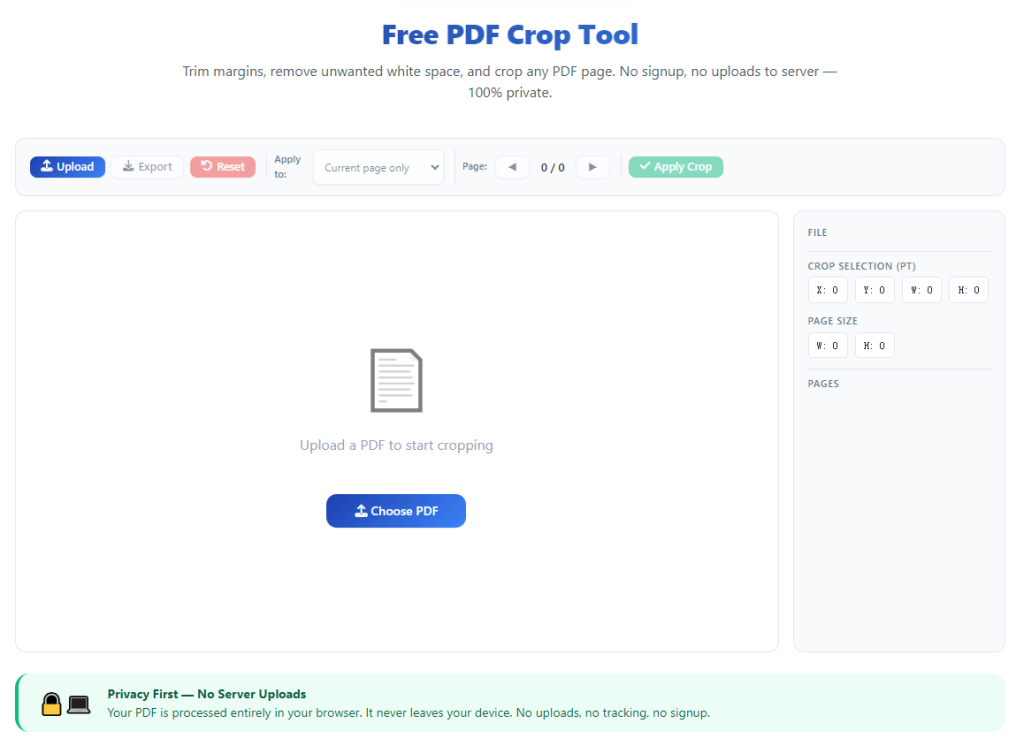
That all changed when I started using a reliable PDF Crop Tool batch cut multiple PDF pages. This simple tool eliminates every single repetitive step of manual cropping. It lets you trim, adjust margins, and clean up dozens of PDF pages all in one go, and it’s completely changed how I organize my PDF documents.
This guide isn’t some generic AI-written template with stiff, perfect sentences. Every tip, every mistake I warn about, every workflow trick comes straight from my own messy trial and error. I’ve messed up batch cropping enough times to know exactly what works, what doesn’t, and what to avoid at all costs.
Why Single-Page PDF Cropping Is Such a Waste of Time
Most basic PDF editors only let you crop one page at a time. On the surface, that sounds fine for a quick one-page fix. But when you’re working with multi-page documents, it becomes a total nightmare really fast.
The biggest issue is inconsistent cropping results. When you manually adjust each page individually, your eye is never perfectly precise every single time. One page gets a slightly wider margin, the next is cropped too tight, another leaves extra empty space on the side.
I’ve submitted school papers and sent client documents with these tiny uneven crop errors before, and it always looks super unprofessional. Small margin inconsistencies make your whole document look rushed and unpolished, even if your actual content is perfect.
Then there’s the sheer time waste. If you’re working on a long report, scanned book pages, meeting documents, or batch scanned forms, single-page cropping takes forever. You end up spending more time fixing margins than you did actually creating the content in the first place.
Manual cropping also leads to frequent user errors. I’ve accidentally cropped too far and cut off important text or page numbers on multiple occasions. Once you save that single-page crop, undoing the mistake takes even more extra work and rechecking.
A lot of people end up skipping cropping entirely just to avoid the hassle. They settle for messy PDFs with big ugly borders, scanned shadows, and uneven empty space. Those untrimmed files look sloppy for sharing, printing, or official submissions.
This is exactly why a dedicated PDF Crop Tool batch cut multiple PDF pages is such a game-changer. It removes all inconsistency, eliminates repetitive manual work, and gives you perfectly uniform results across every single page in your file.
Real Benefits of Batch Cropping Multiple PDF Pages
After testing tons of basic PDF editors and dedicated crop tools, I can honestly say batch cropping features are one of the most underrated PDF tools out there. The difference in workflow speed and file quality is massive.
First off, you get perfectly uniform margins on every page. When you set one crop template for your entire document, every single page gets trimmed to the exact same size. No more lopsided margins, no more random uneven spacing, no more inconsistent framing across pages.
It saves an insane amount of time, plain and simple. What used to take 30 minutes or longer of repetitive clicking now takes less than a minute. You upload your full PDF, set your crop parameters, run the batch process, and you’re done.
I also love that it preserves all your original content perfectly. A quality PDF Crop Tool batch cut multiple PDF pages only trims the empty border space. It never cuts off text, images, tables, headers, footers, or page numbers as long as you set the crop box correctly.
Batch cropping also improves the overall file appearance drastically. Scanned PDFs are the biggest beneficiary here. Most scanned documents come with dark edges, shadow borders, uneven white space, and leftover scanner marks. Batch trimming cleans all that clutter off every page instantly.
Your PDFs also become more print-friendly after batch cropping. Uniform margins mean no content gets cut off during printing, no pages print with weird oversized borders, and every sheet comes out clean and aligned. It makes physical printing so much more reliable.
Another nice bonus is slightly reduced file size. Trimming excess empty border space removes unnecessary blank data from your PDF. The file becomes lighter, easier to share via email or messaging, and faster to upload or download.
Best of all, the whole process requires zero technical skills. You don’t need editing experience, design knowledge, or complex software. Anyone can master batch PDF cropping in just a few tries, even if you’ve never edited a PDF before.
Key Features to Look for in a Reliable Batch PDF Crop Tool
Not every PDF crop tool supports true batch processing. I’ve tried plenty of tools that claim to cut multiple PDF pages at once, but they either fail to deliver or come with annoying hidden limitations. These are the must-have features I always look for.
True global batch cropping is non-negotiable. The tool must apply one consistent crop setting to every page in your document automatically. Avoid tools that force you to select pages in small groups or still require manual page-by-page adjustments.
Preview functionality is super important. You need to see exactly how your crop will look on sample pages before processing the entire file. This stops you from ruining a whole document with one wrong crop setting.
Custom margin adjustment controls are essential. Different documents need different trim sizes. A good tool lets you adjust top, bottom, left, and right margins independently, so you can fix uneven scanned borders perfectly.
Zero quality loss during processing is a must. Some cheap tools compress your file heavily while cropping, leading to blurry text and faded images. Quality batch crop tools keep your text sharp and visuals clear after trimming.
Support for large multi-page files matters a lot. If you’re working with long reports, full scanned books, or bulk document sets, your tool should process the entire file without crashing or lagging mid-batch.
No hidden alterations is another key feature. The tool should only crop empty border space. It should never reorder pages, delete content, modify text, or change your original document layout in any other way.
Common Everyday Use Cases for Batch PDF Cropping
Batch cropping isn’t just a random editing trick. I use my PDF Crop Tool batch cut multiple PDF pages constantly for school, work, business, and personal file organization. It fits so many daily workflows.
Scanned document cleanup is my top use case. Almost every scanned PDF has uneven borders, dark edge shadows, and extra white space around the content. Batch cropping cleans up hundreds of scanned pages in one go, making the whole document look professionally formatted.
Student schoolwork benefits hugely too. Research papers, lab reports, scanned textbook pages, and class notes often come with messy margins. Uniform batch cropping makes submissions look neat, organized, and far more professional to professors.
Business and office documentation is another big one. Meeting minutes, client reports, scanned forms, and company handbooks often have inconsistent borders from scanning or copying. Batch trimming standardizes every page for official sharing and archiving.
Print preparation is incredibly useful. If you’re printing multiple PDF files for meetings, events, or study material, batch cropping ensures every page prints with clean, equal margins. No more wasted paper or cut-off content during printing.
Digital archiving also relies on batch cropping. When you’re saving important PDFs for long-term storage, clean uniform pages look more organized and take up less storage space. It tidies up your entire digital document library effortlessly.
Freelancers and content creators use this tool too. Scanned artwork, portfolio samples, and reference documents look much cleaner and more polished after bulk margin trimming, perfect for client sharing and online presentation.
Simple Step-by-Step Batch Cropping Workflow (Beginner Friendly)
This is the exact routine I use every single time I need to batch cut multiple PDF pages. It’s super straightforward, no confusing settings, and avoids every error I’ve made in the past.
First, gather and open your target PDF file. Make sure it’s the final version of your document, with no missing pages or unedited errors. I always double-check my file first so I don’t waste time cropping an outdated draft.
Launch your trusted PDF Crop Tool batch cut multiple PDF pages. Stick to tools built for full batch processing, not basic single-page crop editors. The interface will have a clear upload section for your full PDF document.
Upload your multi-page PDF file via drag-and-drop or standard file selection. Wait a few seconds for the tool to load every page fully. Avoid closing the tab mid-upload to prevent incomplete file processing.
Access the batch crop setting. This is the key step that separates bulk trimming from single-page edits. Enable the option to apply crop settings to all pages uniformly across the entire document.
Adjust your crop margins carefully. Use the preview window to tweak top, bottom, left, and right trimming until the borders look clean and balanced. Make sure you leave enough space to avoid cutting off text or page elements.
Double-check the preview on multiple sample pages. Don’t just check the first page! I’ve made this mistake before—some documents have slightly different spacing on middle or final pages. A quick multi-page check saves you big errors.
Initiate the batch crop process. The tool will automatically apply your custom margin settings to every single page in the file. Even long documents finish processing in just a few seconds.
Once processing finishes, preview your full cropped PDF. Scroll through several pages to confirm uniform margins, no cut-off content, and clean trimmed borders across the whole document.
Download your finished batch-cropped PDF. Save it to your device or cloud storage with a clear filename so you don’t mix it up with your original untrimmed file.
Most Common Batch Cropping Mistakes (I’ve Made All of These)
These are the errors that ruin batch PDF crop results, and every single one is a simple, avoidable mistake I’ve learned from years of messy editing.
Setting crop margins too tight is the most frequent issue. It’s super easy to trim a little too far and cut off headers, footers, page numbers, or edge text. Always err on slightly wider margins to keep all content intact.
Forgetting to enable batch mode wastes so much time. If you skip the global crop setting, the tool will only trim your current page. You’ll end up with a mix of cropped and uncropped pages and have to start over.
Only previewing the first page causes hidden errors. Some PDFs have variable page sizing or uneven scanning on later pages. A first-page preview won’t catch those inconsistencies.
Using low-quality tools leads to blurry outputs. Cheap unvetted tools compress content during cropping, turning sharp text into fuzzy, hard-to-read lettering that ruins your whole document.
Overlooking page edge content is another easy mistake. Tables, side notes, and graphic elements often sit close to borders. Hasty cropping can slice these important visual elements right off the page.
Saving over your original file is risky. Always save the cropped version as a new file. This lets you go back to the original untrimmed document if you need to adjust your crop settings later.
Personal Pro Tips for Perfect Batch PDF Cropping Every Time
These are small little habits I’ve built up over time to make every batch crop flawless. They’re simple tweaks, but they eliminate almost every possible error.
Bookmark your go-to batch crop tool right away. Having instant access means you never have to settle for bad single-page editors when you need fast bulk trimming.
Always start with a conservative crop setting. You can always trim more if needed, but you can’t restore content you’ve cut off. Slow, careful adjustments beat rushed tight crops every time.
Separate your raw uncropped PDFs and finished clean files into different folders. This stops you from accidentally sharing untrimmed, messy versions of your documents.
For scanned documents, check for shadow edges first. Target your crop margins specifically to remove dark scanner borders while preserving all original content area.
Do a quick print preview after cropping. This confirms your margins translate well to physical printing and no content will get cut off on paper.
Final Thoughts
There’s no reason to waste hours manually cropping PDF pages one by one in this day and age. Single-page trimming is slow, inconsistent, error-prone, and totally unnecessary for anyone who works with multi-page PDFs regularly.
A reliable PDF Crop Tool batch cut multiple PDF pages simplifies the entire process down to a few clicks. It delivers uniform, clean, high-quality cropping results across every page in your document, saves massive amounts of editing time, and eliminates all the messy inconsistencies of manual work.
Whether you’re cleaning up scanned school notes, standardizing business reports, prepping files for printing, or organizing your personal document archive, batch cropping elevates the look and professionalism of every PDF you edit.
Once you get used to this fast, effortless workflow, you’ll never go back to tedious single-page PDF cropping again. It’s one of those tiny everyday tool upgrades that makes your entire digital file management faster, cleaner, and way less stressful.
After learning the operation method, click the link below to enter the tool page for immediate use.