If you regularly manage, share, or publish PDF documents in bulk, you’ve definitely run into this tedious, draining problem. Every single PDF file carries hidden metadata—stuff like author names, document titles, keywords, creation details, and internal file tags that most people never even notice.
But here’s the thing: that hidden data matters a lot. It shapes how your files appear online, how they’re organized in your folders, how search engines index them, and how professional they look when you share them with clients, classmates, or team members.
I used to ignore PDF metadata entirely, and it cost me so much extra work down the line. I’d finish compiling a whole folder of reports, portfolios, or reference documents, only to realize every single file had messy, inconsistent, outdated metadata attached to it.
Back then, I had no other option but to edit each PDF one by one. I’d open a file, adjust the author field, fix the title, update keywords, save it, close it, and repeat the whole process for the next file. It was mind-numbing repetitive work, and I’d waste entire afternoons just fixing basic file properties.
Worse still, manual single-file editing always leads to human error. Some files would get updated correctly, others would slip through the cracks, and a few would end up with mismatched or duplicate metadata entries. No matter how careful I was, consistency was nearly impossible to maintain.
That’s why I started relying on a reliable PDF Metadata Editor batch edit multiple PDF files. This one simple tool eliminated hours of repetitive busywork from my routine. It lets me standardize, update, clean up, and customize metadata for dozens of PDFs all at once, with perfect uniformity every single time.
This guide isn’t some generic, robotic template you’ll find everywhere online. Every frustration, mistake, and workflow tip I share comes straight from my own messy real-world experience. I’ve messed up bulk metadata edits, ruined file consistency, and learned exactly what works and what to avoid the hard way.
Why Single-File Metadata Editing Is So Inefficient
Most basic PDF readers and simple editing tools only let you adjust metadata one document at a time. On the surface, that sounds fine for a quick single-file fix. But once you’re working with five, ten, or twenty PDFs, this method falls apart completely.
The biggest issue is wasted time, plain and simple. What you can fix in one bulk batch takes thirty minutes or longer when done manually. Every extra click, every extra save, every extra file opening adds up ridiculously fast.
I’ve made the mistake of sticking to manual edits for way too long. Once, I spent over an hour updating author and copyright info for a small set of client PDFs, only to realize I’d missed three files entirely. I had to go back and redo the whole process all over again.
Consistency is another huge problem with single-file edits. When you’re tired and clicking through dozens of files, it’s easy to type slightly different titles, misspell author names, or add inconsistent keyword sets. The end result is a messy library of PDFs with disjointed, unprofessional metadata.
Outdated hidden metadata also creates privacy risks. A lot of old PDFs carry leftover creator info, old project tags, or internal notes you don’t want shared publicly. Editing each file one by one makes it way too easy to leave sensitive hidden data behind.
For anyone building organized document libraries, submitting academic work, or sharing professional files, these small inconsistencies add up fast. They make your entire document collection look unpolished, unorganized, and rushed.
Switching to a PDF Metadata Editor batch edit multiple PDF files fixes every single one of these issues in one go. It removes human error, saves massive amounts of time, and ensures 100% uniform metadata across your entire file set.
Key Benefits of Batch Editing PDF Metadata
After testing dozens of basic editors and dedicated metadata tools, I can honestly say batch metadata editing is one of the most underrated productivity hacks for anyone who works with regular PDF files. The difference in workflow efficiency is absolutely massive.
First and foremost, you get perfect universal consistency. When you input your preferred author name, document title format, keyword sets, and copyright details once, every single uploaded PDF gets the exact same updates. No typos, no mismatched entries, no missed files whatsoever.
It cuts your editing time down drastically. Tasks that used to take an hour or more now take less than a minute. Whether you’re updating five files or fifty files, the bulk processing speed stays fast and reliable every time.
I love that you can customize every metadata field in bulk. You can update standard fields like author, title, subject, and keywords, and you can also clear outdated hidden data, remove old creator tags, and add uniform copyright notes across all documents.
Another huge advantage is improved file organization. Uniform metadata makes your entire PDF library way easier to sort, search, and categorize. Your device’s file search tool can pull up accurate results instantly, instead of digging through messy, unlabeled hidden file data.
It also boosts professional presentation massively. Clean, standardized metadata makes your PDFs look polished and intentional for client sharing, academic submissions, business archiving, and online publishing. It’s a small detail, but people absolutely notice the difference.
Privacy protection is another underrated win. Batch editing lets you wipe old, sensitive, or irrelevant hidden metadata from multiple files at once. You don’t have to worry about leftover internal data leaking when you share documents publicly.
Best of all, quality batch metadata editors never alter your actual PDF content. Your text, images, tables, formatting, and layout stay completely untouched. Only the hidden file properties get updated, so your document quality remains perfect.
Must-Have Features for a Reliable Batch Metadata Editor
Not every metadata tool supports true multi-file batch editing. I’ve tried plenty of tools that claim bulk functionality, only to find out they still force single-file processing or deliver flawed, inconsistent results. These are the key features you always need to look for.
True multi-file batch processing is non-negotiable. The tool must let you upload dozens of PDFs at once and apply identical metadata changes to every file in one single operation. Avoid tools that split batches into small groups or require repeated manual steps.
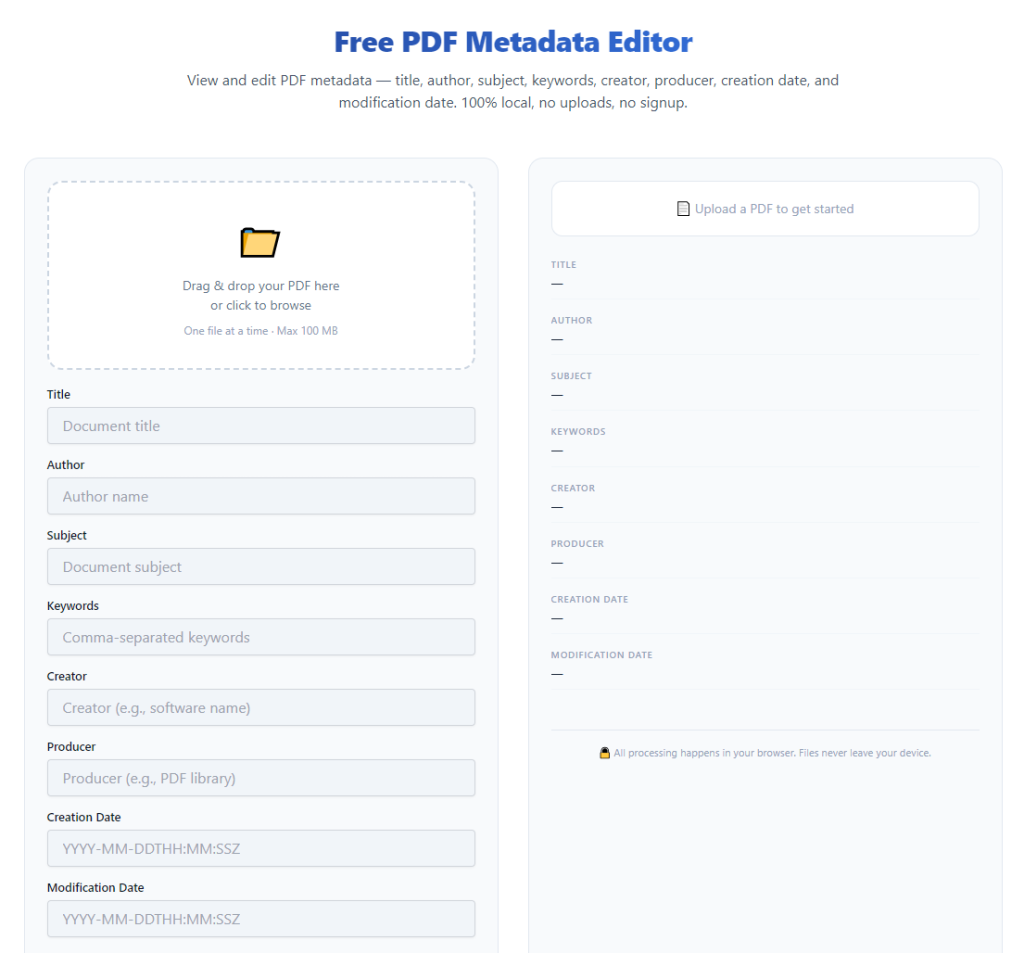
Full field customization is essential. A top-tier PDF Metadata Editor batch edit multiple PDF files supports editing all core fields: title, author, subject, keywords, creator info, and copyright tags. It should also let you blank or clear unused fields in bulk.
Selective batch editing is a great bonus feature. Sometimes you don’t need to change every field. Good tools let you update only the fields you modify while preserving valid original metadata elsewhere. This prevents unnecessary data loss.
Zero content alteration is critical. The tool should only edit hidden metadata properties, never touching your visible document layout, text, or images. Low-quality tools sometimes corrupt file formatting during batch processing, which ruins your entire document set.
Instant preview and verification matters a lot. Reliable tools let you check sample file metadata after processing to confirm uniformity. This quick check ensures your bulk edits applied correctly across the entire file batch.
No hidden limitations are key too. Trusted editors don’t cap file quantities, throttle processing speeds, or lock basic batch features behind paywalls for standard everyday use.
Common Real-World Batch Metadata Editing Use Cases
Bulk PDF metadata editing isn’t just a random technical trick. It’s a practical workflow tool I use every single week for school, business, freelance work, and personal file organization. It fits so many daily scenarios most people overlook.
Business document standardization is my top use case. If you’re sending out company reports, meeting documents, client proposals, or official guides, uniform metadata builds consistent brand professionalism. Batch editing ensures every outgoing file carries matching author and copyright details.
Academic file organization works perfectly too. Students and researchers handling multiple papers, reports, and reference PDFs can standardize naming, author info, and subject tags in bulk. It makes submitting and organizing academic files far cleaner.
Freelance client deliverables benefit massively. When sending portfolio samples, design drafts, or written documents to clients, clean metadata removes old internal project tags and outdated creator info. It makes your work look polished and professional.
Digital library archiving is another huge use case. If you’re building a personal or team archive of PDFs, batch metadata edits let you categorize, tag, and standardize hundreds of files quickly for easy future searching and sorting.
Online document publishing relies heavily on this tool too. Proper uniform metadata helps search engines index your PDF files correctly, improving online visibility and discoverability for public document resources.
Privacy cleanup is incredibly useful as well. Before sharing old project files publicly, you can batch erase outdated personal or internal metadata to avoid leaking unnecessary private information.
Simple Step-by-Step Batch Editing Workflow (Beginner Friendly)
This is the exact casual workflow I follow every time I need to batch edit PDF metadata. It’s super straightforward, no technical skills required, and avoids every mistake I’ve made in the past.
First, gather all your target PDF files into one single folder. Grouping your files first saves you from missing documents or mixing up file batches. I always double-check to ensure I’m only selecting the files I want to edit.
Open your trusted PDF Metadata Editor batch edit multiple PDF files tool. Stick to tools built specifically for true bulk processing, not basic single-file metadata editors that lack batch functionality.
Upload your entire batch of PDF files at once. Most quality tools support bulk drag-and-drop uploads, so you can add every document in your folder in one quick action. Wait for all files to finish loading fully before proceeding.
Fill in your standardized metadata fields. Input your preferred document title format, author name, subject description, relevant keywords, and copyright information. Take your time here—these settings will apply to every uploaded file uniformly.
Select your editing rules carefully. Choose whether you want to overwrite all existing metadata or only update blank fields while preserving valid original data. I usually overwrite for full standardization on brand-new document batches.
Initiate the batch processing. The tool will apply your custom metadata settings to every single PDF in your queue automatically. Even large batches finish processing in just a few seconds.
Verify your results with a quick sample check. Open two or three random finished files to confirm the new metadata applied correctly. This simple step catches any rare batch processing glitches instantly.
Download your fully updated file batch. Save the new edited PDFs as separate files to avoid overwriting your original raw documents. This lets you re-edit or revert changes anytime if needed.
Common Batch Metadata Editing Mistakes (I’ve Made All of These)
These small, avoidable errors are why a lot of people end up with messy or broken metadata even after using batch tools. Every single mistake here comes from my own past trial and error.
Uploading mixed file batches is the most common error. If you mix old project files and new documents in one batch, you’ll apply identical metadata to unrelated files, creating organizational chaos that takes longer to fix later.
Filling out generic or incorrect field data ruins uniformity. Rushing to type placeholder text or misspelling brand names means every file in your batch gets the same wrong metadata, forcing you to reprocess the entire set.
Forgetting to clear outdated sensitive metadata is risky. Many old PDFs carry leftover personal or internal data. If you only update new fields without clearing old entries, messy hidden data remains in your files.
Skipping post-batch verification leads to hidden issues. Rarely, certain file types or complex PDFs might not process perfectly. A quick sample check prevents you from sharing flawed files publicly.
Overwriting original files is a dangerous habit. Saving batch edits directly over your raw PDFs leaves no room for correction if you notice a typo or wrong setting after processing.
Personal Pro Tips for Flawless Bulk Metadata Edits
These are small daily habits I’ve built over time to make every batch metadata edit perfect and error-free. They’re tiny tweaks, but they eliminate almost all workflow issues entirely.
Always group and sort your files before batch uploading. Separating documents by project, client, or topic ensures your bulk metadata settings always match every file in your batch.
Save your most-used metadata templates mentally or in a quick note. If you regularly edit business or academic PDFs, reuse consistent field entries to build long-term file uniformity across your entire library.
Prioritize tools that preserve original PDF quality. Never sacrifice document clarity or formatting just to edit metadata. Good tools edit only hidden data and leave visible content completely untouched.
Do a quick privacy check after bulk edits. Confirm no sensitive old data remains embedded in your files before sharing them with third parties or publishing them online.
Keep original and edited files in separate folders. This simple organizational trick stops you from accidentally using unedited, messy metadata files by mistake.
Final Thoughts
Editing PDF metadata manually one file at a time is an outdated, inefficient habit that wastes so much valuable time. It’s repetitive, error-prone, and completely unnecessary for anyone managing multiple PDF documents regularly.
A dedicated PDF Metadata Editor batch edit multiple PDF files streamlines your entire document workflow. It delivers perfect, uniform metadata across every file in your batch, eliminates human error, protects your privacy, and saves you hours of tedious manual work every single month.
Whether you’re standardizing business documents, organizing academic work, cleaning up freelance deliverables, archiving personal files, or prepping PDFs for online publishing, batch metadata editing elevates your entire document quality and organization.
Once you get used to this fast, effortless bulk workflow, you’ll never go back to slow single-file metadata edits again. It’s one of those quiet, game-changing tool upgrades that makes your daily digital work far cleaner, faster, and way more professional.
After learning the operation method, click the link below to enter the tool page for immediate use.