Every casual shooter, content creator, and small business photographer has run into the same frustrating visual flaw: color cast.
A photo color cast is an unwanted uniform tint that washes over your entire frame, turning neutral whites yellow, skin tones orange, or outdoor shots cold blue.
Many people delete perfectly good photos instead of fixing discoloration manually. Guessing sliders and filters rarely balances hues correctly, leaving uneven, unnatural final shots.
Mastering how to use photo color correction to fix color cast eliminates this issue permanently. This simple editing workflow recovers true, lifelike colors without distorting original texture, lighting, or subject details.
This complete walkthrough covers the root causes of color cast, downsides of quick filter hacks, core advantages of intentional color correction, essential editing tool features, real-world shooting scenarios, and a detailed beginner-friendly step-by-step editing process.
What Exactly Causes Photo Color Cast in Raw & JPG Images
Before learning how to use photo color correction to fix color cast, it helps to understand where unwanted tinting originates in your shots.
Unbalanced artificial lighting sources
Indoor bulbs, fluorescent overhead lights, and cheap studio lamps emit uneven color temperatures. Warm yellow bulbs coat every surface in orange cast, while cool fluorescent lights add harsh green or blue haze.
Mixed multi-light environments
Combining window natural daylight with indoor lamp glow creates clashing color layers. One half of your frame leans warm, the other shifts cool, creating inconsistent cast that basic filters cannot resolve.
Incorrect camera white balance settings
Most new photographers ignore white balance presets. Leaving the camera set to auto in extreme lighting locks permanent color tint into raw and compressed image files before you even transfer photos to edit software.
Low-light shooting without proper exposure
Dim environments force camera sensors to amplify digital noise, which introduces unnatural magenta, blue, or green color shifts across the whole photograph.
Cheap lens filters and damaged camera optics
Low-quality protective filters or scratched lens coatings alter light wavelengths as they hit the sensor, laying a subtle but persistent color cast over every captured frame.
Why Quick Filter Hacks Fail to Fix Severe Color Cast
Many new editors skip intentional color correction and rely on one-click preset filters to mask tinted photos. This shortcut creates permanent visual damage you cannot reverse easily.
Filters cover cast instead of neutralizing it
Presets shift overall saturation and brightness to hide tint rather than balance RGB channels. The underlying color cast remains visible in mid-tones, skin, and neutral gray surfaces.
One-click edits destroy natural skin tone accuracy
Warm orange cast on portrait subjects often gets overcorrected by generic filters, turning human faces pale, gray, or unnaturally red.
Filtered images lose flexible editing headroom
Heavy preset adjustments compress image data. If you want to rework the photo later, you cannot fine-tune tones without introducing banding and muddy color gradients.
Generic presets do not target specific cast hues
A photo plagued by heavy blue cast needs different correction than an orange indoor shot. Universal filters apply identical hue shifts regardless of your image’s unique discoloration type.
Core Benefits When You Learn How to Use Photo Color Correction to Fix Color Cast
Taking the time to master intentional photo color correction delivers consistent, professional image quality for every type of photography project.
Recover true neutral white and gray tones
The biggest marker of a polished photograph is clean, untinted neutral surfaces. Using targeted color cast correction restores pure whites and balanced grays without artificial fading.
Preserve authentic skin tone for portrait photography
Portrait creators rely heavily on balanced hues to capture natural, flattering complexions. Proper photo color correction removes orange indoor cast or blue shadow tint without washing out facial texture.
Retain full image detail and dynamic range
Unlike heavy filters that crush highlights or muddy shadows, precise color cast editing adjusts RGB channels separately. Your photo retains sharp texture, bright highlights, and deep shadow definition.
Create cohesive matching color palettes across photo batches
Content creators shooting product lines, social media series, or event galleries need uniform visual branding. Consistent color correction eliminates random cast variations across dozens of separate shots.
Works for every photo format and shooting niche
Whether you edit landscape outdoor shots, indoor product photos, candid lifestyle portraits, or flat lay imagery, this color correction workflow resolves all categories of unwanted tinting.
Edits remain fully reversible for future revisions
Professional photo color correction layers non-destructive adjustments. You can revisit the file weeks later to tweak cast strength, warmth, or saturation without ruining the original image file.
Must-Have Editing Tool Features for Photo Color Cast Correction
Not all photo editing software delivers precise tools to eliminate discoloration. When practicing how to use photo color correction to fix color cast, prioritize tools built with these targeted adjustment panels.
Custom white balance temperature and tint sliders
Temperature controls shift warm/cool balance to counter orange or blue cast, while tint sliders neutralize green and magenta haze. Dual sliders let you target two separate cast types at once.
RGB channel individual adjustment panels
Top editing platforms let you lift or reduce red, green, and blue light independently. This granular control fixes uneven cast that broad temperature sliders cannot fully resolve.
Neutral gray color picker eyedropper tool
The single most powerful feature for fast cast removal: click any neutral gray or white surface in your photo, and the tool auto-balances all color channels to erase tint instantly.
HSL/Hue Saturation Luminance editing modules
HSL panels isolate specific color ranges. If your photo carries heavy green fluorescent cast, you can lower green saturation and shift its hue without altering red skin tones or blue sky sections.
Non-destructive adjustment layer support
All color correction changes sit on separate editable layers above your original photo. You can toggle corrections on/off, erase adjustments from specific areas, or lower opacity to soften heavy cast fixes.
Histogram real-time color readouts
Live histogram visuals show red, green, and blue channel balance as you edit. You avoid over-correcting cast, which creates new artificial color shifts in highlights or shadows.
Mask and brush selective correction tools
Not every part of your photo carries color cast. Mask brushes let you apply tint removal only to affected zones, leaving naturally warm sunset or cool twilight areas untouched.
Common Real-World Use Cases for Photo Color Cast Correction
Learning how to use photo color correction to fix color cast applies to nearly every photography style, hobby, and commercial creative workflow.
Indoor portrait and family photography
Home living rooms, event banquet halls, and restaurant dining spaces feature mixed warm artificial lighting. Shots develop heavy orange/yellow cast that dulls skin tones; targeted color correction restores natural facial hues.
E-commerce product flat lay photography
Many small brands shoot inventory under cheap office fluorescent lights, which add flat green cast across fabrics, cosmetics, and merchandise. Balanced color correction recovers true product colors for listing visuals.
Outdoor landscape and golden hour backup shots
Cloudy overcast days add flat blue cast to forest, mountain, and lake scenery. Even sunset photos shot under partial shade can develop uneven cool tint that mutes warm natural light tones.
Social media lifestyle and food content creation
Café, bakery, and home cooking photos often suffer mixed light cast from window sunlight and indoor kitchen lamps. Consistent color correction creates a uniform warm aesthetic across an entire feed of food imagery.
Student and amateur travel photography
New travelers rarely adjust camera white balance while hopping between indoor museums, neon-lit city streets, and shaded outdoor landmarks. Mass photo batches carry random blue, green, and orange cast that uniform editing resolves quickly.
Corporate office and professional headshot imagery
Fluorescent overhead office lighting introduces dull green-magenta cast to business portraits and team group shots. Color cast correction creates crisp, professional neutral tones ideal for websites and print materials.
Archival photo restoration projects
Older scanned printed photos carry faded yellow or sepia cast from aging paper and outdated lighting. Gentle color correction revives original balanced hues without over-saturating vintage texture.
Step-by-Step Complete Workflow: How to Use Photo Color Correction to Fix Color Cast
Follow this beginner-friendly, repeatable editing process to eliminate any type of color cast from your photographs using standard photo correction tools.
Step 1: Import your unedited photo and identify the dominant color cast
Upload your raw or JPG file into your editing workspace. Zoom into neutral surfaces (white walls, gray clothing, plain paper) to spot the primary tint.
Note the cast type: warm orange/yellow, cool blue, flat green, or mixed magenta-green fluorescent haze. This observation guides all your following correction choices.
Duplicate your base image layer to enable non-destructive editing. Never make permanent pixel changes to your original photo file.
Step 2: Access the white balance temperature and tint adjustment panel
Locate the basic color correction module in your editing tool. Open temperature and tint sliders, the core controls for broad cast neutralization.
If your photo leans orange/warm cast, drag the temperature slider toward cooler blue values to counteract yellow tint. If the shot looks overly blue, shift temperature toward warm yellow/orange.
Use the tint slider to offset secondary green or magenta haze. Pull the slider toward magenta to erase green fluorescent cast, or shift green to neutralize pink/magenta discoloration.
Adjust sliders in small increments. Over-shifting creates an opposite unwanted cast that looks artificial and washed out to viewers.
Step 3: Use the neutral gray eyedropper tool for instant auto-balance
Select the white balance eyedropper tool from the correction panel. Hover over any naturally neutral gray, white, or black object in your frame.
Click the neutral surface once. The tool automatically recalibrates all three RGB color channels to eliminate the global color cast across your entire photograph.
Compare the before/after preview. If auto-correction overcompensates skin tones or landscape hues, lower the opacity of this adjustment layer to soften the effect.
Step 4: Fine-tune discoloration with individual RGB channel sliders
Open the separate red, green, blue channel adjustment panel for granular correction. Target residual cast that temperature/tint sliders could not fully remove.
For leftover orange skin cast: slightly reduce red channel mid-tones to calm harsh warm tint without removing healthy blush from faces.
For lingering green fluorescent haze: lower green channel saturation in mid-tones to flatten the artificial office lighting tint.
For cool blue shadow cast: lift subtle red/yellow values in shadow channels to add balanced warmth to dark areas of the frame.
Step 5: Refine specific color ranges with the HSL adjustment module
Open the Hue/Saturation/Luminance panel to isolate only the tinted color range, leaving unaffected hues intact.
If green cast persists across background walls: select the green channel, lower saturation slightly, and shift hue to neutral gray to eliminate flat artificial tint.
If orange skin cast remains strong: enter the orange/red HSL channels, reduce saturation marginally, and shift hue toward natural peach skin tones.
For washed-out blue sky cast in landscape shots: boost blue luminance slightly while adjusting hue to rich natural sky blue, removing gray cool haze.
Step 6: Apply selective mask correction for uneven localized cast
Many photos only carry color cast in certain zones—shadow corners, indoor background walls, shaded product edges.
Create a layer mask on your main color correction adjustment. Select a soft black brush with low flow opacity.
Paint over areas of the photo that already hold natural balanced color (sunlit windows, warm sunset sky, naturally red fruit) to erase correction from those sections.
This step preserves naturally colored elements while fully fixing tinted background and shadow regions, creating far more realistic final imagery.
Step 7: Cross-check color balance with the live histogram readout
Pull up your editing tool’s RGB histogram overlay. Inspect red, green, and blue channel peaks across highlights, mid-tones, and shadows.
Balanced photos show aligned channel peaks in neutral mid-tones. If one channel sits far higher or lower, make tiny slider tweaks to match channel levels evenly.
Avoid pushing any channel to clip pure black or pure white, which creates permanent color banding and lost texture detail in your final image.
Step 8: Soften correction intensity and review full-image naturalness
Lower the overall opacity of your combined color correction adjustment layers to between 70 and 90 percent. Heavy 100% correction often creates flat, artificial digital color.
Zoom fully out to view the complete photograph. Check skin tones, neutral objects, and colored subjects to confirm no new artificial tint has appeared post-editing.
If sections look washed out or overly saturated, return to HSL and RGB sliders to make minor balancing tweaks before finalizing.
Step 9: Save a layered editable master file plus a finished export copy
Save your working edit as a layered project file that retains all color correction adjustment layers. This lets you rework cast balance months later for rebranding or repurposing content.
Create a separate flattened export copy for sharing, posting online, or printing. Select standard high-quality compression settings that preserve corrected color vibrancy without data loss.
Common Mistakes to Avoid When Using Photo Color Correction to Fix Color Cast
Even with professional editing tools, these frequent missteps ruin photo quality and leave uneven discoloration intact after editing.
Overcorrecting temperature sliders to the opposite extreme
When faced with orange indoor cast, many editors drag temperature all the way to cool blue values. This swaps one harsh cast for another, creating pale, lifeless skin and gray background surfaces. Small incremental shifts always deliver more natural results.
Ignoring secondary green/magenta tint cast adjustments
People focus only on warm/cool temperature balance and skip the tint slider. Fluorescent lighting creates green-magenta haze that temperature sliders alone cannot resolve, leaving dull, flat color even after white balance tweaks.
Editing without duplicate non-destructive layers
If you edit directly onto your original photo pixel layer, any over-correction is permanent. You cannot revert subtle color shifts without reimporting the raw source file and restarting the entire correction workflow.
Applying global color correction to naturally tinted elements
Sunset sky, red fruit, warm wood furniture, and neon signage carry intentional natural color. Failing to mask correction off these areas strips the photo of authentic visual character for the sake of perfectly neutral grays.
Relying solely on auto eyedropper correction with no manual refinement
The gray eyedropper tool delivers fast baseline balance, but auto adjustments rarely account for subject priorities like natural skin tone. Always follow auto-balance with HSL and RGB manual fine-tuning.
Neglecting histogram channel balance checks
Editing purely based on screen visual perception leads to uneven RGB channel weight. Screens can display color differently, so the histogram acts as an objective reference for true balanced cast removal.
Using heavy global saturation boosts to hide residual cast
When minor tint remains after correction, editors often raise overall saturation to mask discoloration. This amplifies artificial cast hues and creates oversaturated, unrealistic skin and product tones.
Expert Pro Tips to Elevate Your Photo Color Cast Correction Results
Use these actionable professional strategies every time you practice how to use photo color correction to fix color cast for cleaner, more marketable finished photographs.
- Bookmark your preferred editing tool’s color correction panel layout to speed up batch editing of dozens of cast-affected photos in one session.
- Create a reusable lightweight color correction preset for your most common lighting scenarios (indoor fluorescent, warm home bulb, overcast outdoor) to cut repetitive slider adjustments.
- Always edit photos in a dim, neutral-gray workspace screen environment. Bright colored surrounding walls distort how your eyes perceive tint and skew correction decisions.
- Separate correction workflows for portraits versus product photography; skin tones demand softer, subtle balance while merchandise photos require strict neutral white standards.
- For bulk gallery editing, apply your core color correction layer to one reference photo, then copy adjustment layers across matching lighting shots to maintain consistent tone across an entire series.
- When restoring scanned vintage photos, lower overall correction opacity to preserve subtle aged warm sepia texture instead of forcing fully modern stark neutral whites.
- Pair color cast correction with gentle shadow/highlight recovery after balancing RGB channels; balanced color often reveals hidden detail in previously tinted dark or bright zones.
- Save before-and-after comparison copies of every edited photo to train your eye to spot subtle cast variations faster over repeated editing sessions.
Final Thoughts
Unwanted color cast is one of the most avoidable visual flaws in digital photography, yet countless creators discard perfectly usable images due to lack of targeted editing knowledge.
Generic one-click filters and blind slider guessing only mask discoloration temporarily, sacrificing natural texture, skin tone accuracy, and long-term edit flexibility in the process.
Learning how to use photo color correction to fix color cast gives you full, granular control over every RGB channel in your frame. This structured workflow neutralizes orange, blue, green, and mixed tint without stripping your photos of authentic natural character.
From amateur hobby snapshots to commercial e-commerce product shots and professional portrait sessions, this repeatable correction process adapts to every lighting environment and photography niche.
By following the step-by-step editing workflow, avoiding common over-correction mistakes, and implementing the professional fine-tuning tips outlined above, you can consistently produce balanced, lifelike, visually cohesive photos free of distracting color cast discoloration for all your creative projects.
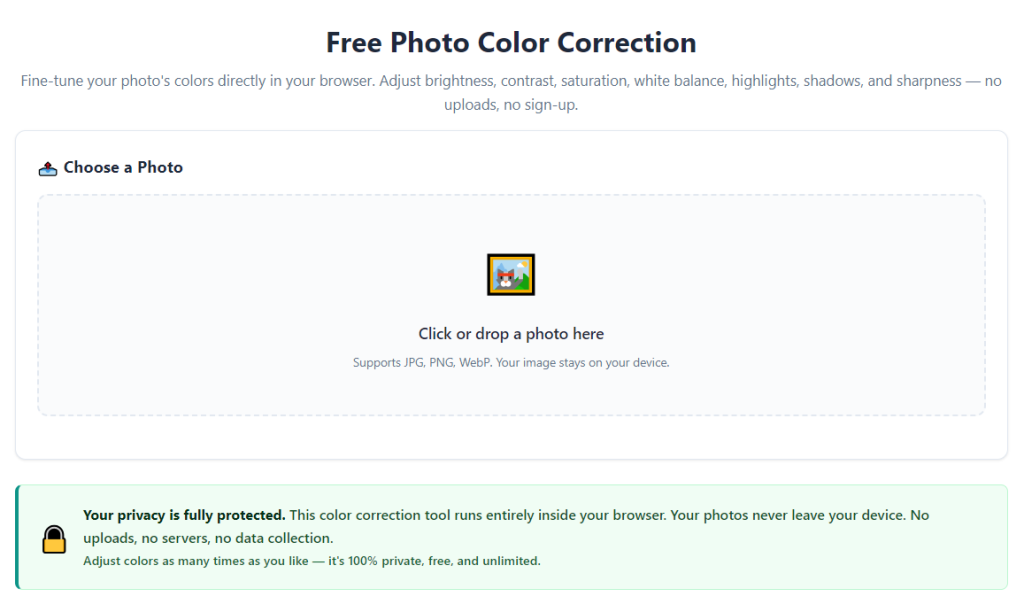
After learning the operation method, click the link below to enter the tool page for immediate use.