When dining out with friends, ordering takeout for a group, or splitting grocery delivery among roommates, shared orders rarely come with identical individual costs. One person might order an expensive main dish, another only a small drink, and others add sides, desserts or add-ons.
Trying to calculate fair individual shares by hand leads to miscalculations, awkward debates over who owes what, and wasted time scribbling numbers on receipts. Mental math fails when mixing different menu prices, tax rates, and tip percentages for uneven group orders.
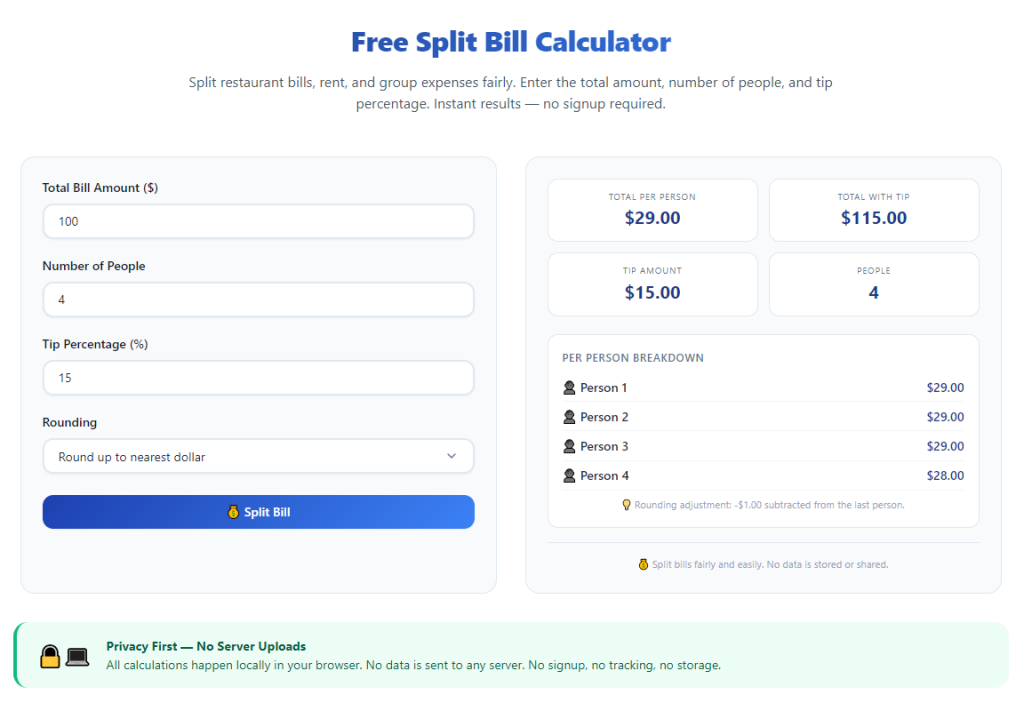
A reliable split bill calculator for unequal shared orders eliminates all these headaches. It separates every individual item, automatically distributes tax and tips proportionally, and generates clear, accurate individual balances for every person in the group.
This comprehensive user guide breaks down the flaws of manual bill splitting, core advantages of dedicated unequal order calculators, must-have functional features, everyday real-world use cases, and a complete beginner-friendly step-by-step workflow to get precise split results every single time.
Common Frustrations of Manual Splitting for Unequal Shared Orders
Handling uneven group order costs without a specialized calculator creates consistent, avoidable stress during every group meal or shared delivery.
Manual math leads to frequent calculation errors
Adding separate item prices, dividing tax, and allocating tips across unequal purchases creates dozens of small arithmetic steps. Even careful people mix up subtotals, resulting in overcharging or undercharging group members.
Proportional tax and tip allocation becomes confusing
Flat equal splits only work if everyone ordered identical food. For unequal shared orders, tax and tips need to scale to each person’s individual subtotal. Manual work rarely distributes these surcharges fairly.
Receipt scribbling wastes valuable group time
After finishing a meal or waiting for a delivery, no one wants to spend ten or more minutes sorting through line-item receipts to tally separate orders. Slow manual splitting cuts into social time and creates delays before everyone can settle payments.
Disagreements over fair cost division arise often
When calculations are vague or approximate, group members may argue over whether tax and tips should be split evenly or proportionally to their own food costs. Vague handwritten numbers fuel unnecessary tension.
No clear breakdown to reference later
Handwritten math on crumpled receipts gets lost or smudged easily. Without a structured breakdown of each person’s individual charges, resolving follow-up payment questions becomes nearly impossible.
Hard to adjust for shared add-ons and group extras
Split drinks, shared appetizers, group sides, and service fees add extra layers of complexity. Manual counting struggles to evenly divide shared extras across people with vastly different personal order totals.
Key Benefits of Split Bill Calculator for Unequal Shared Orders
Integrating a dedicated split bill calculator for unequal shared orders into your group payment routine streamlines cost division and removes all guesswork from uneven shared order splits.
Separates every individual item automatically
Unlike generic equal-split tools, this specialized calculator lets you assign every menu item, drink, and add-on directly to the person who ordered it. It builds fully individualized subtotals for each group member from the ground up.
Allocates tax and tips proportionally to each person’s bill
The tool calculates sales tax and gratuity based on each individual’s food subtotal, not a flat even split. This creates mathematically fair balances for unequal shared orders, so no one overpays for another person’s expensive meal.
Generates instant, readable breakdowns for the whole group
Within seconds of inputting all order details, the calculator outputs a clear itemized list showing each person’s food charges, their portion of tax, their tip share, and their final total owed. The transparent layout eliminates arguments over cost fairness.
Cuts bill-splitting time down to mere minutes
What would take ten or more minutes of handwritten math only takes one to three minutes with the calculator. You and your group can settle payments quickly and return to conversation or other plans without delay.
Accommodates shared group extras with flexible splitting rules
The tool includes dedicated fields for shared appetizers, pitchers of drinks, family-style sides, delivery fees, and service surcharges. You can split these collective costs evenly across all attendees without recalculating manually.
Works for in-restaurant dining, takeout, and delivery orders
Whether you split a dine-in restaurant check, a pickup takeout group order, or a multi-person grocery or food delivery, the calculator adapts to all formats of unequal shared orders with identical accurate logic.
Removes bias and awkward money conversations
Precise, automated numbers leave no room for subjective debate about who owes what. The neutral calculation results make settling group payments straightforward and conflict-free for friends, family, coworkers, and roommates.
Must-Have Features of a Quality Split Bill Calculator for Unequal Shared Orders
Not all generic bill split tools support uneven itemized group orders. The top-tier split bill calculator for unequal shared orders includes these purpose-built, user-centric features designed exclusively for unequal shared order scenarios.
Individual item assignment functionality
The core feature that separates this tool from basic split calculators: every food, drink, and extra can be tagged to a specific person in the group, building personalized subtotals for unequal order breakdowns.
Proportional tax and tip calculation mode
Toggle between proportional split (tied to each person’s food cost) and flat equal split for tax and gratuity. This flexible setting matches every group’s preferred payment logic for uneven shared orders.
Custom group member name input fields
Add custom labels for each person splitting the bill, such as friend names, roommate labels, or coworker tags. Each individual’s final balance displays next to their name for simple reference.
Separate entry for shared group add-ons
Dedicated input boxes for shared plates, bulk beverages, delivery fees, and mandatory service charges. The tool evenly divides these collective costs across all listed group members automatically.
Editable percentage fields for tax and tip rates
Input local sales tax percentages and custom tip percentages (15%, 18%, 20% or custom values) to match restaurant, takeout, and delivery standard pricing structures.
Line-item editable price inputs
Adjust individual food prices to match exact receipt amounts, including cents. No rounding errors skew final balances for small or high-value unequal order items.
Clear printable or copyable breakdown output
Generate a full text breakdown that you can copy to a note, share in a group chat, or write down for reference. The organized layout separates food, tax, tip, shared fees, and final owed totals per person.
Support for variable group sizes
Add or remove participant slots freely, from small groups of two people splitting an unequal two-item order up to large parties of ten or more with dozens of separate menu purchases.
Everyday Real-World Use Cases for Unequal Shared Order Split Calculators
A versatile split bill calculator for unequal shared orders fits nearly every social, household, and workplace scenario that involves splitting uneven group food and delivery costs.
Dine-in restaurant group meals with separate orders
Groups dining out rarely order identical meals. One guest may order steak, another a salad and water, while others add cocktails and desserts. The calculator fairly divides the full check based on each person’s unique selections.
Takeout pickup group orders for friends or coworkers
Office lunch runs, weekend friend takeout, and student dorm pickup orders almost always include unequal items. The tool quickly tallies each person’s separate food, drinks, and shared sides without manual math.
Multi-person food delivery and grocery drop-offs
Roommates splitting a late-night delivery, families ordering separate meals to the same address, or teams ordering bulk grocery delivery all rely on unequal order splits. The calculator handles delivery fees and tax proportionally for each participant.
Family gatherings with separate individual plates
Holiday meal takeout orders, picnic catering, and event food drop-offs include mixed priced items for every family member. Unequal portions and separate drink purchases become simple to divide with the tool’s line-item assignment feature.
Roommate monthly food and household shared orders
Regular grocery deliveries, fast food group runs, and bulk snack orders between housemates create recurring unequal shared costs. The calculator provides consistent, repeatable fair splits for monthly household expense tracking.
Small workplace team catering splits
Office team lunch catering often includes individual meals, coffee add-ons, and shared platters. The calculator separates personal food costs while evenly dividing group catering fees across all staff members.
Date or pair dining with mismatched order costs
Even two-person meals feature unequal spending: one person orders an expensive entree and wine, the other a cheap appetizer and water. The calculator removes awkward guesswork for two-person uneven bill splits.
Step-by-Step Complete Guide: How to Use Split Bill Calculator for Unequal Shared Orders
Follow this simple, actionable workflow to generate perfectly fair, accurate payment totals using a dedicated split bill calculator for unequal shared orders for any uneven group food order.
Step 1: Gather your full itemized receipt or order summary
Pull up the physical restaurant receipt, digital takeout order slip, or delivery order breakdown. Note every individual food item, drink, shared appetizer, sales tax amount, delivery/service fee, and desired tip percentage.
Separate items into two categories: individual personal orders and shared group extras that everyone consumes together. This organization speeds up data entry into the calculator.
Step 2: Open the split bill calculator tool for unequal shared orders
Launch the calculator in your browser or device. The main interface will display three core sections: participant name inputs, individual item entry fields, and shared group cost fields with tax/tip adjustment sliders.
Spend ten seconds familiarizing yourself with the assignment function that tags each food line to a specific group member—this feature is the core difference between this tool and generic equal split calculators.
Step 3: Enter all group participant names
Input the names or short labels for every person splitting the bill. Add or remove participant slots to match your exact group size, whether two people or a large party of eight or more.
Double-check that you have added a slot for every attendee who will contribute to the final payment totals to avoid missing anyone from the split breakdown.
Step 4: Input individual unequal menu items and assign each owner
Start typing each line-item price from your receipt into the individual item fields. After entering the dollar and cent value for each food or drink, select the matching participant name who ordered that specific item from the dropdown menu.
Repeat this process for every separate personal purchase, including main dishes, side orders, alcoholic beverages, desserts, and individual add-ons like extra sauces or premium toppings.
Skip shared group platters and bulk drinks for now; those will be entered in the dedicated shared cost section in the next step.
Step 5: Add all shared group extras and collective fees
Navigate to the shared costs input area of the calculator. Type in the total cost of shared appetizers, bulk pitchers of drinks, family-style sides, delivery surcharges, and mandatory restaurant service fees.
The tool will automatically divide these shared total amounts evenly across every listed participant, so you do not need to calculate individual shared portions by hand.
Step 6: Input your local sales tax rate and target tip percentage
Locate the tax and tip adjustment panel. Enter your region’s standard sales tax percentage as shown on your receipt, then type in your agreed tip percentage for server or delivery worker gratuity.
Confirm you have selected the proportional split mode for tax and tips—this setting ensures tax and tip charges scale to each person’s individual food subtotal for fair unequal order division. You may switch to flat equal split if your group prefers that alternative rule.
Step 7: Run the full split calculation
Once all item prices, participant names, shared fees, tax rate, and tip percentage are fully entered, select the calculate button to generate the complete unequal order split breakdown.
The tool will process all inputs in one second and display a full organized report on screen, separated into individual subtotals, allocated tax, allocated tip, shared cost portion, and final total owed per person.
Step 8: Review the full line-item breakdown for accuracy
Read through every participant’s section of the generated report carefully. Verify that each person’s assigned food items match the original receipt, and double-check that shared group costs are distributed evenly across all attendees.
If any item was tagged to the wrong person or a price was typed incorrectly, return to the item entry panel to edit the value or reassign the owner before finalizing payment amounts.
Step 9: Copy or save the full breakdown for group reference
Use the built-in copy text function to save the complete split report to your device’s clipboard. You can paste the breakdown into a group chat, note document, or write it down on a piece of paper for everyone to review before settling payments.
Save a copy of the breakdown if you need to reference the split amounts later for peer transfers, Venmo requests, or household expense tracking between roommates.
Step 10: Collect payments using the calculated individual totals
Share the finalized breakdown with every group member, then request payments matching the exact final owed number listed next to their name in the calculator output.
For future group orders, you can reset all calculator fields with one click to repeat the entire unequal split workflow for your next restaurant, takeout, or delivery group purchase.
Common Mistakes to Avoid When Using Split Bill Calculator for Unequal Shared Orders
Even with a fully functional split bill calculator for unequal shared orders, these frequent user errors can create unfair or inaccurate split totals for your group’s uneven shared orders.
Assigning shared group food items to a single participant
If you input shared appetizers or bulk drinks under one person’s individual item list instead of the dedicated shared cost field, that single person will be charged the full price of the group platter instead of an equal divided portion. Always use the separate shared cost panel for collective food extras.
Accidentally selecting flat equal split for tax and tip
Flat split mode divides tax and tip evenly across all participants regardless of their personal food subtotal. This creates unfair charges for people who ordered cheap meals while others purchased expensive dishes. Stick to proportional split for unequal shared orders unless the whole group agrees to equal surcharge division.
Skipping double-checks of entered item prices
Typos when typing receipt dollar amounts directly skew every participant’s final balance. A misplaced decimal or wrong digit creates large overcharges or undercharges for group members; always cross-reference entered prices against your physical or digital receipt.
Forgetting to add all group participants to the tool
Leaving one roommate, friend, or coworker off the participant list forces the calculator to divide shared fees and collective costs across fewer people, raising every listed attendee’s owed balance incorrectly. Count your group members before starting item entry.
Mixing personal and shared items in the same entry field
Combining individual meals and group platters into the individual item section breaks the calculator’s proportional math logic. Strictly separate personal purchases and shared extras into their designated input panels to maintain accurate split results.
Ignoring delivery or mandatory service fees
Many users only input food prices and skip entering delivery surcharges, restaurant mandatory gratuity, or catering fees. These extra charges factor into the total bill and need to be added as shared costs for an entirely complete split calculation.
Pro Tips to Maximize Accuracy & Speed With Unequal Order Split Calculators
Use these practical, everyday strategies to get the fastest, fairest results every time you operate a split bill calculator for unequal shared orders for group food and delivery splits.
- Pull up your digital receipt or unfold your paper receipt before opening the calculator to avoid switching back and forth between screens during data entry.
- Assign each item to a participant immediately after typing its price instead of entering all prices first—this cuts down on confusion when matching dozens of line items to group members.
- Always use proportional tax and tip splitting for groups with wildly different order values to eliminate complaints about unfair surcharge costs.
- Copy the full breakdown text after every calculation to store in a shared note for roommates or recurring coworker lunch groups to reference later.
- Reset all calculator fields fully after finishing one group split to avoid leftover participant names or old item prices mixing into your next unequal order calculation.
- If your group occasionally agrees to split tax and tips evenly, toggle the flat split mode temporarily and revert back to proportional for standard unequal order splits in the future.
- For large parties with more than six participants, split data entry into small batches of three to four items at a time to prevent input errors and speed up the full calculation process.
Final Thoughts
Splitting uneven shared food orders manually creates unnecessary math stress, payment disputes, and wasted social time for every group dining, takeout, or delivery scenario. Rough handwritten estimates and mental math cannot fairly distribute tax, tips, and shared extras across people with vastly different individual meal costs.
A purpose-built split bill calculator for unequal shared orders eliminates every pain point of manual bill splitting. Its core item-assignment feature and proportional surcharge logic deliver transparent, mathematically balanced payment totals tailored exclusively for uneven group orders of all sizes.
Whether you split restaurant checks with friends, coordinate office catering payments, divide delivery costs with roommates, or settle family takeout expenses, this tool adapts seamlessly to every real-life shared order situation.
By following the step-by-step entry workflow and avoiding common calculation mistakes outlined above, you can generate accurate, conflict-free split totals in minutes for any unequal shared order, streamlining group payment processes and removing awkward money conversations from every meal with friends, family, and coworkers.
After learning the operation method, click the link below to enter the tool page for immediate use.