Many users save QR codes as picture files inside phone gallery or computer folders for later access. Standard camera QR readers only work with real-time live camera feed and cannot process already stored image files directly.
Most dedicated QR scanner apps require full download and local installation, eating up valuable device storage and filling screens with frequent popup advertisements and upgrade prompts after setup completes.
Some premium QR decoding software locks photo-based scanning features behind paid subscriptions, making casual one-off QR lookups unnecessarily costly for occasional users and small business operators.
Mastering How to use online QR code scanner from saved photos completely solves these daily scanning troubles. Users decode gallery-stored QR pictures straight from any regular web browser with zero downloads or hidden service charges.
This detailed practical tutorial covers common limitations of app-only QR scanning solutions, core advantages after learning how to use online QR code scanner from saved photos, essential built-in tool functions, common real-world usage scenarios and complete beginner-friendly operating steps.
Common Downsides of Traditional App-Based QR Scanning Options
Download-only QR scanner applications create multiple unnecessary barriers when users need to decode QR codes saved as offline picture files on local devices.
Live camera-only scanning restriction blocks saved photo decoding
Built-in phone camera QR functions focus exclusively on real-time scanning. Once users save QR into gallery images, default system tools fail to recognize and extract embedded content from stored files.
Mobile scanner apps consume excessive local storage capacity
Each standalone QR application occupies hundreds of megabytes of device space, which becomes a burden for smartphones with limited internal memory storage.
In-app advertisements disrupt regular QR reading experience
Free downloaded scanner apps flood users with full-screen adverts after every few scans, interrupting quick content lookup and slowing down daily productivity noticeably.
Premium paywall for gallery import QR scan feature
Several well-known scanning apps hide photo upload QR decoding inside premium membership tiers, forcing casual users to pay just for basic saved-image QR parsing functionality.
Frequent app updates waste mobile data and extra time
Installed QR readers send constant version upgrade reminders; repeated downloads of update packages drain cellular data for users without steady Wi-Fi access nearby.
Key Benefits Once You Learn How to Use Online QR Code Scanner From Saved Photos
After getting familiar with How to use online QR code scanner from saved photos, users bypass all annoying restrictions found within installed mobile and desktop QR scanning applications.
Full browser operation with zero app download required
Open the scanning tool page on any available browser, no installation packages or permission approvals needed before starting saved photo QR decoding tasks.
Direct upload support for all locally stored QR picture files
Users pick images straight from device gallery, desktop folders or cloud-synced photo collections to submit into the scanner without moving or re-saving original picture files elsewhere.
Completely free unlimited daily QR decoding for saved photos
No daily scan limits, trial expiration rules or hidden upgrade costs exist. Users upload and parse countless saved QR photos every single day fully free of service fees.
Cross-device compatible scanning rules across all gadgets
The same web-based QR scanner works uniformly on iOS, Android phones, Windows laptops and tablet devices with consistent decoding accuracy across every platform.
Quick result display with one-tap copy for decoded QR content
Extracted links, text or contact data pops up instantly after upload, paired with convenient copy buttons to save results directly into device clipboard for later usage.
No unnecessary device permission requests during scanning process
Unlike installed apps demanding camera or storage access rights, most reputable online QR photo scanners only request temporary file access for single uploaded images and leave no persistent permissions enabled.
Must-Have Core Features for Qualified Online QR Code Scanner From Saved Photos
When selecting reliable web tools to practice How to use online QR code scanner from saved photos, verify these core functional components come pre-built inside the scanning platform.
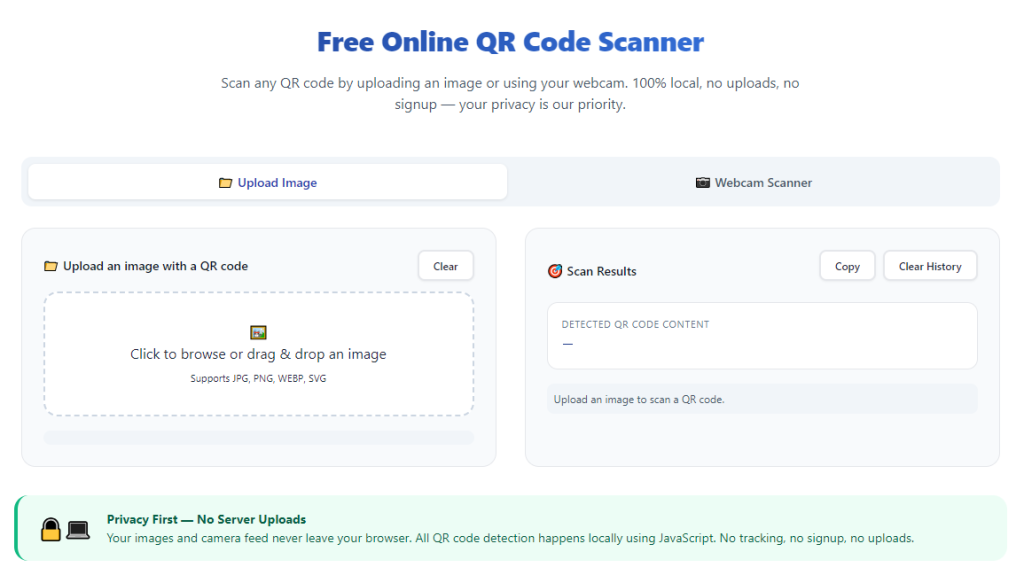
Clear image upload selection button for local saved photos
Prominent upload control lets users browse internal device storage and select any PNG, JPG or other common picture formats holding printed or screenshot QR codes.
Multi-format QR recognition covering URL, text and contact codes
High-quality online scanners decode all mainstream QR content types, including webpage links, plain notes, business card details and short SMS instructions embedded inside saved image files.
Auto crop and optimize blurry saved QR images automatically
Advanced built-in image enhancement fixes slightly out-of-focus or unevenly lit saved QR photos to raise overall decoding success rate for low-quality screenshot pictures.
Instant result output area separated from upload panel
Decoded content loads inside an independent result block so users distinguish original uploaded file information from extracted QR data without visual confusion.
One-click copy function for fully parsed QR output content
Copy shortcut sits beside every finished scan result to move decoded links or text into clipboard for messaging, note taking or browser access quickly.
Bulk multiple photo upload option for batch QR decoding
Premium free online variants accept several saved QR photos in one single upload session, perfect for small merchants processing stacks of offline promotional QR codes at once.
Wide Practical Application Scenarios for Saved Photo Online QR Scanning
Knowing How to use online QR code scanner from saved photos delivers flexible QR parsing solutions across personal daily use, small retail business, marketing work and office administration tasks.
Personal saved QR screenshot quick content lookup
Users capture QR codes from posters, flyers or social feeds and store inside gallery; later upload these saved photos into online scanner to access hidden links and information anytime needed.
Small retail shop offline coupon QR verification
Shop owners save customer’s printed discount QR codes as photos, then batch scan uploaded images to confirm coupon validity without bulky dedicated POS scanning equipment nearby.
Digital marketing campaign QR performance sorting
Marketers collect screenshot QR codes from different channel promotions stored in device folders, decode each saved picture to verify target landing page links and adjust campaign layouts accordingly.
Office staff business card QR information extraction
Administrators take photos of contact QR codes printed on physical business cards, upload saved images to pull out phone numbers and website details into digital contact lists easily.
Event organizer pre-stored guest pass QR checking
Event managers save attendee ticket QR codes as picture files beforehand, using web scanner to decode stored photos for quick guest entry validation during busy on-site check-in periods.
Student classroom resource QR archive management
Learners save course material QR codes captured from textbooks or classroom slides, scan stored photos online to open learning links and organize personal study resource folders efficiently.
Complete Step-by-Step User Guide: How to Use Online QR Code Scanner From Saved Photos
Follow this easy beginner workflow to master how to use online QR code scanner from saved photos and finish reliable QR parsing within seconds each operation.
Step 1: Locate your target saved QR photo inside device storage
Open your phone gallery or desktop picture folder to find pre-saved QR screenshots or captured photos, confirm image files are not corrupted or excessively blurry before proceeding further.
Mark all required QR pictures in advance if you plan bulk multi-photo upload for continuous batch scanning operations later.
Step 2: Launch trusted online QR code scanner from saved photos on browser
Open your regular mobile or desktop web browser and navigate straight to the free photo-based QR scanning web tool page.
Check no forced app download prompts or mandatory signup popups show up right after full webpage loading finishes completely.
Step 3: Tap upload button to import pre-saved QR image files
Find the core upload icon on the tool’s main interface, click to open your device’s local file browsing menu and pick previously stored QR photos from gallery or system folders.
Avoid selecting overexposed, heavily cropped or distorted QR pictures which could lead to failed automatic decoding during backend analysis.
Step 4: Wait automatic QR detection and content parsing finish
After successful file upload, the web scanner runs instant image analysis and QR pattern recognition in the background with no extra manual input required from users.
In less than one second, fully decoded text, URLs or contact details appear neatly inside the dedicated result section on the current webpage.
Step 5: Copy decoded QR content for your intended daily usage
Use built-in copy option next to scanned output to save extracted QR data directly into your device clipboard for instant pasting into browsers, chat messages or digital documents.
Reupload alternative clearer photo copies if original saved image produces empty or incorrect scan results after initial parsing round.
Step 6: Clear uploaded content and prepare for next round of scanning
Use available clear or reset option to remove previous uploaded images and scan results from tool panel to free up workspace for another set of saved QR photo decoding tasks.
Bookmark the reliable online scanning tool inside your browser bookmark list for one-click fast access during unexpected urgent QR checking demands later on.
Common Scanning Mistakes to Avoid When Using Online QR Code Scanner From Saved Photos
Even with convenient web-based photo QR decoding available, simple careless mistakes lead to scan failure and waste users’ valuable daily working time.
Keep downloading unnecessary QR scanner apps for saved photo decoding
Extra app installation takes storage and brings ad distractions; learn how to use online QR code scanner from saved photos to replace installed applications for all regular stored-image scanning jobs.
Upload heavily blurred, cropped or reflective saved QR photos
Damaged image quality breaks QR pattern recognition, forcing users to retake new clear photos and repeat full upload and scanning workflow again.
Accidentally select unrelated non-QR pictures during file upload
Irrelevant ordinary photos trigger empty scan outputs, requiring users to reopen file selector and pick correct QR-containing saved images all over again.
Close browser tab before copying finished decoded QR results
Unplanned page closure erases all parsed content data entirely, leading users to re-upload saved QR photos and restart full scanning procedures once more.
Overload single upload session with excessive large-size image batches
Too many oversized picture files slow down webpage processing speed and may cause intermittent parsing failures for partial saved QR codes inside the batch group.
Practical Pro Tips to Optimize Online QR Code Scanner From Saved Photos Efficiency
These actionable expert tips help users boost scanning accuracy and speed every time they open online QR code scanner from saved photos for daily QR lookup tasks.
- Rely on online QR code scanner from saved photos to cut down device storage waste and skip repeated paid app upgrades for occasional QR decoding requirements.
- Save preferred scanning tool link inside browser bookmarks to launch instant photo QR parsing whenever you pull out archived saved QR images from device storage.
- Edit overly dark or bright saved QR photos lightly with basic phone gallery filters before upload to improve web scanner’s QR recognition success ratio significantly.
- Group similar purpose saved QR photos into separate device folders to speed up targeted batch upload and organized bulk scanning during marketing or admin work.
- Double-check uploaded preview thumbnail on scanner page to confirm full QR pattern stays complete before starting automatic backend decoding process.
- Test one single sample saved QR photo first for unfamiliar new web scanners to verify tool stability before processing large batch sets of important archived QR pictures.
Final Thoughts
QR codes stay widely used for content sharing, coupon distribution, contact exchange and resource access across modern online and offline commercial environments every single day.
Storage-heavy, ad-filled mobile scanner apps create avoidable costs and usage limits, while mastering How to use online QR code scanner from saved photos delivers zero-cost flexible image-based QR parsing entirely via regular web browsers.
Whether you handle personal daily QR collection, small business coupon validation or regular marketing QR sorting, browser-based saved photo scanning removes core usage limitations of traditional app-only QR readers.
Following the detailed step-by-step operation guide above lets you quickly decode any archived saved QR picture whenever needed, simplify routine QR management and improve overall daily content lookup efficiency consistently.
After learning the operation method, click the link below to enter the tool page for immediate use.