Presentations are a core part of work, study and online sharing. Many people receive important documents saved as PDF files and need to turn them into editable PowerPoint slides quickly.
A common headache during this process is broken layouts. Text shifts, images move out of place, fonts change and tables become distorted after basic file conversion.
When formatting gets ruined, you spend extra time adjusting every slide manually. This extra work delays projects and creates unnecessary stress ahead of meetings or class presentations.
Learning how to convert PDF to PPT without losing formatting solves this problem completely. The right methods keep every design element intact while making content fully editable.
This complete guide explains why regular conversions fail, key advantages of reliable tools, top features to look for, common use cases and a detailed workflow to get perfect results every time.
Why Basic PDF to PPT Conversions Ruin Original Formatting
Most casual conversion methods fail to protect your original layout. Understanding these issues helps you avoid poor results and pick better solutions.
Simple file renaming or basic online tools
Changing a file extension directly never works well. Basic tools only extract plain text and images, ignoring layered design rules built into the original PDF.
Different coding structures between file types
PDF and PPT use different systems to arrange content. Standard converters do not map text boxes, image positions and alignment settings correctly across formats.
Tables, charts, text boxes and layered graphics often split apart. These mixed elements lose their grouping and look disjointed on new PowerPoint slides.
Ignored margin and alignment settings
Original page margins, line spacing and center alignment rarely carry over. Content drifts to different positions and breaks the original visual flow.
Compressed image quality drops
Low-quality conversion tools shrink or stretch pictures. Blurry images and distorted graphics make your final presentation look unprofessional.
Key Benefits When You Convert PDF to PPT Without Losing Formatting
Preserves professional design standards
Maintains data accuracy in tables and charts
Speeds up project and presentation workflows
Essential Features for Tools to Convert PDF to PPT Without Losing Formatting
Embedded font support
High-resolution image processing
Text box and layer recognition
Common Use Cases for PDF to PPT Conversion With Full Formatting
Class lectures and student projects
Conference and public speaking slides
Archive content reuse
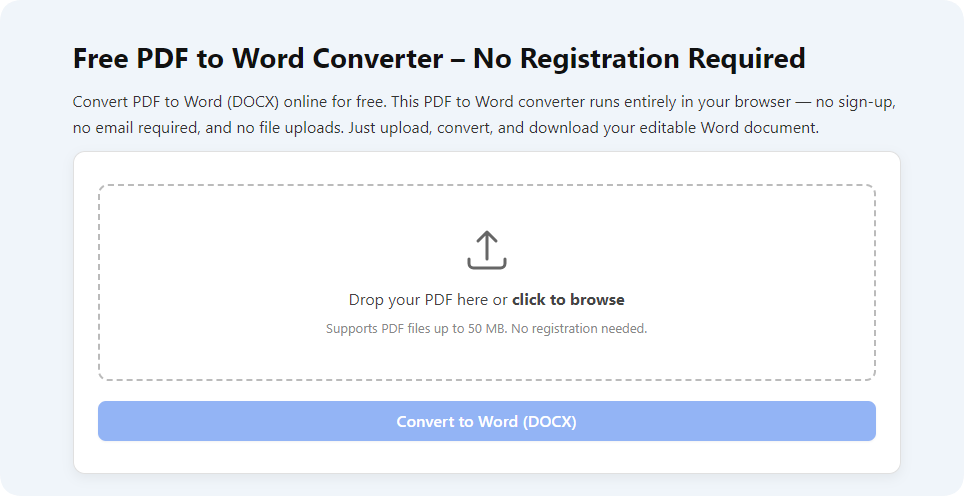
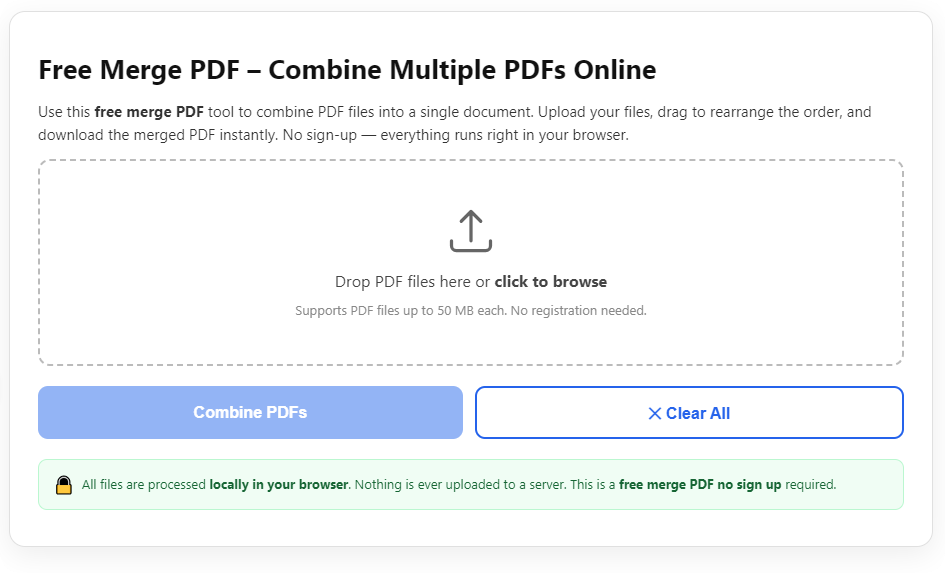
Step-by-Step Guide: How to Convert PDF to PPT Without Losing Formatting
Remove any password protection or restrictions. Locked files can block full conversion and cause partial formatting errors.
Step 3: Upload or import your PDF file
Find the advanced settings panel. Enable options for layout retention, embedded font extraction and high-quality image output.
Adjust page range if you only need to convert certain pages, instead of the entire PDF document.
Step 7: Download and open the converted PPT file
Check text alignment, font styles and paragraph spacing across all slides. Confirm no content has shifted out of original position.
Review text boxes, callouts and layered elements to ensure grouping and positioning stay correct.
Step 11: Add presentation extras and finalize
Even when you aim to convert PDF to PPT without losing formatting, these frequent mistakes can ruin your final presentation files.
Password-protected PDFs block full content extraction. Restricted files often lose fonts or layers halfway through conversion.
Damaged PDFs or files with extremely heavy graphics will never convert perfectly. Repair or split large files first for best results.
Old conversion tools and legacy PowerPoint editions lack modern layout support. They struggle with new font types and layered design elements.
- Simplify overly complex layered content in the source PDF before starting the conversion process.
- Compress large images inside the PDF moderately beforehand, to keep quality steady after conversion.
Understanding why regular conversions fail helps you pick the right methods and tools. Focusing on layout retention saves hours of manual slide editing down the line.
When you know how to convert PDF to PPT without losing formatting, you turn static PDF documents into fully functional, professional presentation slides effortlessly.
This skill improves your workflow for meetings, classes, training sessions and content sharing across all scenarios.
By following the step-by-step process and avoiding common errors, you will consistently create clean, well-formatted PPT files that match your original PDF design completely.
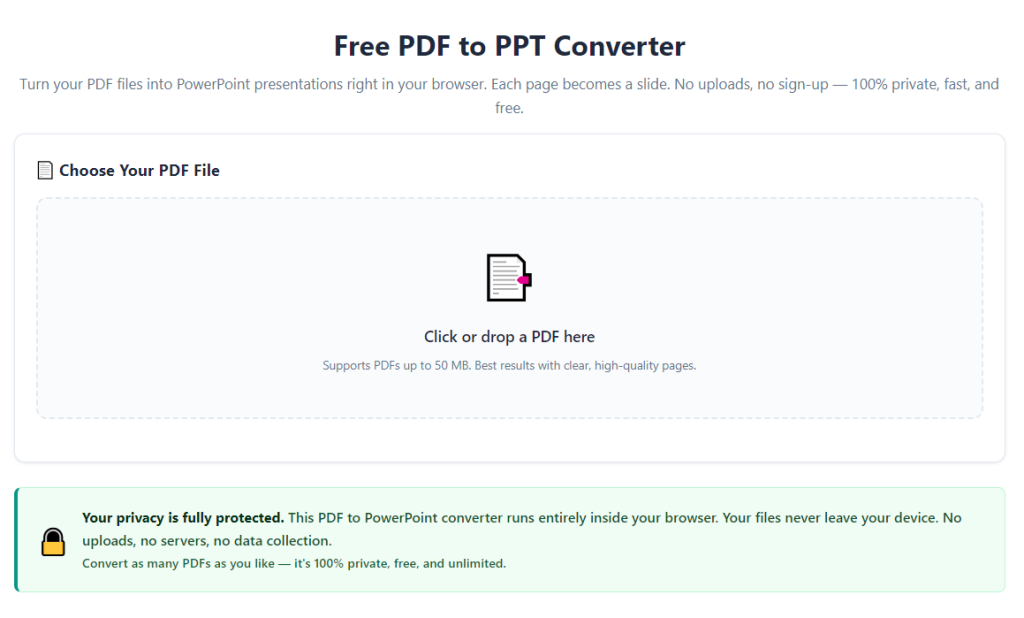
After learning the operation method, click the link below to enter the tool page for immediate use.