Photo shadows can ruin even well-composed shots, no matter if you shoot product images, portrait photos, social media reels, or personal lifestyle snapshots. Unwanted harsh shadows distort subject details, wash out colors, and make your visuals look unpolished for posting online or client delivery.
Many basic photo editing tools carry two major drawbacks. They leave obvious semi-transparent watermarks across your final exports, or they compress resolution heavily after shadow processing, turning sharp original files into fuzzy low-quality graphics.
Manual shadow correction with basic sliders also wastes hours of editing time. Adjusting brightness, contrast, and exposure by hand rarely eliminates deep shadows without damaging surrounding highlights and textures.
A reliable AI shadow remover tool no watermark high quality output eliminates both of these common frustrations. Advanced artificial intelligence algorithms erase uneven, harsh shadows while preserving original image resolution, color depth, and fine details, with zero embedded brand logos or text overlays on saved files.
This in-depth hands-on tutorial breaks down the limits of standard shadow editing methods, core advantages of watermark-free AI shadow removal software, non-negotiable tool features, real-world creative use cases, and a complete step-by-step workflow for flawless high-resolution shadow cleanup every single time.
Why Conventional Shadow Editing Methods Fail Modern Visual Standards
Most creators rely on basic manual editing or low-tier shadow removers, both of which create persistent flaws that drag down photo quality and usability.
Forced watermarks on all exported files
Nearly every entry-level AI photo editor stamps large watermarks over the center or corner of finished images. These branding marks block key subject details, making photos unusable for commercial posts, client deliverables, or professional portfolio uploads.
Severe quality loss after shadow processing
Budget shadow removal tools apply heavy compression algorithms once edits finish. Original high-res photos turn pixelated, colors fade unevenly, and fine textures like fabric grain, skin pores, and product surface lines disappear entirely.
Manual shadow adjustment lacks precision
Tweaking exposure, shadows, and highlight sliders manually cannot target isolated shadow areas accurately. When you lift dark shadow regions, bright background sections blow out and lose natural depth, creating an artificial washed-out aesthetic.
Slow, repetitive editing workflows
Without automated AI detection, you must manually mask every shadow zone in each photo. Content creators handling dozens of daily product shots or portrait batches lose hours to repetitive masking and minor slider tweaks.
Uneven shadow elimination results
Generic AI shadow tools apply one-size-fits-all correction across the full frame. Soft subtle shadows get overcorrected, while thick deep shadow patches remain visible, leaving an inconsistent, unbalanced final image.
Core Advantages of AI Shadow Remover Tool No Watermark High Quality Output
Integrating a trusted AI shadow remover tool no watermark high quality output into your daily editing stack transforms your photo production workflow for personal and commercial creative work alike.
Zero embedded watermarks on all saved outputs
Every processed photo exports completely clean, with no text logos, brand stamps, or semi-transparent overlay marks. You can upload finished shots straight to social platforms, client galleries, or print layouts without extra cropping or retouching to hide branding.
Lossless high resolution export preservation
Advanced processing engines retain your original file’s pixel dimensions, DPI rating, color profile, and sharp texture details. Whether you edit raw camera shots or high-definition stock photos, the final export matches the source image’s crisp visual quality perfectly.
AI automatic shadow area detection
The tool’s trained artificial intelligence instantly scans every frame to identify harsh, unwanted shadow patches. It distinguishes intentional soft shadow depth from unflattering dark blocked zones, delivering targeted correction without ruining natural dimensionality.
Massive cuts to photo editing turnaround time
Automated shadow detection and one-click cleanup eliminate manual masking work. A batch of 20 product or portrait photos that would take an hour of manual adjustment finishes processing in just minutes with consistent results across all files.
Balanced natural color restoration
Instead of simply brightening shadowed areas flatly, the AI restores original color saturation and tone hidden under dark patches. Corrected photos retain warm, balanced hues that match the real-world lighting of your original capture.
Full support for all common image formats
The watermark-free shadow remover accepts raw camera files, PNG transparent graphics, JPG high-res snapshots, and TIFF print-ready files. Every format exports with full resolution intact and no forced compression limits.
Unlimited batch processing capacity
Professional creators handling large photo shoots can upload dozens of images at once for bulk shadow removal. No daily processing caps or file quantity restrictions slow down consistent content production schedules.
Must-Have Features of a Premium AI Shadow Remover Tool No Watermark High Quality Output
Not all shadow erasing AI tools deliver watermark-free high-fidelity results. The top-tier AI shadow remover tool no watermark high quality output includes these creator-focused core functions to separate it from low-grade alternatives.
Precision shadow strength adjustment slider
Customize how aggressively the AI lifts dark shadow zones. Use low intensity tweaks for subtle portrait shadow softening, or max strength correction for heavy product backlighting shadow cleanup, without blowing out highlight details.
Separate texture retention toggle
A dedicated texture lock setting preserves fine surface details during shadow removal. This feature is essential for product photography featuring metal, fabric, wood grain, and detailed cosmetic packaging shots.
Background highlight protection mode
The AI automatically locks bright background elements from over-exposure while correcting foreground shadows. Outdoor lifestyle shots and studio flat lays maintain balanced contrast without washed-out backdrops.
Transparent PNG native support
For graphic designers and e-commerce creators editing cutout product PNGs, the tool removes shadows without ruining transparent background layers, exporting clean watermark-free high-res cutouts ready for store listings.
Custom DPI and resolution export controls
Set your exact target output resolution before saving files. Match web display DPI for social posts or high print DPI for catalogs and marketing flyers with zero automatic quality compression.
Before/after split preview panel
Compare original shadow-heavy shots against corrected high-quality exports side-by-side in real time. This visual check lets you tweak shadow intensity settings until lighting looks perfectly natural.
Non-destructive editing layers
All shadow correction edits sit on separate adjustable layers. You can revert shadow strength adjustments at any stage without reuploading the original raw image file from scratch.
No hidden paywalls for high-res exports
Full lossless output and watermark-free downloads remain unlocked for every user. There are no upgrade fees or premium tier locks blocking professional quality file saving.
Real-World Use Cases for Watermark-Free High Quality AI Shadow Removal
A versatile AI shadow remover tool no watermark high quality output serves every category of creator, from hobbyist social media shooters to full-time commercial product photographers.
E-commerce product listing photography
Online store owners erase harsh studio backlighting shadows on apparel, beauty goods, and electronics. Watermark-free high-res exports produce crisp listing images that boost click-through rates without distracting brand overlays.
Portrait and headshot editing
Wedding photographers, influencer creators, and corporate headshot artists fix unflattering under-eye shadows, harsh window shadow streaks, and uneven studio lighting. Clean, high-quality unmarked portraits work for social profiles and client gallery delivery.
Lifestyle and social media content creation
Bloggers, TikTok creators, and Instagram influencers refine everyday lifestyle snapshots. The tool eliminates messy indoor shadow patches for polished feed content that exports ready to post with no watermark distractions.
Real estate property photo retouching
Real estate editors remove dark window frame shadows, furniture shadow blocks, and uneven room lighting in listing photos. Lossless exports preserve architectural detail for property marketing flyers and online listings.
Food and beverage commercial photography
Food creators erase harsh countertop shadows, plate shadow dark spots, and uneven overhead lighting patches. Rich, color-accurate high-res watermark-free shots elevate restaurant menus and food brand marketing visuals.
Graphic design and transparent asset creation
Designers edit PNG cutout product graphics for website banners and digital ads. Shadow removal maintains clean transparent layers, exporting unmarked high-quality assets for brand marketing campaigns.
Vintage photo restoration projects
Hobbyists and archival editors lift faded shadow patches on old scanned film photos. The AI restores hidden facial and landscape detail, exporting crisp watermark-free high-resolution restored images for printing or digital archives.
Student and amateur creative portfolios
New photographers building personal portfolios avoid forced watermarks that ruin professional presentation. High quality lossless shadow cleanup makes portfolio shots look polished without extra editing steps to remove branding overlays.
Step-by-Step Complete Workflow: Operate AI Shadow Remover Tool No Watermark High Quality Output
Follow this straightforward, repeatable editing process to erase unwanted shadows and export fully clean, high-resolution images with zero embedded watermarks.
Step 1: Organize and prepare your source image files
Gather all photos requiring shadow correction and store copies of your original high-res source files in a separate folder. Keep raw camera captures uncompressed for maximum texture retention after AI processing.
Sort images by editing purpose (product shots, portraits, real estate photos) to streamline batch uploads for consistent shadow correction settings.
Step 2: Launch the watermark-free AI shadow remover tool
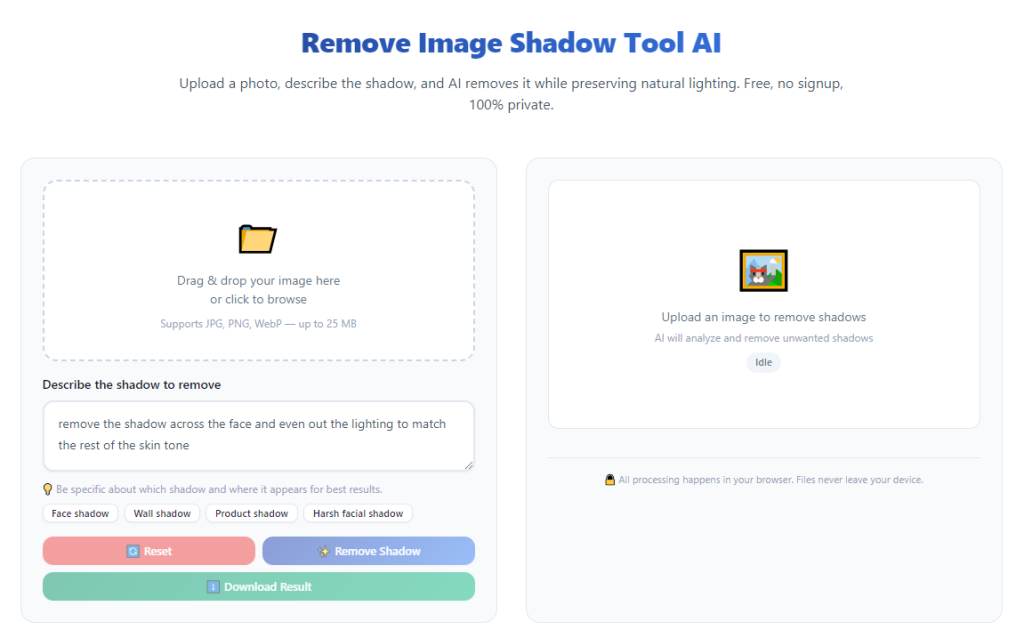
Open the tool interface within your browser or local editing software. The main dashboard features a simple image upload panel with no mandatory account signup pop-ups or paywall prompts blocking core functionality.
Review the core adjustment panels: shadow intensity slider, texture lock toggle, and resolution export settings before uploading any visual files.
Step 3: Upload single photos or full batch folders
Drag and drop individual high-res images or select entire photo batches for bulk shadow removal. The tool supports large raw and TIFF file sizes without upload compression or pixel reduction mid-transfer.
Confirm all uploaded previews display full original sharpness; blurry upload previews signal low-quality source files that cannot generate premium final exports.
Step 4: Activate the AI automatic shadow detection engine
Click the one-click shadow scan button to let the AI map all dark unwanted shadow zones across the frame. The system highlights targeted shadow patches with faint temporary markers that disappear before final export.
Leave intentional soft artistic shadows unmarked; the AI differentiates aesthetic depth shadows from disruptive harsh dark patches automatically.
Step 5: Fine-tune shadow removal intensity and texture locks
Adjust the shadow strength slider to match your creative vision. Use low intensity for subtle portrait retouching and maximum intensity for deep product backlight shadow cleanup.
Toggle on the texture retention feature to lock fine details like fabric, skin, and product surfaces against over-brightening and blurring during correction.
Enable highlight protection mode if your photo features bright windows, white backdrops, or light subject surfaces to prevent washed-out highlights.
Step 6: Compare before and after split previews
Switch to the side-by-side preview layout to cross-check lighting balance between the original photo and AI-corrected version. If shadows still appear heavy, slightly raise the removal intensity slider in small increments.
If colors look washed out, dial back shadow strength and reactivate the color restoration sub-setting built into the tool’s core AI engine.
Step 7: Configure high quality export resolution settings
Navigate to the output setting panel to lock in your target quality parameters. Input your desired pixel dimensions or DPI rating to match web display, social media, or print marketing requirements.
Double-check that the watermark toggle remains permanently disabled; premium versions of this tool keep this setting active by default for all user exports.
Select your preferred file format (PNG, lossless JPG, TIFF, raw compatible) based on your final use case for the edited photo.
Step 8: Run final shadow processing rendering
Click the process button to apply all AI shadow correction edits. Render time only takes a few seconds for single images and a short batch processing window for dozens of uploaded photos.
Avoid closing the tool mid-render to prevent partial low-quality file exports with incomplete shadow removal adjustments.
Step 9: Download fully clean high quality output files
Once rendering completes, select download for single images or bulk export for entire photo batches. All saved files export with zero text overlays, logos, or semi-transparent watermark stamps of any kind.
Save finished edited files to a dedicated output folder separate from your unedited original source shots for easy project organization later.
Step 10: Inspect finished exports for quality consistency
Open downloaded photos in a basic image viewer to verify full resolution, crisp textures, and total absence of watermark branding. Zoom into shadow-corrected zones to confirm no pixel blur or color distortion occurred during AI processing.
Reupload any inconsistent low-quality outputs back into the tool to re-tweak intensity and texture settings for a second refined processing run.
Common Mistakes to Avoid While Using AI Shadow Remover Tool No Watermark High Quality Output
Even with a fully functional AI shadow remover tool no watermark high quality output, these frequent editing errors will compromise photo resolution, natural lighting, or watermark-free export functionality.
Maxing shadow intensity slider on all image types
Over-correcting shadow strength washes out natural depth and flattens the entire photo. Portraits and lifestyle shots require gentle low-intensity tweaks instead of maximum shadow removal values.
Disabling the texture retention toggle for product photography
Turning off texture lock erases critical fine details on metal, fabric, and cosmetic product surfaces. Final high-res exports will appear smooth and artificial, hurting commercial listing visual appeal.
Ignoring resolution export settings before downloading
Sticking with default low-resolution output settings defeats the purpose of high quality lossless processing. Always adjust pixel and DPI values to match your intended publishing medium before rendering edits.
Uploading compressed low-quality source files
Heavily compressed social media snapshots as source material limit the AI’s ability to restore crisp detail. Shadow correction cannot recover texture lost from initial heavy file compression.
Forgetting to preview before bulk batch export
Running mass photo batches without checking individual before/after previews creates inconsistent lighting across an entire shoot set. One mismatched intensity setting ruins dozens of high-quality watermark-free exports at once.
Confusing artistic soft shadows with unwanted harsh shadow patches
Forcing full shadow removal on intentional studio soft shadows strips dimensionality from portraits and product shots. The AI highlights only disruptive dark zones; ignore faint natural shadow markers during editing.
Expert Pro Tips to Maximize Results From AI Shadow Remover Tool No Watermark High Quality Output
Use these professional editing strategies to unlock the full potential of your watermark-free high-fidelity shadow removal AI tool for every creative project.
- Save custom shadow correction setting presets for repeat niche work, such as e-commerce product shots or indoor lifestyle portraits, to cut down repetitive slider adjustments for future photo batches.
- Always duplicate original source files before uploading to the tool, so you retain unaltered high-res raw copies if you need to restart shadow editing from scratch later.
- Combine shadow removal with the tool’s minor color correction sub-feature to balance warm or cool lighting shifts that appear after lifting dark shadowed areas.
- For transparent PNG product cutouts, upload images with fully isolated subjects to avoid accidental background light distortion during AI shadow cleanup processing.
- Run separate batch processing sessions for print marketing assets and web social media shots to apply matching resolution export rules for each use case category.
- Zoom into shadow-heavy subject edges during preview checks to catch faint leftover dark patches that become obvious once photos are enlarged for print or full-screen web display.
- Bookmark the tool interface for instant daily access to avoid delays during urgent photo editing deadlines, with no mandatory signup steps slowing down shadow removal workflows.
Final Thoughts
Unwanted harsh shadows remain one of the most persistent barriers to polished, professional photography across every creative niche. Manual slider adjustment and low-grade editing software introduce two major pain points: permanent visible watermarks on exports and irreversible loss of original image resolution and fine texture detail.
An optimized AI shadow remover tool no watermark high quality output solves both critical issues simultaneously. Built with advanced trained artificial intelligence, the software delivers targeted, natural shadow cleanup while exporting fully unmarked, lossless high-resolution files ready for commercial, personal, print, or digital publishing use.
This flexible editing tool fits every creator workflow, from small-scale hobbyist social media shooters to full-time commercial product and real estate photography studios. When paired with the step-by-step editing process and professional optimization tips laid out above, you can produce consistent, crisp, watermark-free shadow-corrected photos in a fraction of traditional manual editing time.
By avoiding common editing mistakes and customizing adjustment settings to match each photo’s unique lighting environment, you maintain authentic visual depth while eliminating disruptive dark shadow patches—all without sacrificing file quality or dealing with distracting embedded watermarks on any finished image export.
After learning the operation method, click the link below to enter the tool page for immediate use.