Visual content sits at the center of every creator, marketer, and small business workflow. Social media posts, product catalogs, blog featured images, and portfolio galleries all rely on properly oriented photos to look polished and professional.
Most creators run into one frustrating roadblock: misaligned photos. Shots taken at odd angles, upside-down product snapshots, and mirrored mobile captures pile up fast. Editing each file individually wastes hours of valuable production time.
Manual single-photo edits also create inconsistent results. Rotating and flipping each picture by hand leads to uneven angles, mismatched orientation, and disjointed visual branding across your entire library of assets.
A reliable image rotate & flip tool for bulk picture adjustment eliminates all these repetitive manual tasks. It processes dozens of photos at once with unified rotation, mirror flip, and orientation controls for consistent, clean visual output.
This in-depth hands-on tutorial breaks down the downsides of single-image editing, core advantages of batch processing tools, must-have functional features, real-world use cases, and a step-by-step beginner workflow for seamless bulk picture orientation adjustments.
Why Single-Photo Rotation and Flipping Slows Down Your Visual Workflow
Relying on basic single-image editors to fix misaligned photos creates persistent inefficiencies that drag out your content creation schedule every week.
Wasted hours on repetitive identical edits
Every time you capture a batch of photos, you may face 20, 50, or more files that need the exact same rotation or horizontal flip. Repeating the same click sequence for each photo eats into time meant for graphic design, caption writing, or content planning.
Inconsistent visual alignment across asset sets
Human error creeps in during manual single-file work. You might rotate one product photo 90 degrees clockwise and another 90 degrees counterclockwise by mistake. This uneven orientation breaks the cohesive look needed for catalogs, social grids, and website galleries.
No unified preset options for brand visual standards
Basic editors do not save custom rotation and flip presets. If you need the same orientation rules for every product shot or blog graphic, you cannot lock those settings for one-click batch application.
Slow processing for large photo libraries
When you handle full photoshoots with hundreds of raw images, single-file tools lag significantly. Loading, editing, and exporting each photo separately creates long waiting periods that stall project deadlines.
Risk of quality loss from repeated single-file exports
Exporting each picture individually increases the chance of accidental compression mismatches, resolution drops, or format errors. Bulk tools standardize export settings to preserve uniform image quality across every file in your batch.
Core Benefits of an Image Rotate & Flip Tool for Bulk Picture Adjustment
Integrating a dedicated image rotate & flip tool for bulk picture adjustment into your visual workflow drastically cuts editing time while standardizing every photo’s orientation to match your brand rules.
Mass batch processing in a single session
Upload an entire folder of photos at once, apply one set of rotation or flip commands, and process every file simultaneously. Tasks that once took one hour of manual clicking finish in under two minutes.
Locked uniform orientation across all pictures
All photos in your batch receive identical rotation angles and flip effects. This eliminates lopsided, mismatched visuals for product lines, social feed grids, print flyers, and blog featured image collections.
Full rotation and flip control combinations
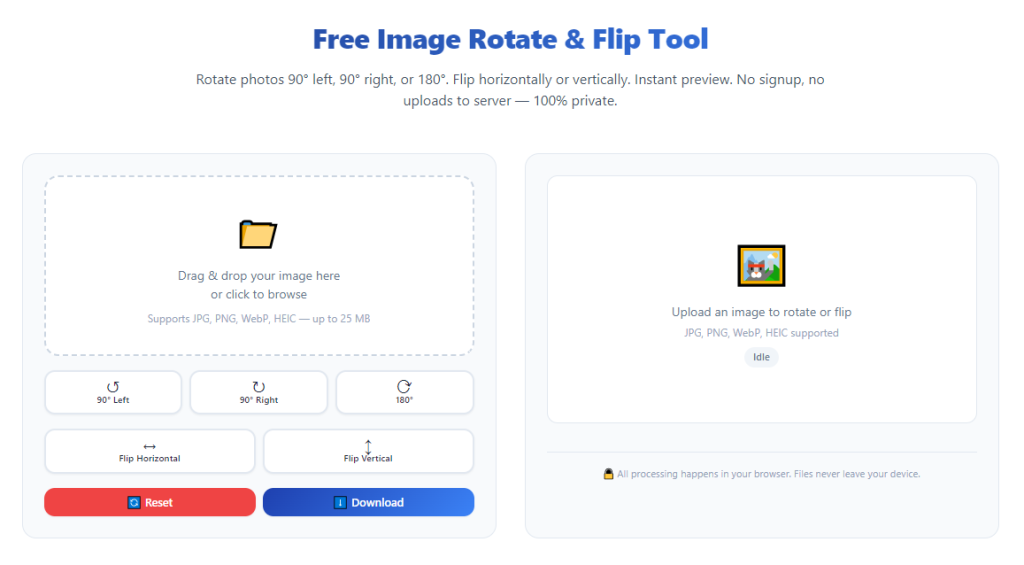
Tools support 90°, 180°, 270° clockwise and counterclockwise rotation, plus horizontal and vertical mirror flips. You can mix and match these effects to fix any misaligned photo capture scenario in bulk.
Custom preset saving for recurring content batches
Save your most-used rotation and flip combinations as reusable presets. If you regularly edit vertical mobile photos or landscape product shots, load the preset with one click instead of retyping settings each time.
Preserved original image resolution and quality
Top-tier bulk editors apply orientation adjustments without over-compressing pixel data. Your finished batch photos retain sharpness, color accuracy, and original resolution for online publishing or print materials.
Cross-format compatibility for all common image types
The tool supports JPG, PNG, WebP, and other standard visual formats. You can mix file types within one batch and apply identical rotate/flip adjustments to every picture without format conversion errors.
Zero repetitive manual clicking
Once you upload your batch and set your orientation rules, the tool runs fully automated processing. You can step away and work on other creative tasks while all photos adjust in the background.
Must-Have Features of a Quality Image Rotate & Flip Tool for Bulk Picture Adjustment
Not all batch photo editors deliver consistent, reliable bulk orientation control. The true standout image rotate & flip tool for bulk picture adjustment includes these creator-focused core functions to streamline every editing session.
Multi-file bulk upload support
The tool must accept full folder uploads or multi-file selection. Avoid limited single-file upload tools that defeat the purpose of batch adjustment entirely. Look for upload limits that fit large photoshoot batches with hundreds of pictures.
Complete rotation angle selection panel
Include fixed quick-select angles (90°, 180°, 270°) and fine-tune custom rotation sliders for minor tilt correction. This covers fast standard orientation fixes and subtle straightening for off-kilter candid shots.
Dual flip mode functionality
Separate horizontal flip and vertical flip toggles let you mirror photos independently. Many creators need horizontal flips to correct reversed text on product packaging or mirrored mobile selfies across full batches.
Live batch preview panel
A thumbnail preview grid displays sample photos from your upload batch after applying rotate and flip settings. You can double-check orientation results before launching full bulk processing to avoid mass editing mistakes.
Custom export folder and naming rules
Set a dedicated output folder for adjusted photos and add consistent file name tags to your batch. This organizes edited assets separately from raw unedited shots to prevent file mix-ups in your library.
Preset save and load system
Store frequently used rotate + flip combinations as one-click presets. Content creators with weekly posting schedules rely on this feature to eliminate repeated setting input for recurring photo batches.
Lossless export parameter controls
Adjust compression levels, resolution limits, and output file formats before batch processing. Lock these settings to guarantee uniform visual quality across every picture in your edited set.
Quick bulk undo and reset function
If you select the wrong rotation angle for an entire batch, a one-click reset reverts all preview changes instantly. This prevents wasted time reuploading full photo folders after incorrect setting selections.
Common Real-World Use Cases for Bulk Rotate & Flip Image Tools
A versatile image rotate & flip tool for bulk picture adjustment fits every type of visual creator, marketer, and small business handling large volumes of photos for online and offline publishing.
E-commerce product photo batch editing
Online store owners capture dozens of product shots per photoshoot. Many mobile camera captures end up rotated or mirrored. Bulk rotation and flipping unify every product listing photo for clean, consistent store catalog layouts.
Social media creator feed asset preparation
Content creators upload batches of lifestyle, travel, or reel stills weekly. A single bulk adjustment session fixes misaligned vertical and horizontal shots to match platform feed dimension rules without editing each graphic one by one.
Blog featured image and gallery creation
Bloggers manage large libraries of featured photos and in-post gallery visuals. Batch orientation correction ensures every header image aligns perfectly with website theme layout standards.
Print marketing material asset setup
Flyers, brochures, and printable promotional graphics often require uniform horizontal flips or 180° rotation for backside printing. Bulk processing standardizes all print-ready pictures in minutes before layout design.
Real estate and property photo editing
Property photographers deliver batches of room and exterior shots to real estate agents. Many photos are captured at awkward device angles; bulk rotate and flip adjustments straighten the full portfolio quickly for listing websites.
Portfolio and creative artist asset organization
Photographers, painters, and digital artists maintain large portfolios of finished work. Mass orientation fixes clean up uneven scanned artwork and camera captures for portfolio website uploads.
Classroom and educational visual resource editing
Teachers and education creators prepare batches of worksheet graphics, diagram scans, and activity images. Bulk orientation tools fix upside-down scanned pages and mirrored student activity visuals in one session.
Step-by-Step Full Workflow: Use Image Rotate & Flip Tool for Bulk Picture Adjustment
Follow this straightforward, beginner-friendly process to process full photo batches with your chosen image rotate & flip tool for bulk picture adjustment, with zero wasted clicks or orientation errors.
Step 1: Organize your raw photo batch into one dedicated folder
Before opening the editing tool, collect all pictures requiring identical rotation or flip adjustments into a single folder on your device. Separate batches with different orientation needs into unique folders to avoid mixed edit rules.
Label each folder clearly based on the adjustment you plan to apply, such as “90-degree clockwise product shots” or “horizontal flip social reels.” This eliminates confusion during the upload stage.
Step 2: Launch the bulk image adjustment tool and locate the upload panel
Open the tool’s main interface and navigate directly to the bulk upload section. Avoid single-file editing tabs; focus entirely on the batch processing workspace built for multiple picture adjustment.
Spend ten seconds reviewing the core control panel: rotation angle toggles, flip mode checkboxes, preview thumbnail grid, preset manager, and export settings menu. Familiarizing yourself cuts editing time for future batches.
Step 3: Upload your full folder or multi-file photo batch
Select the upload folder button, then choose the pre-organized directory holding your raw photos. Wait for the thumbnail preview grid to load every picture from your batch completely.
Scan the thumbnail row quickly to confirm all misaligned photos appear in the preview. If any files are missing, close the upload window and recheck your source folder for misplaced images.
Step 4: Select your target rotation angle and flip mode
Adjust the core orientation controls to match your batch’s editing requirements:
- Choose a fixed rotation angle (90°, 180°, 270° clockwise/counterclockwise) or use the slider for minor custom tilt correction
- Toggle horizontal flip, vertical flip, or both mirror effects as needed for your visual assets Check the live thumbnail previews instantly after changing each setting to confirm the photo orientation looks correct for your use case.
Step 5: Save your setting combination as a reusable preset (optional)
If you will repeat this exact rotate and flip setup for future photo batches, open the preset menu and name your current settings combination. Click save to store the preset for one-click loading in later editing sessions.
This step cuts down repetitive work for weekly social media batches, monthly product photoshoots, or recurring print graphic creation.
Step 6: Configure lossless bulk export parameters
Open the export settings panel to lock uniform output rules for every edited picture in your batch:
- Select your target file format (JPG, PNG, WebP)
- Adjust compression quality sliders to retain sharpness
- Set a consistent output resolution limit
- Input a standardized file name tag for organized asset sorting
Choose a new empty destination folder for finished edited photos to avoid overwriting your original raw image files. Never export adjusted pictures back into your raw source folder.
Step 7: Run full automated bulk picture processing
Double-check the thumbnail preview grid one final time to confirm all rotation and flip effects display correctly across sample photos. Once verified, click the process batch button to launch automated editing.
Processing time depends on the number and resolution of your photos. Larger batches of high-resolution product shots may take slightly longer, but all edits run simultaneously in the background.
Step 8: Review a sample of finished adjusted photos
Once the batch processing bar completes, navigate to your designated output folder and open three to five random edited photos. Inspect orientation, sharpness, and color quality to confirm no editing errors occurred during bulk adjustment.
If any photos display incorrect rotation or flip effects, return to the tool, reset all settings, reupload your source folder, and reselect your orientation controls before reprocessing.
Step 9: Store finished edited assets for immediate publishing
Move the fully adjusted batch of photos to your content library, cloud storage, or graphic design workspace. The uniform orientation across every picture lets you build cohesive galleries, product listings, or social grids instantly without extra single-file touch-ups.
Step 10: Load saved presets for future photo batches
When new misaligned photo batches arrive for editing, launch the tool, open the preset manager, and select your saved rotate/flip combination. Upload your new folder and repeat the export workflow in half the original time.
Common Mistakes to Avoid When Using Bulk Image Rotate & Flip Tools
Even with a premium image rotate & flip tool for bulk picture adjustment, these frequent user errors can ruin entire photo batches and create extra rework for your visual projects.
Mixing photos with different orientation needs in one batch
Uploading photos that require 90° rotation alongside shots that need horizontal flips forces you to reprocess half your files separately. Always split source photos into folders grouped by identical edit rules before upload.
Skipping the thumbnail preview check before batch processing
Many creators rush straight to processing without verifying sample thumbnails. A single wrong rotation angle applied to a 100-photo batch creates hours of extra rework and wasted storage space for incorrect edited files.
Overwriting original raw photo files during export
Sending adjusted output back into your source folder replaces unedited raw captures. Always create a separate empty output directory to preserve your original unmodified photos for future re-editing.
Ignoring resolution and compression export settings
Leaving default low-quality compression enabled ruins high-resolution product and portfolio photos. Lock lossless export parameters before running every bulk adjustment session to maintain crisp visual quality.
Forgetting to save recurring edit presets
Manually reselecting rotation and flip settings for every weekly batch wastes consistent minutes each editing session. Saving presets streamlines your long-term visual content workflow dramatically.
Applying unnecessary dual flip effects
Combining horizontal and vertical flips when only one mirror effect is needed distorts product text, artwork, and facial imagery. Only activate flip toggles that directly fix your photo’s alignment issue.
Pro Tips to Maximize Efficiency From Your Bulk Picture Adjustment Tool
Use these actionable creator strategies to get maximum speed and consistent results from your image rotate & flip tool for bulk picture adjustment across every photoshoot and visual project.
- Sort all raw photo folders at the end of every photoshoot. Separate files by required rotation and flip adjustments before opening the editing tool to eliminate mixed-batch errors entirely.
- Create dedicated preset groups for each content type: product listings, social reels, blog featured images, and print marketing graphics. One-click preset loading cuts editing time by more than half.
- Process batches in smaller groups of 30–50 high-resolution photos if your device runs slower with large file loads. Smaller batches reduce lag and preview loading delays on low-power laptops.
- Pair bulk rotate/flip adjustments with simple batch crop tools after orientation fixes to fully standardize aspect ratios for social media and website layouts.
- Archive your raw unedited photo folders separately from finished edited batches on cloud storage. This lets you reprocess original captures with new rotation rules for future content campaigns.
- Use the tool’s quick reset function to test multiple rotation angles on your thumbnail preview grid before committing to full batch processing. This eliminates costly mass editing mistakes early on.
- Standardize your export file naming tag to include project dates and content types, such as “2025-product-white-background-rotated”. This makes searching your edited asset library far faster over time.
Final Thoughts
Uniform photo orientation is a non-negotiable detail for professional-looking visual content across e-commerce, social media, blogging, print marketing, and creative portfolios. Manual single-file rotation and flipping creates inconsistent results and steals valuable creative hours every week.
A purpose-built image rotate & flip tool for bulk picture adjustment resolves every pain point tied to editing large photo batches. It delivers automated, uniform rotation and mirror flip effects across dozens or hundreds of pictures in minutes, preserves original image quality, and stores reusable presets for recurring content workflows.
This tool works equally well for part-time hobby creators, full-time social media marketers, small business store owners, photographers, and education content producers of all skill levels.
By following the structured step-by-step workflow, avoiding common editing mistakes, and implementing the efficiency-focused pro tips shared above, you can cut your photo orientation editing time drastically while building a polished, cohesive library of consistently aligned visual assets for every publishing channel.
After learning the operation method, click the link below to enter the tool page for immediate use.