HEIC is the default photo format for most modern mobile devices, delivering compact file sizes and high image quality. Despite its technical advantages, HEIC files carry major compatibility limitations. Most social platforms, document editors, printing tools, and older operating systems cannot open HEIC photos natively.
Many content creators, small business owners, and casual phone users face tedious work when handling photo libraries. Converting each HEIC file one at a single time wastes hours of valuable time, especially when sorting vacation shots, product photos, or social media visual assets.
Paid conversion software and subscription-based online tools add extra costs for basic bulk photo processing. Many users refuse to pay monthly fees just to complete simple format changes for dozens of images.
A reliable HEIC to JPG converter batch multiple images free eliminates all these common frustrations. It supports uploading dozens of HEIC photos simultaneously, outputs standard JPG files, and keeps all core batch conversion features fully free with no hidden charges.
This in-depth practical tutorial covers compatibility headaches from unprocessed HEIC files, drawbacks of single-file conversion workflows, core advantages of free batch conversion tools, non-negotiable tool features, real-world use scenarios, and a detailed step-by-step operating guide for all skill levels.
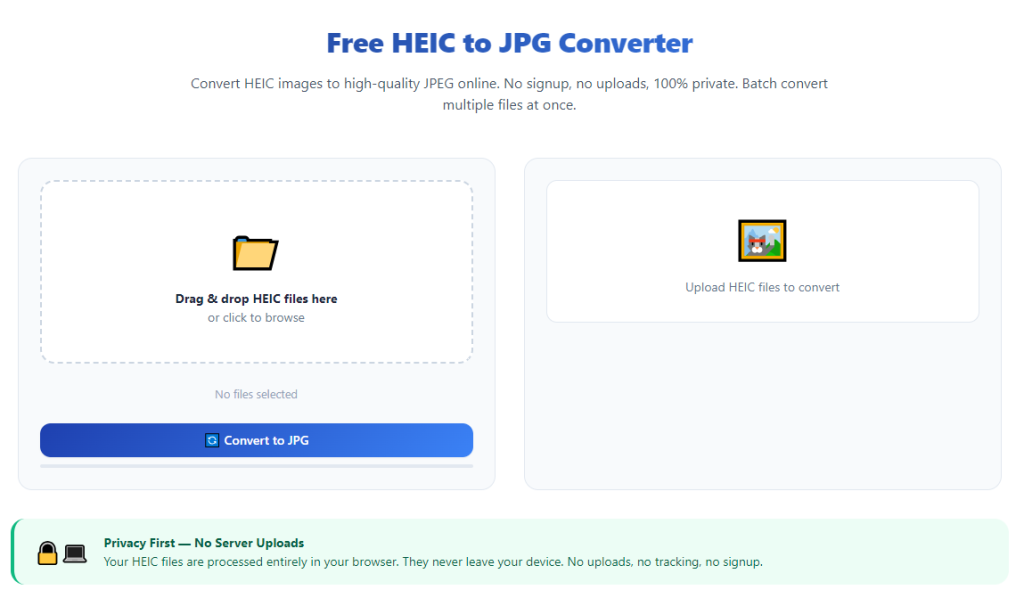
Common Headaches From Manual Single HEIC Conversion
Handling HEIC photos without a dedicated bulk conversion tool creates consistent, time-consuming obstacles for anyone managing large photo folders.
Slow, repetitive single-file processing
Every separate upload and export step adds up quickly. If you hold a folder with fifty or more mobile photos, converting them individually takes far longer than finishing other creative tasks like editing or posting content.
Compatibility failures across common platforms
Upload raw HEIC files to social media, print shops, word processors, or older laptops, and the system will return error messages. You cannot share or archive these photos without full format conversion first.
Paid software barriers for simple bulk tasks
Most desktop photo editors lock batch conversion behind premium subscriptions or one-time expensive licenses. Users are forced to spend money on advanced editing suites just for basic format shifting.
Risk of lost photo quality with low-grade free single tools
Basic one-image converters often compress JPG outputs aggressively to cut file size. The resulting photos lose sharpness, color accuracy, and detail critical for product listings and portfolio content.
No unified storage for converted batches
Separate single-file tools do not let you organize all finished JPGs into one target folder. You end up sorting scattered exported images manually after every conversion round.
Confusing privacy risks on unregulated conversion sites
Many random online converters store uploaded photos on external servers. This creates privacy worries for personal portraits, confidential product shots, and sensitive private imagery.
Core Benefits of HEIC to JPG Converter Batch Multiple Images Free
Integrating a trusted HEIC to JPG converter batch multiple images free into your photo management routine drastically streamlines asset handling while cutting unnecessary expenses.
Unlimited bulk uploads with zero quantity caps
Top free tools let you upload dozens of HEIC photos in a single session. There are no daily limits, file number restrictions, or upload quotas to slow down your photo workflow.
Zero upfront costs for all core batch functions
Full multi-image conversion, quality adjustment, and batch export tools stay permanently free. You never encounter paywall pop-ups blocking bulk processing features mid-workflow.
Lossless adjustable JPG quality control
You can tweak output resolution and compression levels before starting the batch run. Preserve full high definition for commercial photos or shrink file sizes for fast web uploading without mandatory quality loss.
Single-folder bulk export organization
All converted JPG files save into one unified output folder automatically. This removes the need to drag and sort scattered individual photos after finishing conversion.
Broad cross-device browser compatibility
The tool runs on all standard desktop and mobile browsers. You can process HEIC batches from laptops, tablets, or secondary work devices without downloading heavy desktop software.
Full local file processing privacy protection
Premium free batch converters process image data directly on your local device. Uploaded HEIC files never get stored on remote external servers, protecting private and commercial photo content.
Preserved original photo metadata
Quality batch tools retain timestamps, geotags, and basic camera metadata in finished JPGs. This feature matters for bloggers, real estate photographers, and product catalog managers tracking photo creation details.
Must-Have Features for a Reliable HEIC to JPG Converter Batch Multiple Images Free
Not all free online photo converters support stable multi-image batch processing. When selecting your preferred HEIC to JPG converter batch multiple images free, verify these critical functional features before starting large photo projects.
Mass multi-file drag-and-drop upload support
The interface must accept full folder drag-and-drop or multi-file selection. Avoid tools that only let users add one HEIC photo per upload cycle.
Customizable JPG compression sliders
Look for adjustable quality scaling from low compression (maximum sharpness) to high compression (small web-friendly file sizes). Fixed-quality outputs limit flexibility for different content goals.
Bulk preview panel before conversion
A built-in thumbnail preview window lets you scan all uploaded HEICs. You can delete unwanted photos from the batch queue without reloading your entire file selection.
Batch rename functionality
Advanced free tools include mass renaming for exported JPGs. Add sequential numbering, brand labels, or project tags to organize catalog photos in one click.
Metadata retention toggle switch
A dedicated setting lets users choose whether to keep camera, location, and date metadata on finished images. This balances privacy needs with asset tracking requirements.
Clean ad-minimal interface layout
Cluttered pages with constant pop-up ads break batch workflow focus. The best free batch converters keep the main upload and control panel clear of distracting promotional material.
No mandatory software downloads
Fully browser-based operation eliminates large installer files. You avoid cluttering device storage with extra apps solely used for occasional HEIC format conversion.
Real-World Use Cases for Free Batch HEIC Conversion Tools
A versatile HEIC to JPG converter batch multiple images free fits every common personal, creative, and small-business photo workflow that involves large mobile photo collections.
Social media content creator asset preparation
Bloggers, influencers, and short-form video creators take hundreds of mobile photos weekly. Bulk conversion turns entire HEIC photo folders into upload-ready JPGs compatible with all social feed platforms.
Small business product catalog photography
Retail sellers capture dozens of product shots on mobile devices for online store listings. Batch processing delivers uniform JPG assets optimized for web store image galleries.
Personal travel and family photo archiving
Users organizing vacation, holiday, and family snapshots need universal file formats for cloud storage and physical photo printing. Bulk conversion standardizes all mobile photos into shareable JPGs.
Real estate and property listing visuals
Agents take dozens of room and exterior shots on mobile phones. Converting batches of HEICs lets them quickly attach property photos to listing documents and client emails.
Student and educator visual project work
Class presentations, school photo portfolios, and research image collections rely on widely supported JPG formats. Free batch tools let students process large photo folders without purchasing software licenses.
Print shop and offline photo submission
Local printing services do not accept raw HEIC files. Bulk conversion prepares full photo sets for posters, photo books, flyers, and physical print orders in one single batch operation.
Website and blog image library updates
Content managers refresh website image galleries with mobile-captured visuals. Batch conversion produces lightweight, web-compatible JPG batches ready for media library uploads.
Step-by-Step Complete Guide: Use HEIC to JPG Converter Batch Multiple Images Free
Follow this streamlined, beginner-friendly workflow to process dozens of HEIC photos at once using a fully free bulk conversion tool.
Step 1: Gather and organize your source HEIC photos
Collect all mobile HEIC images you plan to convert into a single dedicated folder on your device. Group photos by project, event, or product line to simplify post-conversion sorting.
Delete any blurry, duplicate, or unused shots ahead of time to cut down unnecessary batch processing time.
Step 2: Launch the free batch converter tool in your browser
Open your preferred web browser and load the main page for your chosen HEIC to JPG converter batch multiple images free. No installation, login, or account creation steps are required for full batch access.
Take 30 seconds to identify core control panels: drag-and-drop upload zone, preview thumbnail grid, quality adjustment slider, batch rename box, and export folder selector.
Step 3: Upload multiple HEIC files in bulk
Two simple upload methods work for batch processing:
- Click the upload zone and hold Ctrl (Windows) or Command (Mac) to select dozens of HEIC files simultaneously from your folder.
- Drag the entire photo folder directly into the upload panel for one-click mass import.
Wait briefly for thumbnails to load in the preview grid; larger photo batches take a few extra seconds to render fully.
Step 4: Clean up your batch photo queue
Scroll through the thumbnail preview panel to review all uploaded images. Click the small delete icon on any unwanted HEIC photos to remove them from the conversion queue.
Verify the total file counter at the top of the panel to confirm your intended batch size before adjusting output settings.
Step 5: Customize all bulk output parameters
Adjust the JPG quality slider to match your content purpose:
- Maximum quality (90–100): Product photography, print materials, portfolio visuals
- Medium quality (60–85): Social media posts, blog images, personal archives
- Low compression (30–55): Fast web uploads, email attachments, lightweight gallery assets
Toggle the metadata switch on or off based on privacy needs. Enable batch renaming and type your preferred file label if organizing catalog or project photos.
Step 6: Start full batch conversion process
Double-check all quality, rename, and metadata settings. Click the central convert batch button to launch mass format processing.
The tool will display a live progress bar showing how many photos have finished converting out of your total uploaded batch. Avoid closing the browser tab mid-process to prevent incomplete file exports.
Step 7: Preview finished converted JPG samples
Once the progress bar hits 100%, scroll through the output preview section to spot-check several finished JPG photos. Confirm color clarity, sharpness, and sizing match your expectations.
If any images appear blurry or distorted, return to the quality slider and re-run a smaller test batch to adjust compression levels accordingly.
Step 8: Export the full batch of JPG files
Click the bulk download all button to save the entire set of converted JPGs to your selected device folder. Most free batch converters package all finished photos into one single archive file for simple one-click saving.
Extract the archive into your pre-planned photo storage folder to keep your asset library neatly organized.
Step 9: Archive original HEIC files (optional)
If you want to retain uncompressed source mobile photos for future re-editing, move the original HEIC folder to a separate cloud or local storage directory. The converted JPG batch becomes your primary working asset set for sharing and posting.
Step 10: Repeat for additional photo batches
If you have multiple separate photo folders requiring conversion, reset the tool’s upload queue and repeat the entire workflow for each new group of HEIC images. The tool maintains all your preferred quality settings between sessions for consistent output results.
Common Costly Mistakes to Avoid When Using Free Batch HEIC Conversion Tools
Even with a fully functional HEIC to JPG converter batch multiple images free, these frequent errors create wasted time, poor photo quality, or privacy oversights during bulk processing.
Uploading mixed file formats in the same batch
Adding PNG, RAW, or MOV files alongside HEIC photos disrupts the batch queue. The tool prioritizes HEIC conversion, and mismatched formats may lead to skipped or corrupted output files. Separate HEIC-only folders before upload.
Setting overly low compression for commercial photography
Dropping quality below 70 for product, real estate, or print photos erases critical detail. Blurry JPGs hurt listing appeal and print clarity; reserve low compression only for casual social quick posts.
Closing the browser tab mid-batch processing
Interrupting the conversion progress corrupts partial JPG exports. Always wait for the full completion screen and finished preview grid before navigating away from the tool page.
Ignoring metadata privacy toggles for sensitive photos
Geotags and camera timestamps embedded in travel or private portraits may leak personal location data. Disable metadata retention when converting photos intended for public online posting.
Converting hundreds of photos without pre-filtering duplicates
Loading entire unedited camera rolls full of blurry repeats wastes bandwidth and processing time. Trim your source HEIC folder to only usable shots before starting large batch runs.
Saving converted batches to scattered device folders
Failing to assign a unified target archive folder creates disorganized photo libraries. Set a dedicated output directory every time you run a bulk conversion session.
Pro Optimized Tips to Maximize Performance of Free Batch HEIC to JPG Tools
Use these actionable workflow strategies to get faster, higher-quality results every time you operate a HEIC to JPG converter batch multiple images free.
- Clear your browser cache periodically if processing extremely large photo batches; cached data can slow down thumbnail rendering and export speeds.
- Split batches larger than one hundred photos into two separate upload sessions to cut waiting time and reduce browser lag on low-spec laptops.
- Create standardized quality presets for your regular content types (social, print, product) to avoid readjusting sliders for every new photo folder.
- Use the batch rename feature consistently for business catalogs; sequential numbering makes locating specific product shots far simpler months later.
- Run small 5–10 photo test batches with new compression settings before processing a full archive of irreplaceable personal or commercial imagery.
- Avoid uploading confidential client photos to unknown unregulated conversion tools; stick to local-processing free batch converters with clear privacy descriptions.
- Pair converted JPG batches with cloud storage folders to build a permanent cross-device photo library fully compatible with all online platforms and software.
Final Thoughts
HEIC format’s built-in compatibility gaps create unnecessary friction for anyone managing large mobile photo collections. Converting photos one file at a time or paying recurring fees for basic bulk processing wastes both time and money for creators, business owners, and everyday users alike.
A reliable HEIC to JPG converter batch multiple images free resolves all these pain points in one accessible browser-based solution. It delivers unlimited multi-image uploads, adjustable loss-aware quality controls, organized bulk exports, and full local-file privacy protection with zero mandatory charges for core batch conversion functionality.
This tool adapts seamlessly to every photo workflow, from social media content creation and retail product catalogs to personal photo archiving, real estate listings, and educational visual projects.
By following the complete step-by-step batch conversion workflow and implementing the expert optimization tips shared above, you can standardize entire libraries of mobile HEIC photos into universal, shareable JPG batches quickly, affordably, and without sacrificing image clarity or personal data privacy.
After learning the operation method, click the link below to enter the tool page for immediate use.