Let me ask you a quick question—have you ever tried to convert a Word document to a PDF, only to want to throw your computer across the room? I’ve been there, and it’s the worst. You find a “free” converter, upload your Word file, and then—boom—ads start popping up left and right, blocking the screen so you can’t even see the convert button. Or even worse, it forces you to create an account, enter your email, and then sends you spam for weeks. And if you’re lucky enough to get past that? The converted PDF is a mess—fonts are wrong, images are out of place, and your carefully formatted tables are all jumbled up.
But here’s the good news: Free Word to PDF no signup no ads is totally possible, and it’s way easier than those annoying tools make it out to be. I’ve tested dozens of Word to PDF converters (yes, I’ve wasted hours on the ones that trick you with “free” labels but hit you with ads and sign-ups) and I’m here to walk you through exactly how to use free Word to PDF no signup no ads—no hassle, no spam, no messed-up formatting.
In this guide, I’m keeping it casual—like we’re chatting over a cup of coffee, no jargon, no confusing steps. Whether you’re a student trying to convert a homework Word doc to PDF for submission, a professional turning a report into a shareable PDF, or just someone who needs to save a Word file as a PDF without the headache, this guide is for you. We’ll cover how to pick the right free Word to PDF no signup no ads tool (the one that actually works), step-by-step instructions, real-life conversion scenarios, common mistakes to avoid, and pro tips to make the process even smoother. By the end, you’ll be converting Word to PDF like a pro—no ads, no sign-ups, no formatting nightmares.
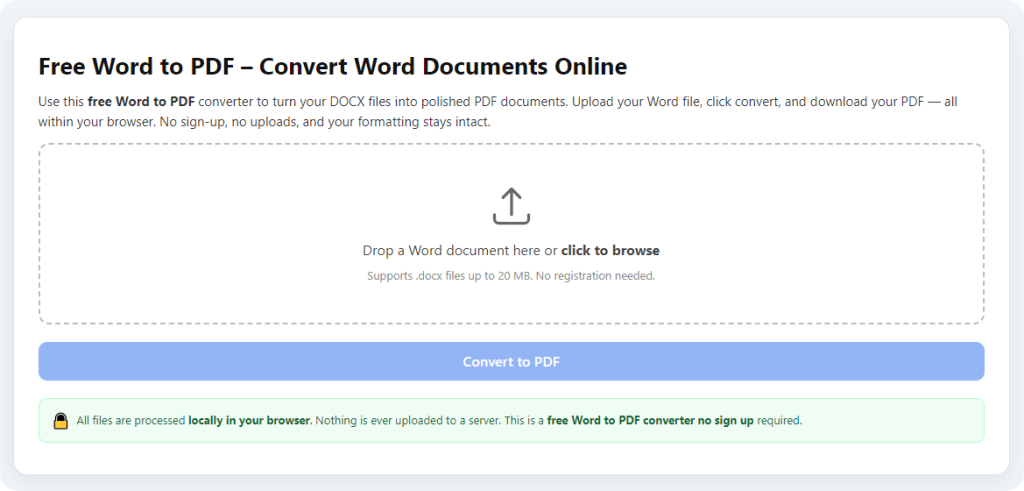
Why Free Word to PDF no signup no ads Is a Total Game-Changer
Before we dive into the steps, let’s talk about why Free Word to PDF no signup no ads is such a lifesaver. Converting Word to PDF should be simple, but most tools overcomplicate it with ads and sign-ups. Here’s why this tool will become your new go-to:
•No annoying ads: No pop-ups, no banner ads, no video ads that play automatically. Just a clean interface where you can focus on converting your Word file—no distractions[1][4][5].
• No forced sign-ups: You don’t have to give out your email, create a password, or share any personal info. Just upload your Word file, convert, and download—done. No spam, no account clutter[2][5].
• Preserves your formatting: This is the biggest win. The best free Word to PDF no signup no ads tools keep your fonts, images, tables, and spacing exactly how you formatted them in Word. No more jumbled layouts or missing elements[3][4][7].
• 100% free (no tricks): No hidden fees, no free trials that expire, no limits on how many Word files you can convert. Convert 1 file or 100 files—still free[1][4][5].
• Super fast: Most conversions take 10–30 seconds, even for long Word documents with images and tables. No waiting around for slow software to load[2][4].
• Works on any device: You can use free Word to PDF no signup no ads on your laptop, desktop, phone, or tablet. As long as you have a browser and internet (for online tools), you can convert anywhere[2][4][5].
• No software downloads: Skip the bulky apps that take up space on your computer. The best free Word to PDF no signup no ads tools work right in your browser—open, upload, convert, done[2][4][5].
Pro tip: I used to waste 10 minutes closing ads and creating fake email accounts just to convert a single Word file to PDF—until I found free Word to PDF no signup no ads. Now it takes 2 minutes, and my PDFs look exactly like my Word docs. It’s one of those small hacks that makes my day-to-day so much easier.
How to Pick the Right Free Word to PDF no signup no ads Tool
Not all “free” Word to PDF converters are created equal—most are full of ads, force you to sign up, or ruin your formatting. To make sure you’re using the best Free Word to PDF no signup no ads tool, here’s what to look for (learn from my mistakes!):
1. Explicitly says “no signup” and “no ads”: The tool should clearly state that you don’t need to create an account and that it won’t show any ads. If it doesn’t say this, skip it[4][5].
2. Simple, clean interface: Look for a design with big, clear buttons: “Upload Word File,” “Convert to PDF,” “Download.” No clutter, no ads blocking the upload zone, no unnecessary features[2][4][5].
3. Formatting preservation: The tool should mention that it preserves fonts, images, tables, and layouts. This is crucial—you don’t want to spend time reformatting your PDF after conversion[3][4][7].
4. No software downloads: Stick to online tools that work in your browser. No need to download apps that slow down your device[2][4][5].
5. Supports common Word formats: It should handle .docx and .doc files—most Word documents use these formats. If it only supports one, it’s not worth it[6][7].
6. Preview feature: A good tool will let you preview the converted PDF before downloading, so you can check that the formatting is correct[2][5].
7. Secure: The tool should encrypt your files during processing and delete them after you download. No need to worry about sensitive info (like work contracts or personal docs) being stored[2][5].
8. Batch conversion (nice to have): If you often convert multiple Word files at once, look for a tool that supports batch uploads. It saves so much time[4][5].
Step-by-Step: How to Use Free Word to PDF no signup no ads
Now that you know how to pick the right tool, let’s walk through exactly how to use Free Word to PDF no signup no ads. These steps work for any top-tier free tool, and they’re so simple you can do it without even thinking. I’ll use a real example: let’s say I have a 5-page Word report with images and tables that I need to convert to PDF for work.
Step 1: Prep Your Word File (30 Seconds Max)
First, take a quick minute to get your Word file ready—this saves you from formatting issues later:
• Check your Word document: Open the file and make sure everything looks good—fonts are correct, images are in place, tables are properly formatted. If your Word file is messy, the PDF will be too[3][6].
• Save a copy of the original: This is optional but smart, especially for important documents. Save a copy in a separate folder so you can go back to it if you don’t like the converted PDF[2][3].
• Remove unnecessary elements (optional): If there are blank pages, extra images, or unused text, delete them first. This makes the conversion faster and the PDF smaller[2][4].
• Embed fonts (if needed): If you used a special font in Word, embed it first (go to File > Options > Save and check “Embed fonts in the file”). This ensures the font stays the same in the PDF[3].
Example: My 5-page report has a custom font and a few tables. I embedded the font, deleted a blank page, and saved a copy of the original—ready to convert!
Step 2: Open the Free Word to PDF no signup no ads Tool
Open your web browser (Chrome, Safari, Edge—any works) and go to the tool you picked. You’ll see a clean interface with a big upload zone that says something like “Drag and drop your Word file here” or “Upload Word to convert to PDF”[2][4][5].
Pro tip: Bookmark the tool so you can access it quickly next time—no more searching for “free Word to PDF converter” every time you need to convert a file[5].
Step 3: Upload Your Word File
This is the easiest part of using Free Word to PDF no signup no ads. Here’s how to upload your file:
• Drag and drop (computer): Click and hold your Word file, drag it into the upload zone, and let go. This takes 2 seconds—super fast[2][4][5].
• Select manually (phone or computer): If drag and drop doesn’t work (e.g., on a phone), click the “Select file” button, navigate to your folder, and choose your Word file[2][4][5].
What to expect: The tool will process your file for a few seconds (10-20 seconds, max) and then show you the file name and size. Some tools will also let you see a preview of the Word file before conversion[2][5].
Pro tip: Don’t worry about file size—most good free Word to PDF no signup no ads tools can handle files up to 50MB or more. If you have a huge file, it might take a few extra seconds to upload, but it will still work[2][4].
Step 4: Convert Your Word File to PDF (One Click!)
This is the best part—no complicated settings, no ads, no sign-ups. Just one click to convert:
1. Look for a big, clear button that says “Convert to PDF,” “Start Conversion,” or “Convert Now”—click it[2][4][5].
2. Wait a few seconds: The tool will convert your Word file to PDF. This takes 10-30 seconds, depending on the size of your file and how many images/tables it has[2][4].
3. Preview the PDF (critical!): Before downloading, click the preview to make sure the formatting is correct. Check that fonts are right, images are in place, and tables are not jumbled. If something’s off, go back and check your original Word file[3][5].
Pro tip: If the formatting is messed up, it’s usually because your Word file has complex elements (like 3D charts or custom shapes) that the tool might not support. Try simplifying those elements and converting again[6].
Step 5: Download Your PDF (No Strings Attached!)
You’re almost done! This is the final step to using Free Word to PDF no signup no ads:
1. If the preview looks good, click the “Download” button. It might say “Download PDF” or “Save File”—either way, click it[2][4][5].
2. Save the PDF to a folder where you can find it easily (e.g., “Converted PDFs” or “Work Files”).
3. Open the downloaded PDF to double-check everything is correct. That’s it—you just converted a Word file to PDF for free, with no ads, no sign-ups, and perfect formatting[2][4].
Pro tip: Rename the PDF file before saving it! Name it something clear (e.g., “Work Report – PDF.pdf”) so you don’t mix it up with the original Word file[4].
Real-Life Scenarios: Free Word to PDF no signup no ads
Let’s put these steps into action with real scenarios you’ll actually encounter. This will show you how easy it is to use Free Word to PDF no signup no ads in everyday life.
Scenario 1: Student Converting Homework for Submission
You’re a student, and you finished a 3-page Word homework assignment with images and bullet points. Your teacher requires PDFs for submission, and you don’t want to deal with ads or sign-ups. Here’s how to use free Word to PDF no signup no ads:
1. Prep your Word file: Open the homework, check that images are in place, and save a copy of the original.
2. Upload the Word file to the tool.
3. Click “Convert to PDF” and wait a few seconds.
4. Preview the PDF to make sure bullet points and images are correct.
5. Download the PDF and submit it to your teacher[4][5]. No ads, no sign-ups, and your homework looks perfect.
Scenario 2: Professional Converting a Client Report
You’re at work, and you have a 10-page Word report with tables, charts, and a custom font. You need to send it to a client as a PDF, and it needs to look professional (no messed-up formatting, no ads). Here’s how:
1. Prep your Word file: Embed the custom font, check that tables/charts are formatted correctly, and save a copy.
2. Upload the report to the free Word to PDF no signup no ads tool.
3. Click “Convert to PDF” and wait for the tool to process it.
4. Preview the PDF to make sure fonts, tables, and charts are intact.
5. Download the PDF and email it to your client[3][4][7]. The client will never know it was converted—it looks just as professional as the original Word file.
Scenario 3: Converting a Personal Resume for Job Applications
You have a Word resume with a clean layout, and you need to convert it to PDF for job applications. You don’t want ads or sign-ups, and you need the formatting to stay perfect. Here’s how:
1. Prep your resume: Check that fonts and spacing are correct, and save a copy.
2. Upload the resume to the tool.
3. Click “Convert to PDF” and wait a few seconds.
4. Preview the PDF to make sure the layout is intact (no jumbled text, no missing sections).
5. Download the PDF and use it for job applications[4][5]. It looks clean, professional, and you didn’t have to deal with any ads or sign-ups.
Scenario 4: Converting Multiple Word Files in Batch
You have 5 Word files (notes, recipes, and personal docs) that you want to convert to PDF for storage. You don’t want to convert them one by one. Here’s how to use free Word to PDF no signup no ads with batch conversion:
1. Prep your files: Check each Word file, delete any blank pages, and save copies.
2. Upload all 5 files to the tool (look for the “Batch Upload” button or drag multiple files at once).
3. Click “Convert All” and wait for the tool to convert all files.
4. Preview each PDF to check formatting.
5. Download all PDFs (some tools let you download them as a zip file) and save them to your storage folder[4][5]. Done in minutes—no ads, no sign-ups.
Common Mistakes to Avoid When Using Free Word to PDF no signup no ads
I’ve made every single one of these mistakes, so learn from me! Even with the best Free Word to PDF no signup no ads tool, these errors can ruin your PDF:
1. Not checking the original Word file: If your Word file has messed-up formatting (e.g., images overlapping text), the PDF will too. Always check the original first[3][6].
2. Ignoring the preview: Don’t download the PDF blindly—preview it to make sure fonts, images, and tables are correct. It takes 10 seconds and saves you from redoing the work[2][5].
3. Using a tool that lies about “no ads”: Some tools say “no ads” but show tiny pop-ups or banner ads. Always test with a small file first to avoid this[4][5].
4. Forgetting to embed fonts: If you use a custom font in Word and don’t embed it, the PDF will substitute a different font—ruining your formatting[3].
5. Converting complex Word files: Tools may struggle with 3D charts, custom shapes, or linked text boxes. Simplify these elements before converting[6].
6. Not saving the original Word file: If you hate the PDF, you’ll need the original to try again. Always save a copy[2][3].
7. Using a tool that requires sign-up halfway: Some tools let you upload and convert, but then make you sign up to download. Test with a small file first[4][5].
Pro Tips to Master Free Word to PDF no signup no ads
Now that you know how to use Free Word to PDF no signup no ads, these pro tips will make the process even smoother and help you get the best results:
1. Embed fonts for custom typefaces: If you use a font that’s not standard (e.g., not Arial or Calibri), embed it in Word first to keep the PDF consistent[3].
2. Delete blank pages and unused elements: This makes the conversion faster and the PDF smaller, which is great for emailing or storing[2][4].
3. Use batch conversion for multiple files: If you have more than one Word file to convert, look for a tool that supports batch uploads—it saves so much time[4][5].
4. Bookmark the tool: Save it to your browser bookmarks so you can access it in 1 click next time[5].
5. Test with a small file first: If you’re converting an important document, test the tool with a 1-page Word file first to make sure it works (no ads, good formatting)[4][5].
6. Clear your browser cache if it’s slow: Sometimes, browser cache slows down the tool. Clear it, and uploads/conversion will be faster[5].
7. Use browser-only tools for sensitive files: Some tools process files entirely in your browser (no upload to servers), which is safer for sensitive docs like contracts or personal info[5].
Frequently Asked Questions (FAQ) – Free Word to PDF no signup no ads
Q: Is it really free to convert Word to PDF with no signup no ads? A: Yes! The best tools are 100% free, no hidden fees, no sign-ups, no ads, and no limits on how many files you can convert[4][5].
Q: Will the converted PDF have the same formatting as my Word file? A: Yes—if you pick a good free Word to PDF no signup no ads tool, it will preserve fonts, images, tables, and spacing exactly as they are in Word[3][4][7].
Q: Do I need to download software to use free Word to PDF no signup no ads? A: No! Most tools work right in your browser—no downloads, no installations[2][4][5].
Q: Can I use it on my phone to convert Word to PDF? A: Yes! Most free Word to PDF no signup no ads tools are mobile-friendly. Just open your phone browser, upload the Word file, convert, and download[2][4][5].
Q: What’s the maximum file size I can convert? A: Most good tools handle Word files up to 50MB or more. If you have a larger file, split it into smaller chunks first[2][4].
Q: What if the PDF formatting is messed up? A: Check your original Word file for complex elements (like 3D charts) and simplify them. Embed fonts if you’re using custom ones, then try converting again[3][6].
Q: Will the tool add a watermark to my PDF? A: No—if you pick a free Word to PDF no signup no ads tool that explicitly says “no watermarks,” your PDF will be clean and watermark-free[4][5].
Final Thoughts – Free Word to PDF no signup no ads Makes Conversion Easy
Converting Word to PDF shouldn’t be a hassle. The whole point of Free Word to PDF no signup no ads is to save you time, avoid frustration, and get a high-quality PDF that looks exactly like your Word file—no ads, no sign-ups, no tricks.
The key takeaway? Stop wasting time on tools that flood you with ads, force you to sign up, or ruin your formatting. With the right free Word to PDF no signup no ads tool and the simple steps in this guide, you can convert Word files to PDF in minutes—no stress, no hassle.
I’ve been using this method for years, and it’s saved me countless hours of dealing with annoying converters. Whether I’m converting student homework, work reports, or personal docs, it works every time. Once you learn how to use free Word to PDF no signup no ads, you’ll wonder how you ever converted Word files without it.
So next time you need to convert a Word file to PDF, don’t stress. Grab the free Word to PDF no signup no ads tool, follow the steps in this guide, and get the job done fast. You’ll be done in minutes, and you’ll never go back to those ad-filled, sign-up-hungry tools again. Start converting now!
After learning the operation method, click the link below to enter the tool page for immediate use.