Reading digital documents on Kindle devices is one of the most popular ways to consume novels, study materials, and long-form written content on the go. Millions of users store reference papers, novels, and self-written manuscripts as PDF files for offline reading.
PDF formatting is built for fixed desktop viewing. The rigid layout often falls apart once transferred to small, adjustable Kindle screens. Tiny text, misaligned images, broken margins, and unzoomable blocks ruin the entire reading experience.
Many Kindle owners waste hours manually adjusting PDF text size or zooming page sections. These makeshift fixes never deliver the fluid, customizable reading experience native e-book formats provide.
EPUB is the standard flexible file format optimized for e-readers. Text reflows automatically to match screen size, font choices, and line spacing settings built into every Kindle model. Mastering how to use PDF to EPUB converter for Kindle reading eliminates every common PDF viewing flaw on your device.
This thorough user guide covers core limitations of raw PDF files on Kindle, key perks of EPUB conversion, must-have converter features, everyday use cases, and a complete step-by-step workflow for seamless file transformation.
Common Problems When Reading Raw PDF Files on Kindle
Before learning how to use PDF to EPUB converter for Kindle reading, it helps to understand exactly why unmodified PDFs perform poorly on all Kindle hardware and software apps.
Fixed rigid page sizing
PDF documents lock page width and height to desktop monitor dimensions. Kindle screens vary widely in size and resolution, so pages appear cropped, oversized, or shrunken down to illegible text.
No automatic text reflow
Unlike EPUB files, PDF text cannot wrap dynamically when you adjust font size, margin width, or orientation on your Kindle. Zooming becomes the only workaround, creating constant horizontal scrolling mid-read.
Broken embedded media alignment
Charts, photos, tables, and footnotes embedded inside PDFs shift out of place on e-reader displays. Visual content either gets cut off or floats separate from the matching written context.
Limited built-in text customization
Kindle’s native reading controls work at full capacity only with EPUB files. PDF imports lock many font, brightness, spacing, and paragraph styling options, restricting personal reading preferences.
Slow page load and lag
Large PDF files with high-resolution graphics take longer to render on Kindle processors. Converting to lightweight EPUB shrinks file load times and reduces device lag during extended reading sessions.
Key Benefits of Mastering How to Use PDF to EPUB Converter for Kindle Reading
Taking a few minutes to learn proper PDF to EPUB conversion delivers long-term quality of life improvements for all your Kindle reading routines.
Fully adjustable reflowable text layout
Once converted, every paragraph of your document rearranges instantly to fit your current screen setup. You can switch font sizes, line heights, and margins without fighting fixed PDF page borders.
Preserved clean document structure
Quality converters retain chapter headings, page breaks, bullet points, and image placement while rebuilding the file into flexible EPUB coding. You keep all original content structure without rigid PDF restrictions.
Smaller file sizes for more storage space
EPUB compresses text and media more efficiently than standard PDF encoding. A library of converted e-books occupies far less internal storage on your Kindle device or cloud storage space.
Full access to all Kindle native features
Bookmarks, page highlights, note taking, search functionality, and progress tracking operate flawlessly with converted EPUB files. Raw PDF uploads disable several of these core reading tools.
Universal compatibility across all Kindle variants
The EPUB standard works for basic entry-level Kindles, Paperwhite models, Oasis premium devices, and cloud-based Kindle reading apps on phones and tablets. One conversion works across every platform you use.
Simple file organization and navigation
Most converters auto-generate clickable chapter tables of contents during conversion. This lets you jump between sections of textbooks, novels, and research papers in one tap on your Kindle.
Must-Have Features to Look For In a PDF to EPUB Converter
Not every conversion tool delivers consistent, Kindle-friendly output. As you learn how to use PDF to EPUB converter for Kindle reading, prioritize tools built with e-reader optimization as a core function.
Clean text re-encoding engine
Avoid basic file renaming tools that only change extensions without restructuring content. Reliable converters rebuild paragraph logic to enable full text reflow on Kindle screens.
Embedded image and table preservation
Top-tier tools detect photos, data tables, graphs, and footnotes within PDFs. They reformat these visual elements to scale naturally without distortion on small e-reader displays.
Custom metadata editing panel
You can input book titles, author names, genre tags, and cover images before conversion. Accurate metadata ensures your file organizes neatly inside your Kindle library folder system.
Chapter split and TOC generation
The converter scans PDF headings to build an interactive table of contents for EPUB output. This navigation feature drastically improves long textbook and manuscript reading.
Lightweight output compression controls
Adjust compression levels to balance visual quality and file size. Smaller compressed EPUBs load faster and prevent storage bloat on devices with limited internal memory.
Batch multi-file conversion support
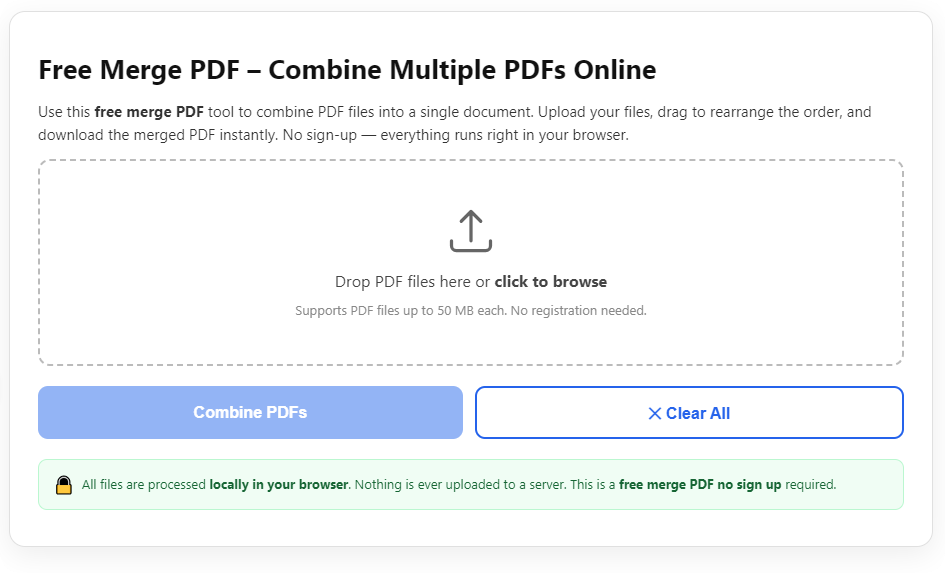
For readers with large PDF libraries, batch processing lets you upload dozens of documents at once. This speeds up library preparation for weekly or monthly Kindle reading plans.
Everyday Use Cases for PDF to EPUB Conversion for Kindle Readers
Learning how to use PDF to EPUB converter for Kindle reading supports nearly every type of digital content you might want to view on your e-reader.
Fiction novel and short story manuscripts
Self-published writers and casual readers often download full-length fiction as PDF drafts. Conversion unlocks adjustable font sizes and seamless page turning for long reading marathons.
Academic textbooks and research papers
College students carry dozens of textbook PDFs and journal articles to study on their Kindle. EPUB formatting makes dense educational text far easier to parse for hours of note-taking and review.
Business reports and industry guides
Professionals store whitepapers, market analysis documents, and meeting notes as PDF files. Converting these creates portable, searchable reference material for commutes and travel work sessions.
Personal written journals and creative writing drafts
Writers store unfinished novels, poetry collections, and daily journals in PDF format. EPUB conversion lets you edit reading preferences and add digital bookmarks to track writing progress.
Cookbooks, travel guides, and hobby reference materials
Visual hobby content filled with photos, step-by-step tables, and side notes breaks easily as raw PDFs on Kindle. Converting stabilizes media positioning and enables smooth offline browsing.
Archiving old digital publications
Out-of-print magazines, newsletters, and scanned vintage texts saved as PDFs gain full Kindle functionality after conversion. You preserve rare content while improving day-to-day readability.
Step-by-Step Full Tutorial: How to Use PDF to EPUB Converter for Kindle Reading
Follow this streamlined, beginner-friendly workflow to transform any PDF into a fully optimized EPUB file ready for seamless Kindle viewing.
Step 1: Sort and prepare your source PDF files
Collect all PDF documents you plan to convert in a single easy-to-locate folder. Remove password locks, encrypted restrictions, or protected editing permissions first.
Encryption blocks most conversion tools from accessing full text and embedded media. Unlock restricted PDFs to avoid incomplete, broken EPUB output after processing.
Separate long textbooks, short articles, and image-heavy guides if using batch conversion. Group similar document types to apply matching compression and layout settings uniformly.
Step 2: Launch your PDF to EPUB conversion tool
Open the converter program or web-based tool on your desktop or laptop browser. Close unrelated background software to avoid processing lag during larger file conversions.
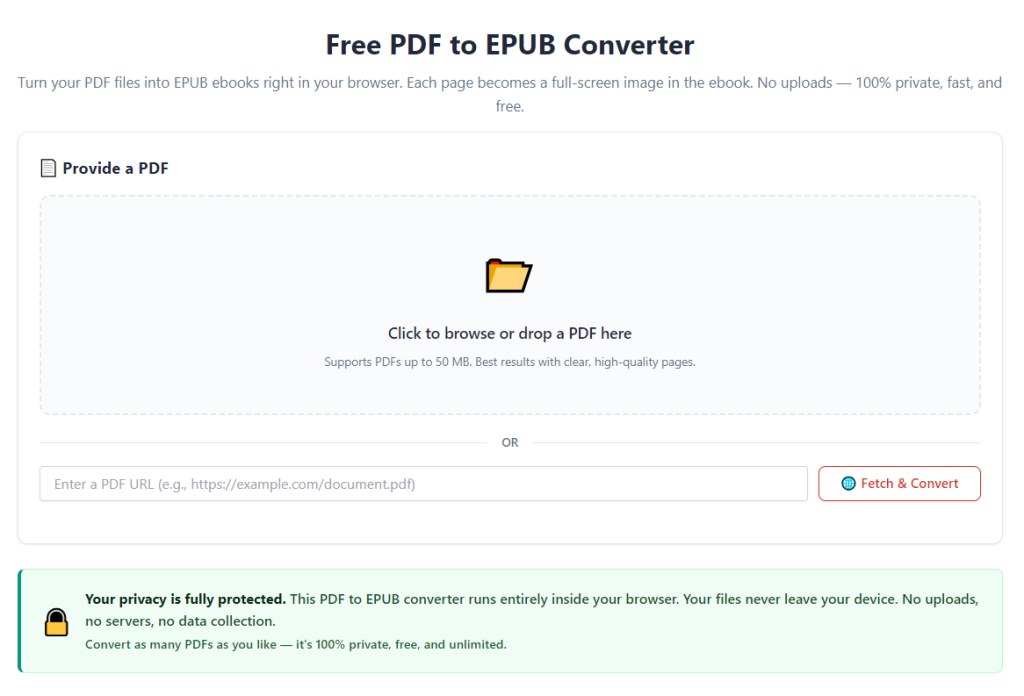
Spend 30 seconds reviewing the main control panel. Locate core modules: file upload zone, metadata editor, layout adjustment sliders, and the final convert button.
Step 3: Upload one or multiple target PDF documents
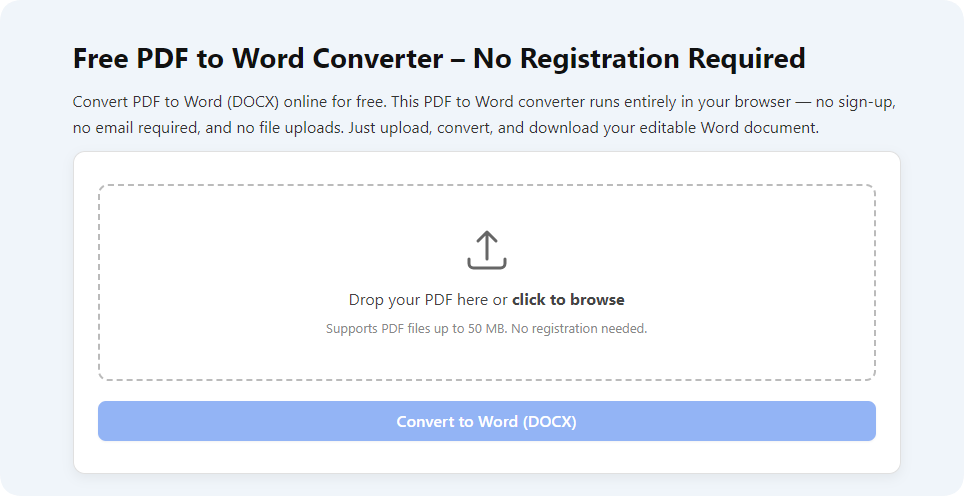
Drag and drop your prepared PDF files into the designated upload area, or use the browse button to select files manually from your storage folder.
Double-check each uploaded thumbnail preview to confirm the full document loaded completely. Corrupted partial uploads produce truncated EPUBs missing chapters or visual content.
If converting a single novel or textbook, upload one file at a time for maximum layout precision. Use batch upload only for short articles and simple text documents without complex tables.
Step 4: Adjust Kindle-optimized layout conversion settings
Access the format customization menu and select e-reader/Kindle preset modes if available. This preset auto-tunes margins, text scaling, and image resolution for e-ink screen hardware.
Toggle the automatic table of contents generator on. This feature scans H1 and H2 PDF headings to create clickable navigation links inside your finished EPUB file.
Adjust image compression slider to a medium balance setting. Too high compression blurs charts and photos; maximum quality creates oversized slow-loading EPUB files.
Disable fixed page layout locking entirely. This critical setting activates full text reflow, the main feature that eliminates PDF zoom and scrolling frustrations on Kindle.
Step 5: Fill out accurate book metadata (optional but recommended)
Open the metadata editing section and enter the official document title, author name, genre category, and publication year.
Upload a custom cover image matching the book’s theme if desired. Kindle libraries display cover art prominently, making it faster to locate specific titles among dozens of stored files.
Tag educational, fiction, business, or hobby labels to group related content once transferred to your e-reader’s library sorting system.
Step 6: Choose a local output storage folder
Select a dedicated output folder on your device hard drive to save finished EPUB files. Create a separate folder labeled “Kindle EPUB Library” to avoid mixing converted files with raw PDF sources.
Avoid saving output directly to desktop clutter. Organized folders simplify later file transfer steps to your Kindle device or cloud sync service.
Step 7: Start the PDF to EPUB conversion process
Click the main convert button and allow the tool processing time. Short text-only PDFs finish within seconds; image-heavy textbooks or multi-hundred-page manuscripts require one to several minutes.
Leave the tool window open during processing. Interrupting the program mid-conversion creates damaged, unreadable EPUB files unsuitable for Kindle upload.
Once the progress bar hits full completion, a pop-up notification confirms successful file creation. Navigate to your selected output folder to locate the new EPUB file.
Step 8: Preview the finished EPUB for layout errors
Double-click the converted EPUB file to open it in a desktop e-book reader preview program. Scan several random chapters to verify text flow, image placement, and table formatting.
Check for misaligned footnotes, cut-off photos, or broken paragraph breaks. If layout flaws appear, return to the converter and reprocess the original PDF with adjusted compression and layout settings.
Make minor edits to metadata or chapter division before re-converting if navigation links appear incomplete or mislabeled.
Step 9: Transfer EPUB file to your Kindle device or app
Connect your Kindle hardware to your computer via standard data transfer cable, or upload the EPUB file to your dedicated Kindle cloud sync inbox address.
For mobile Kindle reading apps, send the EPUB file to your registered reading email or sync via cloud storage service compatible with your tablet or smartphone.
Wait for the Kindle device to finish syncing. New EPUB titles will populate your main library homepage within one to five minutes depending on file size and connection speed.
Step 10: Test full reading functionality on your Kindle
Open the newly uploaded EPUB file directly from your Kindle library menu. Adjust font size, line spacing, and screen margin settings to confirm full reflow works without horizontal scrolling.
Test core features: internal chapter navigation, text highlighting, note creation, word search, and digital bookmark placement. All tools should operate without the limitations present in raw PDF imports.
Repeat the conversion workflow for all remaining PDF documents in your library to standardize your entire digital reading collection for optimal Kindle performance.
Common Mistakes to Avoid When Using PDF to EPUB Converter for Kindle Reading
Even after learning how to use PDF to EPUB converter for Kindle reading, these frequent errors ruin file quality and create frustrating reading limitations on your e-reader.
Uploading password-locked or encrypted PDF files
Conversion tools cannot fully parse protected documents. Encrypted PDFs produce incomplete EPUBs missing images, full chapters, or navigational table of contents links. Always remove security locks before upload.
Skipping Kindle-specific layout preset adjustments
Using generic universal conversion settings retains rigid PDF page logic. Without enabling e-reader reflow mode, your final EPUB will still suffer from cropped text and unadjustable font sizing.
Over-compressing high-detail textbooks and graphic guides
Max compression slashes image resolution to save storage space. Charts, diagrams, and instructional photos become blurry and unreadable on Kindle e-ink screens when compression levels are set too aggressive.
Converting full multi-file libraries in one unfiltered batch
Mixing long textbooks, tiny articles, and image-heavy cookbooks in a single batch leads to inconsistent formatting across output files. Separate complex visual documents for individual custom conversion tuning.
Failing to preview EPUB output before transferring to Kindle
Hidden layout breaks, missing paragraphs, and mislabeled chapter navigation only become obvious once loaded onto your e-reader. Quick desktop previews catch errors early to avoid repeated file uploads.
Ignoring metadata fields entirely
Blank untitled EPUB entries clutter your Kindle library. Without author and genre tags, sorting hundreds of converted files becomes slow and disorganized over time.
Pro Expert Tips to Optimize Results From PDF to EPUB Conversion
Use these actionable strategies to elevate your workflow once you master how to use PDF to EPUB converter for Kindle reading, creating perfectly optimized e-books every single time.
- Complete light PDF cleanup before upload: Delete blank placeholder pages, remove redundant watermark blocks, and crop oversized margin whitespace to streamline conversion processing speed.
- Build a dedicated categorized EPUB library folder system split by genre: fiction, textbooks, business reports, hobby guides, personal manuscripts. This organizes transfers to your Kindle library.
- Run conversions in low-traffic hours if using web-based online tools to avoid server lag and interrupted file processing for large textbooks.
- Retain your original source PDF folder as a backup archive. Keep raw unmodified files stored separately if you need to re-convert with updated layout settings later.
- Test two different compression preset levels for image-heavy content: medium for textbooks with charts, low compression for photo cookbooks and travel visual guides.
- Schedule bulk conversion sessions once weekly to process new downloaded PDFs all at once, maintaining a consistent fully optimized Kindle reading library year-round.
- After uploading new EPUBs to your device, restart your Kindle briefly to refresh the library cache and eliminate slow page navigation lag on newly added titles.
Final Thoughts
PDF format design caters exclusively to fixed desktop monitor viewing. The rigid layout structure conflicts fundamentally with the adjustable, small-screen reading experience Kindle devices and apps deliver. Trying to read unmodified PDF files on your e-reader leads to tiny unreadable text, broken visuals, and locked-out core Kindle customization tools.
Learning how to use PDF to EPUB converter for Kindle reading eliminates every one of these persistent pain points. Reliable conversion tools rebuild static PDF content into flexible, reflowable EPUB files built specifically for e-ink e-reader hardware.
The simple step-by-step workflow outlined above works for every category of digital written content, from short daily articles to multi-hundred-page academic textbooks and full-length novels. Proper conversion unlocks adjustable fonts, seamless navigation, smaller file storage footprints, and full access to every native Kindle reading feature.
By avoiding common conversion mistakes and applying the optimization tips shared in this guide, you can transform your entire PDF library into polished, Kindle-ready EPUB files. This small upfront time investment delivers a vastly more comfortable, customizable, and enjoyable portable reading experience every time you pick up your e-reader.
After learning the operation method, click the link below to enter the tool page for immediate use.