Anyone who works with fillable PDF forms knows how frustrating editable fields can be after submission.
You send a fully completed client contract, tax form or intake sheet, only to receive a version with altered text, deleted signatures or messed-up input boxes. Even trusted contacts can accidentally click form fields and overwrite critical data without meaning to.
Manually securing each PDF form with complex password restrictions creates extra work, and basic read-only locks don’t fully block form field edits. That’s where a reliable PDF flatten tool to lock fillable form fields changes your entire document workflow.
This guide breaks down everything you need to know about flattening PDF form content. We’ll cover why manual locking fails, key perks of dedicated flatten software, must-have tool features, real-world use cases, a full step-by-step workflow, common user mistakes and actionable expert hacks.
Whether you handle business contracts, student paperwork, medical intake forms or customer surveys, this tutorial works for casual home users, freelance admins and enterprise document teams alike. Every section uses plain American English, short digestible paragraphs and zero overly technical jargon.
Why Manual PDF Form Locking Fails Without a PDF Flatten Tool to Lock Fillable Form Fields
Many people attempt to secure completed PDF forms using built-in reader settings, only to run into consistent, avoidable roadblocks. These limitations make manual locking far less reliable than purpose-built flatten tools.
Subjective, Incomplete Document Restrictions
Standard PDF viewers offer simple permission locks, but they don’t eliminate underlying fillable form code. The form fields still exist in the file’s backend. Users with basic PDF editing software can easily bypass lightweight read-only permissions and modify any input box, checkbox or signature block.
A manual lock only adds a surface-level restriction, not permanent static conversion.
No Universal Static File Conversion
When you rely on basic PDF security menus, you cannot fully remove interactive form layers. The file remains an editable fillable PDF at its core. Recipients with even free PDF editors can reactivate blank fields and erase submitted information.
A dedicated PDF flatten tool to lock fillable form fields erases interactive layers entirely, turning all filled content into static, uneditable page graphics.
Time-Heavy, Repetitive Manual Adjustments
If you manage dozens of filled PDF forms each week, tweaking permission settings file-by-file eats up hours of admin time. Each document requires separate password setup, permission toggling and save adjustments.
Flatten tools process bulk PDF files in one batch, cutting repetitive document security work drastically.
Risk of Accidental Data Tampering During Sharing
Even well-meaning recipients can trigger unintended edits. Clicking a signature field, tabbing through text boxes or copying content can shift form data on mobile or desktop readers. Static flattened PDFs eliminate this risk entirely.
No Consistent Output Across Devices
Basic PDF locks behave differently on Windows, Mac, tablet and mobile readers. A form locked on desktop may still show editable fields when opened on a smartphone. Flattened documents render uniformly across every device without interactive elements.
Core Benefits of Using a PDF Flatten Tool to Lock Fillable Form Fields
Integrating a PDF flatten tool to lock fillable form fields into your daily document workflow delivers tangible, long-term improvements for anyone distributing completed PDF forms. Every advantage targets common pain points with editable PDF file sharing.
Permanent, Unbreakable Form Field Locking
The top advantage of flattening software is total static conversion. The tool merges all filled text, checkmarks, signatures and dropdown selections into flat page content. No hidden interactive code stays embedded in the file.
No third-party editor can reactivate blank fillable fields after processing with a proper PDF flatten tool to lock fillable form fields.
Eliminate Accidental or Malicious Data Alterations
Businesses handling confidential client data face major liability risks if submitted forms get modified post-completion. Flattening removes all editing vectors, so every shared PDF displays exactly the content you saved with zero room for changes.
Faster Document Sharing & Smaller File Sizes
Interactive PDF form layers add hidden backend code that bloats file storage. Flattening strips unused interactive scripts, compresses static page data and reduces overall PDF size. Smaller files upload faster to cloud storage, email attachments and client portals.
Works for Bulk PDF Form Batches
Top-tier flatten utilities support multi-file uploads. You can select ten, fifty or hundreds of completed fillable PDFs and run full flattening in one single operation. Batch processing eliminates repetitive single-file editing.
Zero Complex Password Management
Basic PDF security requires tracking unique passwords for every document you send. Flattened static PDFs skip password setup entirely. Recipients open, view and print files instantly without unlocking restrictions, while form content stays permanently locked.
Uniform Rendering on All Hardware & Software
Flattened PDFs display consistently across every PDF reader, web browser, mobile app and printing device. You avoid formatting shifts, broken checkboxes or misaligned signature blocks that often appear with unflattened fillable forms.
Fully Compliant for Official & Legal Document Distribution
Tax filings, legal contracts, medical intake paperwork and official business forms require immutable final copies. Courts, auditors and regulatory bodies accept flattened PDFs as unaltered official records, whereas editable fillable forms carry questions about data authenticity.
Key Features to Prioritize When Picking a PDF Flatten Tool to Lock Fillable Form Fields
Not all online or desktop PDF flatten utilities deliver identical results. When comparing options for locking fillable form fields, prioritize these blogger and admin-focused practical features for reliable, consistent performance.
Full Form Field Layer Removal
The tool must completely erase interactive form objects: text input boxes, radio buttons, checkboxes, digital signature fields, dropdown menus and date selectors. Low-quality flatten software often leaves partial interactive code intact.
Single & Bulk PDF Upload Support
Look for tools that accept both individual PDF files and multi-file folder uploads. Batch flattening is non-negotiable for anyone processing high volumes of completed forms each week.
Local File Processing (No Cloud Data Upload Mandate)
For sensitive legal, financial or medical documents, choose flatten software that runs file processing locally on your device. This avoids uploading confidential filled form data to external cloud servers during flattening.
Preview Function Before Final Flatten Export
A quality PDF flatten tool to lock fillable form fields includes a live preview panel. You can scan the document post-processing to confirm all form content converted to static graphics before downloading the final locked PDF.
Format Preservation for Complex Forms
Many fillable PDFs include tables, embedded images, hand-drawn signatures and multi-column layouts. Top flatten tools retain original alignment, font sizing, color schemes and page formatting without distortion.
Lightweight Output Compression
After flattening, the tool should offer optional lossless compression. This shrinks file sizes without blurring text or signatures, ideal for email attachments with strict file size limits.
Cross-Platform Compatibility
Select tools that run on Windows, Mac, tablet browsers and mobile web interfaces. This lets you flatten PDFs whether you work from a desktop office setup or travel with a tablet.
No Hidden Paywalls for Core Flatten Functions
Avoid utilities that lock bulk flattening, full form layer removal or high-volume exports behind premium subscriptions. Reliable basic PDF flatten tools offer core field-locking features without mandatory upgrades.
Common Real-World Use Cases for a PDF Flatten Tool to Lock Fillable Form Fields
A versatile PDF flatten tool to lock fillable form fields fits nearly every industry that relies on completed digital PDF paperwork. Below are the most frequent use cases across niche and general business workflows.
Business Client Contracts & Service Agreements
Sales teams send signed fillable PDF contracts to clients and stakeholders. Flattening locks all signature blocks, pricing tables and client input fields to prevent unauthorized edits to payment terms, service scope or liability clauses.
Tax & Financial Reporting Documents
Accountants, bookkeepers and tax preparers distribute completed tax worksheets, expense forms and financial disclosure PDFs. Flattening ensures submitted monetary figures, personal ID data and filing selections cannot be altered after final submission.
Medical & Healthcare Intake Forms
Clinics, dental offices and therapy practices collect patient fillable intake PDFs with confidential health history data. Flattening secures protected personal health information and stops accidental edits to diagnosis, contact or insurance fields.
Educational Student Paperwork
Schools, colleges and tutoring centers use fillable PDFs for enrollment forms, permission slips and grade submission sheets. Flattened student records preserve original submitted answers and parent signatures for permanent school archives.
Human Resources Employee Onboarding Forms
HR teams distribute tax withholding paperwork, benefits enrollment sheets and employment contracts. A PDF flatten tool to lock fillable form fields locks employee input data, signature fields and salary disclosures before filing into company records.
Real Estate Listing & Closing Documents
Realtors and property managers share fillable offer sheets, rental applications and closing disclosure PDFs. Flattening prevents buyers or sellers from modifying pricing, occupancy dates or contingency terms after document signing.
Freelance & Creative Client Surveys
Designers, writers and marketing consultants send client feedback forms and project brief PDFs. Flattening locks submitted feedback selections and budget input boxes to preserve agreed-upon project requirements.
Archived Legacy PDF Form Updates
Teams maintaining years of stored digital paperwork often revisit old fillable form archives. Flattening outdated completed forms converts them to static locked files for secure long-term cloud storage without editable field risks.
Step-by-Step Full Tutorial: Use a PDF Flatten Tool to Lock Fillable Form Fields
Follow this streamlined workflow to fully flatten and lock any completed fillable PDF form using standard flatten utility software. The steps work for desktop and browser-based online PDF flatten tools alike.
Step 1: Finalize & Save Your Completed Fillable PDF Form
Finish all form inputs first. Fill every text box, check required options, add digital signatures and input all required data within the original fillable PDF file. Do not begin flattening with partially blank forms unless you intend to lock incomplete content permanently.
Save a backup copy of the original editable fillable PDF to your local storage before opening the flatten tool. This preserves the interactive template for future reuse if needed.
Step 2: Launch Your Selected PDF Flatten Tool to Lock Fillable Form Fields
Open your desktop flatten application or navigate to the trusted online PDF flatten utility in your web browser. Clear any previously uploaded files from the tool’s workspace to avoid mixing new and old documents.
Spend ten seconds reviewing core tool functions: single file upload, batch folder import, preview panel and compression export settings.
Step 3: Upload Completed Fillable PDF Files
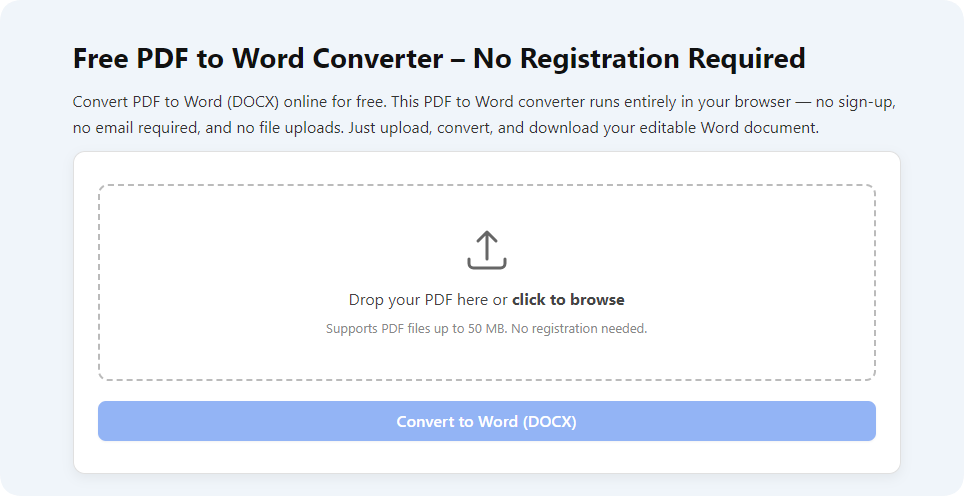
Locate the upload button within the tool’s main interface. Drag-and-drop your finished PDF form directly into the upload zone, or use the file browser menu to select documents from local folders.
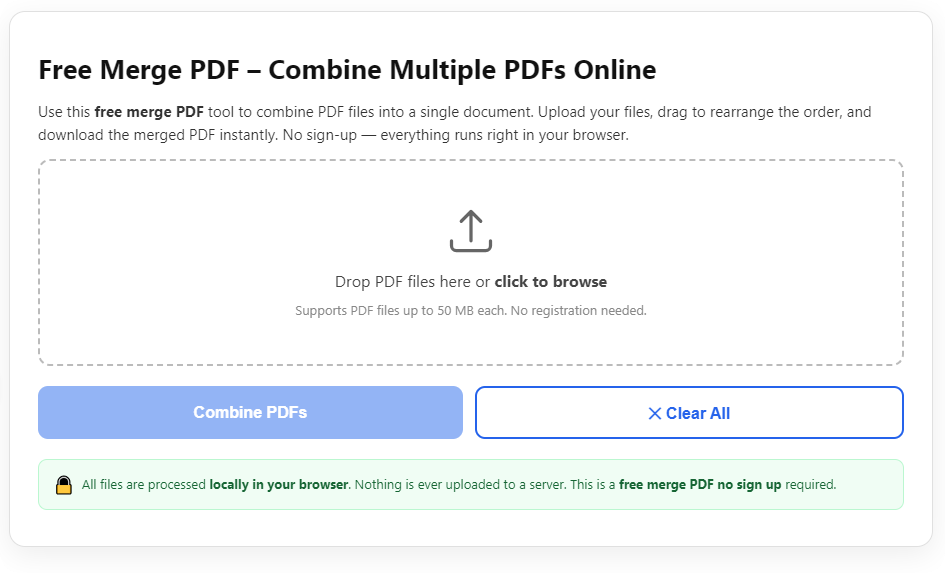
For bulk processing, select an entire folder of completed fillable PDFs to upload all files simultaneously. Confirm every required document appears in the tool’s file list before advancing.
Step 4: Enable Full Form Field Flattening Mode
Locate the core processing settings panel. Toggle on the dedicated flatten fillable form fields function. Some tools label this setting “Remove Interactive Form Layers” or “Lock All Editable Inputs.”
Leave compression settings on default lossless mode unless you need ultra-small file sizes for email attachments. Avoid heavy compression if your form contains high-resolution scanned signatures.
Step 5: Run the PDF Flatten Processing Scan
Click the process, flatten or convert button to launch the file scan. Single-page PDF forms finish processing in under one second; multi-page or bulk batches take a few seconds longer depending on file count and page length.
Do not close the tool window mid-processing, as this can corrupt output PDF files and leave partial interactive layers intact.
Step 6: Preview Locked Static PDF Output
Once processing completes, open the built-in document preview panel to inspect your flattened file. Click every former input box, checkbox and signature area to confirm no editable fields remain active.
Scroll through all pages to verify no formatting shifts, missing text or distorted signature graphics appeared during flattening. If alignment errors appear, reupload the original PDF and rerun the process with default compression disabled.
Step 7: Adjust Export Compression (Optional)
If the flattened file size remains too large for email or cloud upload, toggle mild lossless compression in the export menu. Test different compression levels to balance small file size and crisp document text quality.
Skip compression entirely for legal, tax or medical documents where maximum visual clarity is mandatory for official filing.
Step 8: Download Your Permanently Locked Flattened PDF
Select the download or export button to save the finalized static PDF to your local device storage. Rename the file to clearly label it as flattened for easy archive sorting (example: ClientContract_FlattenedLocked.pdf).
Store the downloaded locked PDF in your primary document sharing folder for client, stakeholder or internal team distribution.
Step 9: Distribute the Locked Flattened PDF to Recipients
Send the flattened file via email, cloud link or secure document portal. Recipients can view, print and save the PDF, but cannot alter any original form input, signature or selection fields.
Keep the original editable fillable PDF backup stored separately for future template reuse or duplicate form creation.
Common Mistakes to Avoid When Using a PDF Flatten Tool to Lock Fillable Form Fields
Even with reliable flatten software, these frequent user errors leave form fields partially editable or create distorted, unprofessional PDF output.
Flattening Unfinished, Partially Blank Fillable Forms
Many users run flatten processing before completing all form fields. Locking incomplete content creates static PDFs with blank uneditable boxes that cannot be filled later. Always finalize all data before starting flattening.
Skipping the Post-Processing Preview Check
Rushing straight to download without previewing often leaves hidden interactive layers undetected. Low-grade flatten tools sometimes fail to remove dropdown or signature fields fully; previewing catches these issues before file distribution.
Over-Compressing Legal or Official Document PDFs
Aggressive compression blurs fine print, signature scans and small table text on tax, legal and medical forms. Stick to lossless compression for any document intended for official filing or regulatory review.
Forgetting to Save the Original Editable PDF Template
Users frequently delete the original fillable PDF after flattening. If you need to send a blank form copy to new clients later, you will lose the interactive template without a stored backup file.
Using Flatten Tools That Force Cloud Uploads of Sensitive Data
Medical records, tax filings and employee HR forms contain protected personal information. Avoid online flatten utilities that require uploading confidential files to external cloud servers; choose local-processing software for private paperwork.
Running Flattening Mid-Draft Instead of Post-Completion
Some users flatten draft forms halfway through writing edits. This creates static locked documents that cannot be updated with revised client data, forcing full form recreation from scratch.
Applying Uniform Flatten Rules to Every Document Niche
Short casual survey forms tolerate heavier compression, while multi-page legal contracts require zero compression and full precision matching original formatting. Adjust tool settings based on your document type instead of using identical defaults for all PDFs.
Expert Tips to Maximize Results From Your PDF Flatten Tool to Lock Fillable Form Fields
Implement these simple workflow strategies to get consistent, high-quality locked flattened PDFs every time you process fillable forms.
- Bookmark your preferred flatten tool for instant access, so you can process completed forms immediately after signing and data entry.
- Create a standardized file naming template for all flattened PDFs to separate locked static files from editable template backups in your storage folders.
- Process fillable PDF batches at the end of each workday to avoid scattered unflattened documents cluttering your shared cloud drive.
- Double-check all checkbox and dropdown selections in the original PDF before flattening; static locked files cannot correct accidental wrong selections post-processing.
- Share flatten workflow guidelines with team members handling shared client paperwork to maintain uniform locked PDF standards across all distributed forms.
- Pair flattening with light watermarking for high-value legal contracts to add an extra layer of authenticity alongside permanent form field locking.
- Test downloaded flattened PDFs on mobile and desktop readers before sending to clients to confirm no hidden editable fields appear on alternate devices.
- Archive all flattened locked PDFs in a dedicated secure folder separate from blank fillable templates to streamline future document audits and record retrieval.
Final Thoughts
Fillable PDF forms streamline digital data collection, but unprotected interactive fields create constant security and data integrity headaches for document distributors. A dependable PDF flatten tool to lock fillable form fields eliminates every core risk of editable shared paperwork by converting all completed inputs into permanent static page content.
Manual permission locks and basic PDF security settings only offer surface-level protection, while dedicated flatten utilities erase interactive form layers entirely. The step-by-step workflow, use case breakdown and expert guidance above simplify flattening for every user, from casual home admins to enterprise document management teams.
By integrating consistent flattening into your document export routine, you eliminate accidental edits, cut file storage bloat, ensure uniform cross-device rendering and meet official compliance standards for legal, financial and confidential paperwork. Every flattened PDF you distribute delivers unalterable, professional records that build trust with clients, stakeholders and regulatory reviewers long-term.
This complete downloadable guide serves as a permanent reference you can revisit any time you need to lock fillable PDF form fields without complex password setup or unreliable manual security restrictions.
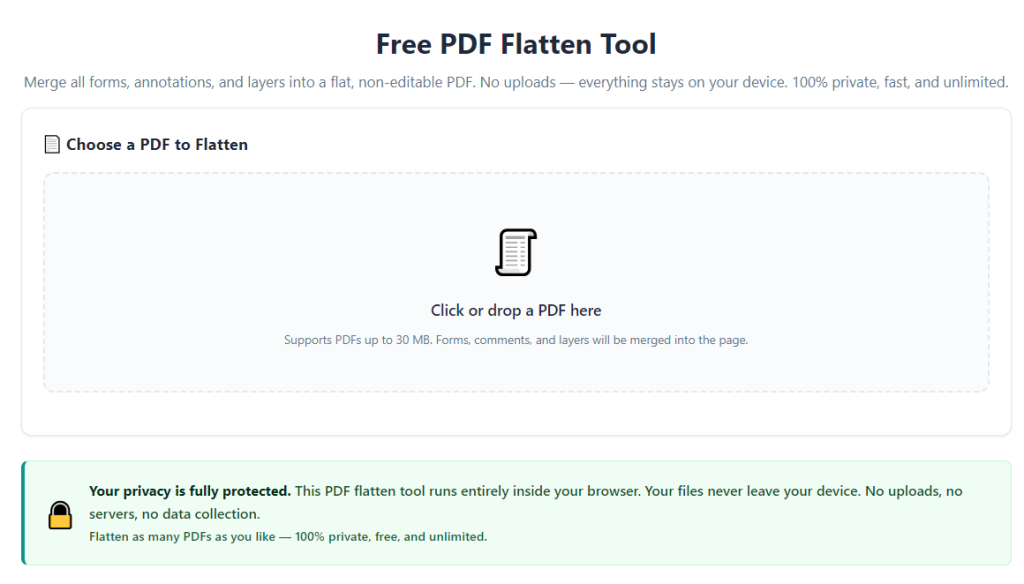
After learning the operation method, click the link below to enter the tool page for immediate use.