our social media profile picture is the first impression you leave on followers, potential clients, friends and online connections. A poorly sized, awkwardly framed or incorrectly cropped image can make even the best photo look unprofessional, messy or distracting. Many people upload their favorite photos directly to social platforms only to find key facial features, logos or important details get cut off automatically. Some platforms stretch images, add blurry borders or force awkward framing when the original file does not match standard profile dimensions. If you struggle with uneven framing, cut-out faces or distorted profile photos, learning how to crop image for social media profile the right way will completely upgrade your online presence.
Cropping a photo for social media profiles is not just about trimming edges. It is about understanding standard platform sizes, framing rules, visual balance and proper composition to make your profile picture look clean, consistent and eye-catching across every app. Most casual users rely on built-in platform croppers, which offer limited control and often deliver unsatisfying results. Using a dedicated editing tool and following proven cropping techniques lets you take full control over framing, keep important subjects centered and create uniform profile images for all your social accounts. In this detailed, beginner-friendly guide, we will break down why proper cropping matters, standard size rules for major social platforms, easy tools to use, a complete step-by-step workflow, common mistakes to avoid and professional tips to master how to crop image for social media profile like a seasoned content creator.
Why Proper Cropping Matters for Social Media Profile Pictures
Before diving into the practical steps, it is important to understand why taking the time to crop image for social media profile manually is far better than letting platforms auto-adjust your photos. Every major social network uses fixed aspect ratios and pixel dimensions for profile icons, header images and public avatars. When your original photo does not fit these set measurements, the platform’s system will either zoom in randomly, slice off parts of the subject or add plain empty space around the edges.
For personal accounts, a badly cropped profile picture can hide your eyes, cut off half your face or leave an unbalanced composition that looks rushed. For business owners, influencers and professionals, distorted or poorly framed profile images damage brand trust and make your page look unpolished. Consistent, well-cropped profile photos build recognition across multiple social accounts, whether you run a personal brand, small business or creative portfolio.
Another key reason to learn how to crop image for social media profile is flexibility. Different platforms use different shape rules: some use perfect square crops, others prefer vertical rectangles or circular display frames. A photo that looks great on one app will not always translate well to another without manual adjustment. By mastering basic cropping skills, you can create one master image and adapt it to every platform instead of taking dozens of new photos for each profile. This saves time, keeps your visual style unified and ensures your key features or brand elements always stay fully visible.
Standard Aspect Ratios & Sizes for Popular Social Media Profiles
One of the biggest hurdles when you first learn how to crop image for social media profile is keeping track of all the different size requirements. Each major platform follows its own standard dimensions, and knowing these numbers upfront makes cropping fast and accurate. You do not need to memorize every single pixel measurement, but understanding aspect ratios will help you frame every photo correctly from the start.
Most mainstream social media platforms use a 1:1 square ratio for main profile pictures. This classic square crop works well for headshots, logos, illustrations and simple portraits, and it is the most common format you will work with. Square crops keep the subject centered evenly and display clearly in small icon views, comment sections and follower lists.
A few platforms use slightly adjusted vertical or rounded framing, but they still base display on square source images. Even when profiles appear as circles on screen, you should always crop the original file as a square first. The circular overlay on the platform will then naturally round the corners without cutting off critical parts of your photo.
When you crop image for social media profile, always start with a high-resolution original file. Low-resolution photos will become blurry after cropping and resizing, especially when displayed on high-definition mobile and desktop screens. Working with clear, full-size images ensures your final cropped profile picture stays sharp no matter where it appears online.
Take time to note which platforms you use most often. If you manage multiple accounts, create a simple reference for square profile crops, and you will be able to reuse the same cropped image across nearly all your social profiles with minimal extra edits. This is the foundation of efficient social media image management once you know how to crop image for social media profile properly.
Best Tools to Crop Image for Social Media Profile (Beginner & Pro Friendly)
You do not need expensive professional editing software to crop image for social media profile. A wide range of free, easy-to-use tools works perfectly for this task, and most require no previous editing experience. Whether you prefer browser-based tools, mobile apps or basic desktop programs, you can find a reliable option to handle all your profile cropping needs.
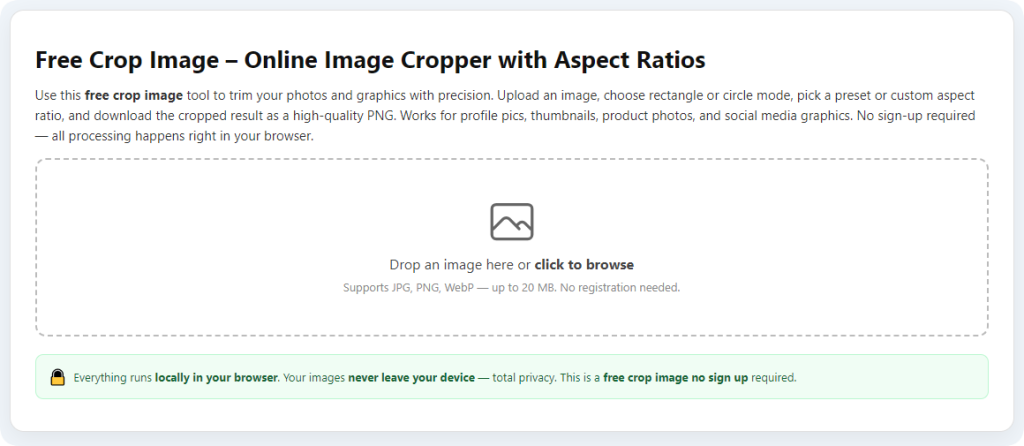
Free online image editors are the most popular choice for quick profile cropping. These tools open directly in your browser, require no downloads or installations, and feature simple one-click crop templates for social media. Many even have preset labels for social media profile pictures, so you do not have to manually enter aspect ratios. Simply upload your photo, select the social profile preset, adjust the framing and save the final file. These tools are ideal if you only need to crop occasionally and want a fast, hassle-free solution.
Mobile photo editing apps are another great option, especially if you take most of your photos on a smartphone. Nearly every standard photo app includes a built-in crop function with adjustable grids and aspect ratio locks. You can edit your portrait or selfie right after taking it, frame the subject perfectly, and save the cropped image directly to your phone for instant upload to social platforms. Mobile tools are perfect for on-the-go users who manage social profiles from their devices.
Basic desktop editing software works well for users who need higher precision or batch cropping. These programs give you full manual control over crop boundaries, grid lines and image alignment. While they have more features, the core crop function remains simple enough for beginners. If you regularly create and update many social media profiles, a lightweight desktop editor will speed up your workflow significantly.
No matter which tool you pick, the core process to crop image for social media profile stays the same. The goal is always to lock the correct aspect ratio, adjust framing to highlight your main subject, and save a high-quality file ready for upload.
Step-by-Step Guide: How to Crop Image for Social Media Profile
This universal step-by-step workflow works with nearly every online editor, mobile app and desktop tool. Follow these simple steps, and you will consistently create perfectly framed profile photos every single time. This is the standard method thousands of content creators use when they need to crop image for social media profile across all major platforms.
Step 1: Select and Upload Your Original Image
Start by choosing the photo you plan to use for your social media profile. Prioritize high-resolution, clear images with good lighting. Avoid blurry screenshots, heavily compressed files or photos where the main subject is positioned too close to the edges. Open your chosen editing tool, then upload or import the original image. If you are using a mobile app, simply select the photo from your device’s gallery. Double-check the image before moving forward, as starting with a strong original photo makes cropping far easier.
Step 2: Activate the Crop Tool and Set the Correct Aspect Ratio
Locate the crop icon or crop menu inside your editor. Once the crop frame appears over your image, find the aspect ratio settings. For almost all social media profile pictures, select the 1:1 square ratio. Lock this ratio in place so the crop frame stays a perfect square while you adjust positioning. Locking the aspect ratio prevents accidental stretching or uneven framing, which is one of the most common mistakes new users make when they first learn how to crop image for social media profile.
Step 3: Adjust Framing and Compose the Profile Picture
Now it is time to frame your subject for the best visual effect. Use the on-screen grid lines, which most editors display automatically, to align your subject properly. For personal portraits and headshots, position your face in the center of the square frame. Leave a small amount of empty space above your head and on both sides, so your head and shoulders do not touch the crop edges. This small buffer ensures nothing gets cut off when the platform applies circular framing or additional zoom.
If you are cropping a logo, brand graphic or illustrated profile icon, center the design evenly inside the square crop. Make sure all text, symbols and brand elements sit well within the frame. Take a moment to view the image from a distance to check balance. A well-composed profile picture looks neat both as a large full image and as a small icon on screen.
Step 4: Preview and Fine-Tune the Crop
After adjusting the frame, preview how the cropped image will look. Toggle between the original view and the cropped view to spot any awkward framing, cut-off details or unbalanced space. If parts of your hair, shoulders or logo sit too close to the edge, slightly reposition the entire frame inward. This quick fine-tuning step makes a huge difference in the final quality of your social media profile picture.
Step 5: Apply the Crop and Save the Final File
Once you are fully satisfied with the framing, apply the crop to finalize the edits. Next, save or export the new image. Always save the file in a standard format such as JPG or PNG, which all social media platforms support. Do not lower the image quality during saving, as this will create blurry profile icons. Store the finished cropped image in an easy-to-find folder so you can upload it to all your social profiles whenever you need.
Common Mistakes When You Crop Image for Social Media Profile (And How to Avoid Them)
Even after learning the basic workflow, many users repeat the same simple errors that ruin profile picture quality. Recognizing these mistakes will help you master how to crop image for social media profile and produce professional results every single time.
The first and most frequent mistake is forgetting to lock the aspect ratio. When the ratio is unlocked, dragging the crop frame will stretch the image or create a non-square shape. Social media platforms will then auto-crop your file again, leading to distorted faces, stretched logos and messy framing. Always lock 1:1 square ratio before adjusting the crop boundaries.
The second mistake is cropping too tightly around the subject. Many users cut the frame right at the top of the head or the sides of the shoulders. When the platform applies circular cropping or slight zoom, key parts of the photo get sliced off entirely. Always leave a small margin of empty space around your main subject to account for platform-side adjustments.
Third, using low-quality original images cannot be fixed with cropping. If your source photo is blurry, pixelated or too small, cropping will only make the quality worse. Always start with a full-size, high-resolution photo to keep your profile picture sharp on all devices.
Fourth, relying fully on platform built-in croppers. While these tools are convenient, they offer limited control over composition and framing. Taking one minute to crop image for social media profile manually in a dedicated editor gives you complete control over the final look and avoids random auto-framing errors.
Professional Tips to Elevate Your Social Media Profile Cropping
Once you master the basic steps to crop image for social media profile, use these professional tips to make your profile pictures stand out and stay consistent across every platform. These small adjustments separate casual users from polished creators and brands online.
First, create one master cropped profile image to reuse across all accounts. Since nearly all platforms use square profile images, you can edit one high-quality square crop and upload it everywhere. This builds strong visual consistency and brand recognition across your entire social presence.
Second, use the rule of center alignment for profile portraits. Unlike regular photography where off-center framing works well, profile icons look best when the main subject is perfectly centered. Viewers see profile pictures in small sizes most of the time, and centered framing ensures instant recognition.
Third, test how your cropped image looks in a circle. Since most social profiles display square photos inside a circular frame, imagine a circle over your square crop while editing. Keep all important features inside that imaginary circle, so nothing disappears after upload.
Fourth, update your cropping approach based on your profile purpose. Personal profiles can use relaxed, natural framing, while business and brand profiles should keep logos and text extra centered and clear for professional appeal.
Fifth, re-crop old profile images periodically. As you update your personal style or brand visuals, reworking your profile crop keeps your online image fresh and up to date. The simple cropping process takes only moments once you build the habit.
Final Thoughts
Your social media profile picture acts as your digital identity across the internet, and proper cropping is the simplest way to make that identity look clean, professional and memorable. Too many people overlook this basic editing step and settle for awkwardly cut, distorted or poorly framed photos simply because they do not know how to crop image for social media profile correctly.
Learning this essential skill does not require artistic talent or advanced editing knowledge. With an understanding of standard square aspect ratios, a simple editing tool and a repeatable workflow, anyone can create perfect profile pictures for every social platform. You no longer need to deal with auto-cropping surprises, cut-off faces, stretched graphics or blurry profile icons.
Whether you manage personal social accounts, run a small business, build a creator brand or maintain professional networking profiles, knowing how to crop image for social media profile saves you time and improves your overall online image. Take a few minutes to practice the steps shared in this guide, test different framing styles, and build a set of high-quality cropped profile images you can reuse anytime. Small details like proper photo cropping create big results for your online presence, and this easy skill will serve you well for years to come.
After learning the operation method, click the link below to enter the tool page for immediate use.