PDF files are the universal standard for sharing reports, essays, business contracts, e-books, and presentation materials across every industry. Almost anyone who works with digital documents has run into one persistent nuisance: random blank pages scattered throughout their finished files.
These empty pages pop up for dozens of common reasons. Exporting Word, PowerPoint, or spreadsheet files to PDF often adds trailing blank sheets. Scanned documents frequently generate fully blank divider pages between content sections. Even split or merged PDF files can create invisible blank pages that waste storage space and confuse readers.
Manually scrolling through hundreds of PDF thumbnails to spot and delete blank pages eats up massive chunks of work time. Casual manual deletion also leaves room for human error, like missing hidden blank pages buried deep inside long documents.
Learning how to use PDF page remover to delete blank pages eliminates all these frustrating manual workflows. A dedicated PDF page remover is built with specialized scanning logic to detect empty pages instantly, then remove them in bulk with just a few simple clicks.
This comprehensive hands-on guide breaks down the downsides of manual blank page removal, core advantages of professional PDF page remover tools, non-negotiable key features, everyday use cases, and a full step-by-step workflow to master blank page cleanup for any PDF file size.
Common Headaches Caused by Unremoved Blank PDF Pages
Blank pages left inside your PDF documents create practical, professional, and storage-related problems that most users overlook until sharing or printing files.
Wasted paper and printing costs
Every blank page you send to a printer consumes ink and physical paper unnecessarily. For business teams printing dozens of multi-page reports weekly, unused blank sheets add up to unnecessary recurring office supply expenses.
Unprofessional document appearance
Clients, professors, hiring managers, and business partners view PDFs with random blank pages as sloppy and unpolished. Empty divider sheets break reading flow and distract from your core written or visual content.
Larger than necessary file sizes
Blank pages still carry hidden background layer data, metadata, and blank canvas coding. Multiple empty pages bloat your PDF file size, slowing down email uploads, cloud storage syncs, and online document sharing links.
Risk of missed critical content during review
Readers scrolling through long PDFs often skip large gaps created by blank pages. Important tables, citations, or conclusion sections may get overlooked if separated by dozens of empty sheets.
Slow manual page sorting workflows
Without automated tools, you must click every page thumbnail one by one to identify blank content. This tedious process becomes exponentially slower when working with thesis papers, lengthy annual reports, or full scanned book files.
Why Manual Blank Page Deletion Falls Short of Modern Document Needs
Many users attempt to delete blank PDF pages using basic built-in readers or generic editing software, only to run into consistent limitations that waste more time long-term.
No automatic blank page detection
Basic PDF viewers only let you delete pages by manual selection. There is no built-in scanner to flag all empty pages at once, forcing you to visually inspect every single page thumbnail individually.
Slow bulk selection for long files
Documents with fifty, one hundred, or more blank pages require holding control/command keys and clicking each thumbnail separately. This repetitive clicking creates avoidable workflow delays for heavy document editors.
Easy accidental deletion of valid content pages
When rapidly scrolling through page thumbnails, it is simple to misjudge lightly filled pages as blank and delete them by mistake. Restoring lost content takes extra editing and rework to fix.
Hidden blank page blind spots
Some blank PDF pages contain invisible white shapes, transparent text boxes, or hidden image layers. Human eyes cannot spot these masked empty pages, but standard manual deletion tools offer no way to scan for them.
No batch export after cleanup
Most basic PDF editors only save edited files one at a time. If you need to clean dozens of separate PDF files in a work session, manual deletion requires repeating the full process for every single document.
Core Benefits of Mastering How to Use PDF Page Remover to Delete Blank Pages
Once you learn how to use PDF page remover to delete blank pages and integrate this tool into your regular document workflow, you unlock consistent time savings, cleaner file outputs, and stronger professional document quality.
Automatic full-document blank page scanning
A specialized PDF page remover runs an internal scan across every page layer in your file. It instantly flags all visible and hidden blank pages without any manual visual checking from the user.
One-click bulk blank page removal
Instead of selecting empty pages one by one, the tool lets you delete every detected blank sheet simultaneously. Entire reports, scanned books, and long academic papers get streamlined in seconds instead of minutes or hours.
Preserves all valid original content perfectly
The blank page deletion logic only targets fully empty pages. Text blocks, images, tables, signatures, charts, and handwritten annotations on partially filled pages remain untouched with zero formatting damage.
Shrinks PDF file storage footprint
Removing blank layers cuts down overall document file size drastically. Smaller PDFs upload faster to email and cloud drives, take up less device storage, and load quicker when shared with remote collaborators.
Maintains original page order and formatting
After deleting blank pages, the tool automatically reorders all remaining content pages without shifting margins, text alignment, embedded images, or hyperlink placement within the PDF.
Compatible with all common PDF source files
PDF page remover tools process files exported from Word, Excel, PowerPoint, scanning software, digital signature platforms, and previously split/merged PDF documents with no compatibility errors.
Works for personal, student, and commercial business use
Whether you are editing school essays, freelance client reports, internal company paperwork, or personal scanned archives, the blank page removal workflow adapts seamlessly to every document type and length.
Must-Have Features in a Reliable PDF Page Remover
Not every PDF editing utility includes robust blank page removal functionality. As you learn how to use PDF page remover to delete blank pages, prioritize tools that carry these critical, user-focused features for consistent results.
Automated blank page detection engine
This core feature separates premium PDF page removers from generic editors. The scanner analyzes pixel density, text presence, embedded objects, and hidden layers to identify every empty page variant in the file.
Preview thumbnail panel before deletion
A clear thumbnail sidebar displays every PDF page, with automatically highlighted blank pages for quick visual confirmation before confirming permanent deletion. This eliminates accidental content loss entirely.
Selective deletion toggle options
Advanced tools offer two flexible modes: delete all detected blank pages in one batch, or manually uncheck specific flagged pages if you want to retain intentional blank dividers for formatting purposes.
Multi-file batch processing support
Top-tier PDF page removers let you upload multiple separate PDF documents at once. The tool scans and removes blank pages from every file in the batch simultaneously to speed up bulk document cleanup sessions.
Lossless PDF export compression
After blank page removal, the tool exports the revised file without lowering image resolution, blurring text, or breaking embedded hyperlinks, signatures, and form fields inside the document.
Cross-device file compatibility
Functional PDF page removers operate smoothly on desktop browsers, laptop software, and mobile editing interfaces, so you can delete blank pages whether working from home, the office, or on the go with a tablet or smartphone.
Undo restore function for deleted pages
If you accidentally flag a partially filled page as blank and remove it, the undo tool recovers the page instantly without requiring you to reimport your original source PDF file.
No permanent file storage policies
Secure PDF page remover tools do not store your uploaded documents on external servers long-term. This privacy feature matters heavily for confidential business contracts, student research papers, and sensitive personal scanned records.
Everyday Real-World Use Cases for PDF Page Remover Blank Page Deletion
The skill of learning how to use PDF page remover to delete blank pages applies to nearly every scenario where digital PDF documents get created, edited, shared, or printed.
College and graduate student academic work
Students exporting research papers, literature reviews, lab reports, and thesis documents from word processors regularly end up with trailing blank pages. A PDF page remover cleans these files before submitting coursework to professors, eliminating unprofessional empty sheet clutter.
Small business client report preparation
Marketing, finance, and human resource teams compile multi-page client proposals, budget spreadsheets, and performance review PDFs. Removing blank pages cuts printing costs and delivers polished, concise documents to customers and stakeholders.
Scanned physical document archiving
When scanning books, handwritten notes, invoices, and legal paperwork, scanners often capture blank reverse sides of pages as empty PDF sheets. Bulk blank page removal streamlines digital archive folders and reduces cloud storage usage.
E-book and digital guide formatting
Independent creators building PDF e-books, workbooks, and tutorial guides frequently generate accidental blank pages during layout export. Automated cleanup ensures smooth, uninterrupted reading experiences for download audiences.
School and administrative office paperwork
K-12 and university administrative staff generate student enrollment forms, handbooks, and schedule packets that carry random blank divider pages. Fast blank page deletion simplifies mass printing and distribution to families.
Freelance writer and designer client deliverables
Writers, graphic designers, and copy editors share PDF drafts and final assets with clients. Removing blank pages creates compact, easy-to-navigate files that showcase creative work without distracting empty gaps.
Personal digital file organization
Users scanning receipts, medical records, tax forms, and personal journals accumulate PDF files filled with blank scanned pages. A PDF page remover organizes personal digital archives with minimal manual effort.
Step-by-Step Complete Guide: How to Use PDF Page Remover to Delete Blank Pages
Follow this simple, repeatable workflow every time you need to clean blank pages from any PDF file, whether working on desktop software or browser-based online PDF page remover tools.
Step 1: Locate and prepare your target PDF file
First, save the original unedited copy of your PDF to a clear folder on your device. Always keep a backup of the raw source file before editing, in case you need to restore unmodified pages later on.
Note the total page count and approximate location of obvious blank pages if you have already previewed the document. This mental reference helps you verify successful deletion after running the scan.
Step 2: Open your chosen PDF page remover tool
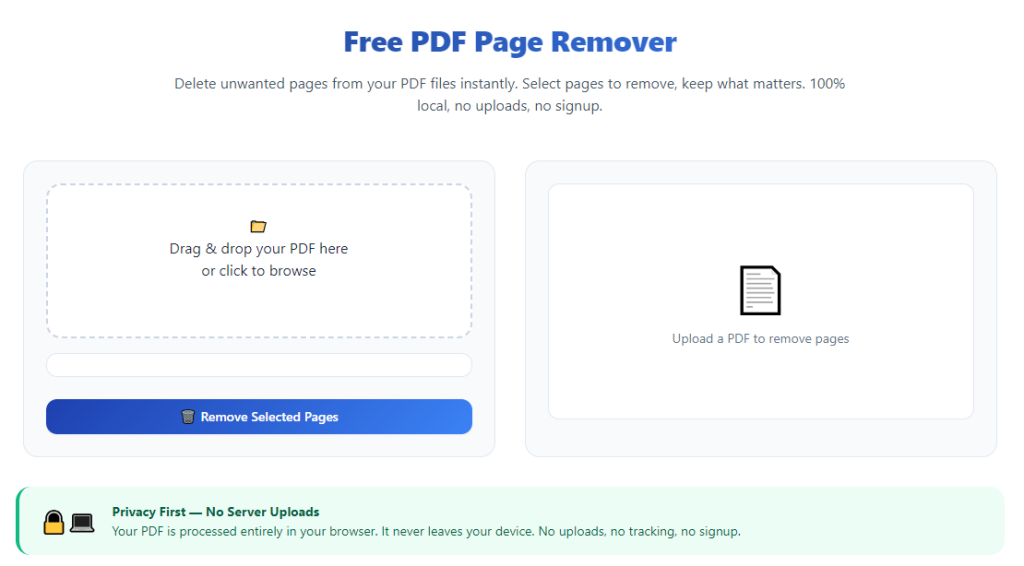
Launch the desktop PDF editor or load the browser-based PDF page remover interface directly. No complicated installation or account sign-up is required for most lightweight online versions of this tool.
Navigate to the dedicated page management module labeled “Remove PDF Pages,” “Clean Blank Pages,” or “PDF Page Remover” on the main tool dashboard. Avoid generic “edit text” tabs that lack automated blank scanning capabilities.
Step 3: Upload your PDF document into the tool
Use the drag-and-drop upload box to drop your target PDF file directly onto the interface, or select the file manually via the browse file button. For bulk cleanup sessions, upload multiple separate PDF files all at once to activate batch processing mode.
Wait one to three seconds for the file to fully load. The tool will generate a vertical sidebar with small thumbnail previews of every page inside your uploaded PDF once loading finishes.
Step 4: Launch the automatic blank page scan function
Locate the button marked “Scan Blank Pages,” “Detect Empty Sheets,” or auto-clean within the PDF page remover controls. Click this button to start the internal pixel and layer analysis across all document pages.
Within a few seconds, every fully blank page thumbnail will be highlighted with a distinct marker (checkmark, colored border, or shaded overlay) to separate empty sheets from content-filled pages clearly.
Step 5: Review flagged blank pages and adjust selections
Scroll through the thumbnail sidebar to visually verify all highlighted blank pages. If the tool incorrectly marked a partially filled page as blank, simply uncheck or deselect that specific thumbnail to protect it from deletion.
If you intend to keep intentional blank divider pages for formatting flow, remove their highlight markers manually before proceeding to the deletion step. This selective adjustment prevents unwanted content loss.
Step 6: Confirm bulk blank page removal
Once your page selection matches the exact blank sheets you want erased, click the core action button labeled “Delete Selected Blank Pages,” “Remove Marked Empty Pages,” or clean document.
The tool will instantly strip all flagged blank pages from the PDF structure and automatically re-sequence all remaining content pages without breaking original formatting, text flow, or embedded media elements.
Step 7: Preview the revised PDF to validate results
Use the main document viewing panel to scroll through the updated PDF fully. Double-check the start, middle, and end sections of the file to confirm zero leftover blank pages and intact original content formatting.
If any hidden blank pages slipped past the initial scan, repeat the blank page detection process a second time to catch missed empty sheets before final export.
Step 8: Adjust export quality and save your clean PDF
Open the export settings menu within the PDF page remover tool. Choose standard quality for regular text documents, or high-resolution export for files containing photos, scanned images, and detailed graphic design work.
Select a clear output file name to distinguish the cleaned PDF from your original backup copy, then pick a target save folder on your desktop or cloud storage drive.
Step 9: Download or export the finalized blank-page-free PDF
Click the save/download button to generate your optimized document file. The new PDF will have a smaller file size, consistent page numbering, and no leftover empty sheets cluttering the content flow.
If processing a batch of multiple PDF files, repeat the review and export steps for each cleaned document, or enable auto-batch export to download all revised files in a single compressed folder.
Step 10: Archive your original unedited PDF backup
Move your untouched source PDF file into a separate archive folder for long-term storage. Retaining the original copy lets you recover blank pages or restore unmodified formatting if edits need reversal at a later date.
Common Mistakes to Avoid When Using PDF Page Remover to Delete Blank Pages
Even with an intuitive PDF page remover tool, these frequent user errors can damage document formatting or leave hidden blank pages unremoved during your cleanup workflow.
Skipping the original PDF backup step
Many users upload their only copy of a PDF and edit it without saving a backup. If accidental page deletion or formatting glitches occur, you have no way to restore the unmodified source document. Always duplicate the file before scanning blank pages.
Blindly deleting all flagged pages without visual review
Automated scanners occasionally misidentify lightly filled pages with faint watermarks, tiny footnotes, or thin border lines as blank. Skipping thumbnail preview leads to permanent loss of minor but necessary content sections.
Forgetting to re-scan for hidden layered blank pages
Single scan passes may miss blank pages covered by transparent invisible layers. Always run a second blank page detection scan after your first deletion round to eliminate masked empty sheets entirely.
Using generic text editors instead of dedicated PDF page remover tools
Basic word processors and lightweight PDF viewers lack the layered pixel scanning logic built into specialized PDF page removers. Generic editors cannot auto-detect blank pages and force slow manual thumbnail selection every time.
Overlooking batch processing for multiple PDF files
If you have dozens of PDFs requiring blank page cleanup, editing each file one at a time wastes hours of work time. Utilize the multi-file upload batch feature built into quality PDF page remover tools to streamline bulk jobs.
Exporting low-resolution cleaned PDF files
Selecting minimal compression export settings strips image clarity from scanned documents and graphic-heavy PDFs. Adjust export quality matching your document’s intended use (print, digital sharing, archiving) before downloading.
Deleting blank pages without rechecking page numbering
Rare formatting edge cases can break auto-generated page footnotes or table of contents links after mass blank page removal. Always scroll through the full document post-deletion to fix misaligned numbering or broken hyperlinks.
Pro Tips to Maximize Efficiency When You Learn How to Use PDF Page Remover to Delete Blank Pages
Use these expert workflow hacks to cut down document editing time and produce consistently clean, professional PDF outputs every single time you operate a PDF page remover tool.
- Bookmark your preferred PDF page remover tool in your browser or pin the desktop application to your taskbar for one-click instant access before editing any PDF file.
- Before exporting Word, PowerPoint, or scanned files to PDF, adjust layout margins and page breaks to minimize accidental blank page generation at the source, reducing cleanup work later on.
- For lengthy multi-hundred-page documents, split the PDF into smaller segmented files first, run blank page removal on each segment, then recombine the cleaned sections to speed up tool scanning performance.
- Create two dedicated device folders labeled “Original PDF Backups” and “Cleaned PDFs” to separate raw source files from edited blank-page-free documents and avoid accidental overwrites.
- If you regularly work with confidential business or student documents, select a privacy-focused PDF page remover that automatically deletes uploaded files from server memory immediately after export.
- Combine blank page removal with PDF compression settings during export to slash file sizes further, perfect for email attachments with strict maximum file size limits set by workplace or school servers.
- Test the blank page scanner on a small sample PDF file first if you are using a brand-new PDF page remover tool, to learn how the detection algorithm flags partial vs fully empty pages.
- Schedule weekly bulk PDF cleanup sessions for your digital archive folders instead of editing individual files on demand, grouping all PDF documents with blank page clutter into one batch processing session.
Final Thoughts
Blank PDF pages remain an avoidable hassle for every person who creates, shares, prints, or archives digital documents. Manual page deletion methods are slow, error-prone, and unable to detect hidden empty sheets buried within complex layered PDF files.
Learning how to use PDF page remover to delete blank pages delivers a permanent, streamlined solution to this everyday document problem. Specialized PDF page remover tools combine automated blank page scanning, bulk one-click deletion, lossless formatting preservation, and batch multi-file processing to cut editing time drastically.
Whether you are a student refining academic submissions, a business professional preparing client reports, an archivist organizing scanned paperwork, or a creator formatting digital guides, mastering this simple workflow elevates the polish and functionality of every PDF you produce.
By following the step-by-step tutorial above, avoiding common editing mistakes, and implementing the efficiency-focused pro tips, you can consistently generate compact, clean, blank-page-free PDF documents with minimal manual effort for all your personal, academic, and professional digital document needs.
After learning the operation method, click the link below to enter the tool page for immediate use.