Virtual screen rulers are widely used by designers, crafters, students and online shoppers to check actual dimensions of digital images, product previews and printable templates directly on monitors or mobile displays.
Every screen carries unique pixel density, display resolution and physical panel size, leading to mismatched scaling out of the box. Uncalibrated rulers show misleading numbers that deviate heavily from real centimeter or inch standards.
Many casual users skip calibration entirely and rely on default ruler settings, which results in flawed sizing judgments, ruined craft layouts or incorrect product size estimates during online purchases.
Mastering How to calibrate screen ruler for accurate measurement fixes scaling errors once and for all, letting users take dependable real-world measurements straight from any browser-based virtual ruler tool.
This detailed practical guide covers core problems from uncalibrated screen rulers, key perks after learning how to calibrate screen ruler for accurate measurement, essential tool features, daily real-world usage scenarios and full beginner-friendly calibration workflows.
Common Issues Brought by Uncalibrated Default Screen Ruler
Using a virtual screen ruler without proper calibration creates consistent measurement errors that impact personal hobbies, professional design work and daily shopping decisions.
Wrong centimeter and inch readings due to varying PPI across screens
Each laptop, desktop monitor and smartphone comes with different pixels per inch ratings. Factory default ruler scaling only fits one standard screen size and fails on most other display hardware.
Design layout mistakes for print and digital crafting projects
Graphic designers and DIY crafters depend on on-screen sizing to cut templates or format printable files. Inaccurate ruler numbers lead to oversized or undersized finished physical pieces after printing.
Misjudged product dimensions during online shopping checks
Shoppers measure preview photos of furniture, apparel or small gadgets with uncalibrated rulers, often receiving items far larger or smaller than expected after delivery.
Failed technical sketch sizing for engineering and architecture students
Learners drafting scaled sketches on digital screens need precise metric data. Unfixed ruler offset creates calculation mistakes that spoil homework and design assignments.
Scaling shifts after changing browser zoom or display resolution
Adjusting browser zoom percentage or switching monitor display settings resets default ruler proportions, requiring repeated calibration to maintain steady measurement precision long term.
Core Benefits After Learning How to Calibrate Screen Ruler for Accurate Measurement
Once users fully grasp How to calibrate screen ruler for accurate measurement, all recurring sizing errors from default virtual ruler settings get eliminated completely.
Matches on-screen ruler markings to physical real-world units
After proper calibration, every tick mark on the digital ruler aligns perfectly with standard inches and centimeters used on physical plastic or metal measuring tools.
Consistent precision across zoom levels and display tweaks
Well-calibrated screen rulers retain stable scaling even when users modify browser zoom, adjust screen brightness or switch between different display output modes on their device.
No extra software installation needed for ongoing precise measuring
Most trusted virtual screen rulers run fully inside web browsers. Completing calibration online removes the need for bulky paid desktop measurement software downloads.
Cross-device usable calibrated ruler profiles for multiple gadgets
Users save finished calibration references separately for desktop monitors, tablets and cell phones, keeping reliable measurement standards ready whenever switching between different working devices.
Saves material cost and wasted supplies for DIY and design tasks
Accurate on-screen sizing avoids wasted paper, fabric and craft materials caused by mismeasured templates, cutting unnecessary spending for regular hobby and professional projects.
Quick recalibration option for newly changed display hardware
Replacing monitors or adjusting screen hardware settings only takes a short repeat calibration process to restore accurate ruler performance in minutes instead of full tool replacement.
Must-Have Core Features for Reliable Screen Ruler Supporting Calibration
While picking a trusted virtual measuring tool to practiceHow to calibrate screen ruler for accurate measurement, confirm these core calibration-focused features come prebuilt into the platform.
Physical reference calibration mode using standard real ruler
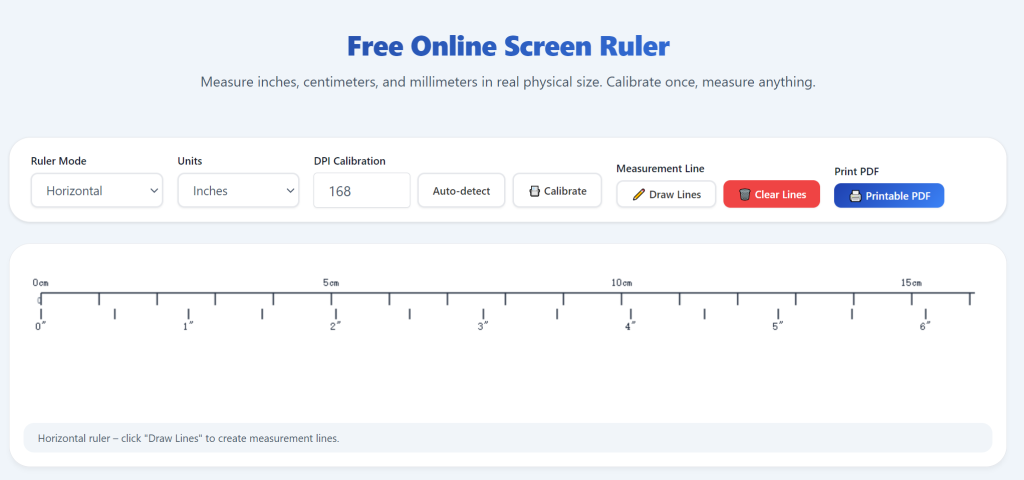
The best screen rulers include a manual setup panel where users line up a physical inch or centimeter ruler against the digital scale to auto-adjust on-screen pixel spacing.
PPI manual input field for precise pixel density tuning
Advanced tools let users enter their screen’s official PPI value directly for mathematical calibration, ideal for users who know exact technical specs of their monitor or phone panel.
Toggle between inch and centimeter measurement units freely
Users switch metric and imperial scales post-calibration without ruining existing calibrated proportions, fitting different regional measurement standards for global usage.
Dragable floating ruler for horizontal and vertical screen measuring
Movable horizontal and vertical ruler bars cover any spot on screen, letting users measure image height and width anywhere after successful calibration completes.
Save custom calibrated preset for one-click later loading
Quality online screen ruler tools store finished calibration data temporarily, skipping full repeated setup when users revisit the same device for next measurement tasks.
Real-time value readout as ruler drags across screen content
Instant numerical display shows exact measured length during dragging operations, helping users verify calibration accuracy right after finishing setup steps.
Wide Real-World Application Scenarios for Calibrated Screen Ruler
A properly set up ruler after users learn How to calibrate screen ruler for accurate measurement serves hobbyists, professional workers, students and regular online shoppers across countless daily tasks.
Graphic designer digital template sizing and print pre-check
Layout artists measure poster, sticker and packaging drafts on screen to confirm final printed output matches planned physical dimensions before sending files to printing services.
Crafter and seamstress DIY fabric and paper template planning
Handcraft creators cut physical patterns according to calibrated on-screen measurements, avoiding uneven cut sizes that ruin handmade gifts and custom craft goods.
Online consumer merchandise dimension verification before ordering
Shoppers measure product preview photos of containers, home decor and wearable items to cross-check listed size data against real visual proportions before checkout.
Engineering and architecture student digital sketch dimension checking
Learners verify scaled blueprint sketches on laptops, ensuring drawn component measurements follow required real-world metric specifications for class assignments.
Office admin document margin and print layout adjustment
Administrators tweak report and flyer print margins using calibrated screen ruler to guarantee consistent formatting once documents get printed on standard office paper sheets.
Small merchant product listing photo size validation
Store owners measure product images for online store listings to write precise dimension descriptions that match actual item sizes for customer reference.
Complete Step-by-Step User Guide: How to Calibrate Screen Ruler for Accurate Measurement
Follow this straightforward beginner workflow to master how to calibrate screen ruler for accurate measurement and lock in precise sizing on your screen permanently.
Step 1: Prepare necessary calibration reference materials
Grab a physical standard plastic or metal ruler marked with clear centimeter and inch tick marks; clean its surface to remove smudges that block scale readings during alignment.
Set your browser back to default zoom level first, removing any previously applied zoom-in or zoom-out changes that skew base screen scaling.
Step 2: Open trusted online screen ruler tool inside regular browser
Launch your preferred desktop or mobile web browser and pull up the virtual screen ruler webpage with built-in calibration functionality.
Locate the dedicated calibration button or settings tab on the tool’s main interface, usually labeled calibrate or adjust scale on the top or side menu bar.
Step 3: Pick your preferred calibration working method
Choose physical ruler alignment method for quick manual setup or PPI value input option if you have official screen pixel density specs from your device manual.
Most casual users pick physical matching calibration as it requires no prior technical knowledge about screen hardware parameters.
Step 4: Align physical ruler against on-screen digital scale
Place your solid physical ruler flat against your monitor or phone screen, lining up its zero starting mark perfectly with the digital ruler’s zero tick on display.
Drag the on-screen ruler’s end adjustment slider until one full inch or one full centimeter on physical tool matches identical length on virtual ruler markings.
Step 5: Save finished calibration configuration on tool panel
Confirm aligned tick marks stay matched and hit save or apply button to lock current scaling settings into the screen ruler’s active configuration.
Double-check accuracy by measuring another fixed known-sized object on screen to confirm inch and centimeter values match expected real dimensions.
Step 6: Adjust unit type and start daily accurate measuring
Toggle between imperial inch and metric centimeter based on your ongoing project needs, then drag floating ruler across screen images to take reliable real-size readings.
Bookmark the calibrated screen ruler page for instant access whenever you need precise on-screen measurement for upcoming design, shopping or study work.
Step 7: Recalibrate after major display or browser setting changes
If you switch monitor resolution, connect external display or drastically alter browser zoom, repeat core calibration steps to restore ruler measurement precision again.
Use tool’s reset calibration option to clear old mismatched settings before starting a brand-new setup for updated screen configurations.
Common Calibration Mistakes to Avoid When Setting Up Screen Ruler
Small careless missteps during setup stop users from getting reliable results even after spending time to learn how to calibrate screen ruler for accurate measurement.
Leave browser zoom altered before starting calibration process
Modified zoom percentages stretch or shrink screen content, leading to permanently offset ruler values no matter how carefully users line up physical reference rulers.
Tilt physical measuring tool diagonally against flat screen panel
Slanted ruler placement creates visual alignment error, resulting in slightly compressed or expanded digital scale after saving wrong calibration data.
Skip post-setup accuracy verification test after saving settings
Failing to cross-check measurements lets hidden calibration flaws stay active, causing repeated sizing errors during later design or shopping related tasks.
Use worn-out scratched physical ruler as primary calibration reference
Damaged worn scales on old measuring tools carry uneven markings, passing inaccurate base values onto your digital screen ruler configuration.
Forget recalibration after switching external monitors or device screens
Different display hardware holds unique PPI and scaling values; old calibration data never fits newly connected screen panels properly.
Practical Pro Tips to Maximize Screen Ruler Measurement Accuracy
These actionable expert tips improve long-term stability every time users go through how to calibrate screen ruler for accurate measurement workflow.
- Follow standard calibration rules consistently to replace unreliable default ruler scaling and cut losses from wrong physical material sizing for craft and design work.
- Keep a clean new standard centimeter/inch ruler nearby as fixed reference for all future quick recalibration sessions across all your devices.
- Create separate calibrated ruler presets for desktop, tablet and smartphone to avoid repeated setup when switching working equipment frequently.
- Dim excessive screen glare during alignment to see both physical ruler ticks and digital on-screen markings clearly without visual misjudgment.
- Avoid overlapping desktop icons directly underneath ruler alignment area to keep unobstructed view while matching physical and digital scale marks.
- Test ruler precision with known-size standard image files post-calibration to catch tiny scaling deviations before starting important commercial sizing projects.
Final Thoughts
Virtual screen rulers deliver huge convenience for fast on-digital sizing, yet factory default scaling almost never matches real-world standard measurement units out of the box.
Unfixed inaccurate ruler readings waste craft supplies, spoil professional design drafts and lead to disappointing online shopping mismatches for countless regular users every day.
Understanding and practicing How to calibrate screen ruler for accurate measurement eliminates all these common pain points with quick browser-based setup requiring zero paid software purchases.
From freelance design and handmade crafting to student coursework and daily online shopping checks, properly calibrated screen measurement tools streamline sizing work and keep all dimension data consistent with real inch and centimeter standards.
Sticking to the complete calibration steps listed above lets anyone build a fully precise on-screen measuring setup easily and enjoy error-free virtual ruler usage for all long-term personal and professional needs.
After learning the operation method, click the link below to enter the tool page for immediate use.