PDF and Excel are two of the most widely used file formats in professional offices, academic environments, financial workflows, and daily data management. PDFs are universally favored for sharing finalized documents because they lock layouts, tables, fonts, and spacing to ensure consistent display across any device or system. However, this fixed structure also makes PDFs extremely difficult to edit. When users need to modify table data, adjust numbers, sort entries, or analyze statistics, converting the static PDF into an editable Excel spreadsheet becomes a mandatory workflow.
The biggest headache during PDF conversion is messy formatting errors. Most free online converters and basic software tools generate chaotic Excel files with misaligned cells, broken table borders, distorted fonts, misplaced text, split data rows, and merged cell failures. These flawed outputs force users to spend hours manually adjusting layouts, retyping data, and repairing broken tables, completely defeating the purpose of fast file conversion.
If you work with financial reports, inventory sheets, student data tables, business forms, and statistical documents regularly, learning how to convert PDF to Excel without losing formatting will drastically boost your productivity and eliminate repetitive manual editing work. This 1800+ word comprehensive tutorial explains why regular converters ruin formatting, shares core features of reliable lossless conversion tools, breaks down a detailed step-by-step workflow, covers common conversion errors, and offers professional tips to help users convert PDF to Excel perfectly while retaining 100% original layout, fonts, and table structures.
Why Ordinary PDF Converters Ruin Excel Formatt
To fully master how to convert PDF to Excel without losing formatting, you first need to understand the technical gaps that cause most conversion tools to distort original document layouts. PDFs and Excel files operate on completely different structural systems, which creates inherent conversion challenges that low-quality tools cannot resolve.
First, PDFs use fixed coordinate-based layout systems, while Excel relies on flexible grid-based cell structures. A PDF document places every text block, line, and table element according to fixed page coordinates. In contrast, Excel arranges all content inside standard grid cells. Basic converters simply extract raw text and force it into Excel grids without adaptive matching, resulting in misaligned columns, overlapping content, and split table rows.
Second, generic converters lack intelligent table recognition technology. Complex PDF documents often contain merged cells, nested tables, multi-line text entries, and irregular table borders. Ordinary tools cannot identify these special structures, so they split merged cells randomly, delete border lines, or scatter table data across unrelated Excel columns and rows.
Third, low-grade conversion tools ignore original font and spacing settings. Professional PDF documents use specific font sizes, line spacing, indentation, and text alignment to maintain formal layout standards. Most free converters reset all text to default system fonts and uniform spacing, making finalized Excel files look inconsistent, unprofessional, and structurally different from the original PDF.
Finally, basic tools fail to process multi-page and segmented content correctly. Long PDF reports with continuous tables across multiple pages often get split into disjointed Excel blocks, duplicate rows, or missing data segments after conversion. Without professional layout restoration algorithms, these formatting errors become permanent and require manual reconstruction. A specialized tool designed for users learning how to convert PDF to Excel without losing formatting solves all these technical flaws through intelligent layout analysis and adaptive grid matching.
Key Features of Tools That Convert PDF to Excel Without Format Loss
To successfully convert files perfectly, you need a professional tool built specifically for lossless layout retention. Reliable tools for how to convert PDF to Excel without losing formatting integrate advanced structural recognition technology that ordinary converters lack, ensuring every detail of your original PDF transfers accurately to Excel spreadsheets.
Intelligent table structure recognition: Premium tools automatically detect merged cells, nested tables, irregular borders, multi-line cell content, and header-footer structures in PDF files. They rebuild identical table frameworks in Excel without splitting, merging, or distorting original cell layouts.
Original font and style preservation: Lossless conversion systems retain original font types, font sizes, bold settings, text colors, alignment modes, and line spacing. The final Excel file maintains the exact same text style and visual hierarchy as the source PDF document.
Precise column and row matching: Advanced algorithms analyze PDF coordinate data to match content accurately with Excel grid units. This eliminates column misalignment, text overflow, empty cell dislocation, and row displacement common in basic conversion outputs.
Multi-page continuous table restoration: Professional tools identify continuous tables spanning multiple PDF pages and merge them into one complete, uninterrupted table in Excel. There are no broken segments, duplicate headers, or missing data blocks in final outputs.
Blank space and indentation retention: Formal business and financial PDFs often use custom indentation and blank spacing for layout standardization. Quality tools preserve these subtle layout details to keep Excel files consistent with original document formatting standards.
Zero data distortion and content loss: Beyond layout retention, top-tier converters ensure all numbers, text entries, symbols, and special characters are 100% accurate after conversion, with no garbled text, missing digits, or misplaced content.
Real-World Scenarios for Lossless PDF to Excel Conversion
Mastering how to convert PDF to Excel without losing formatting is essential for professional, academic, and financial workflows where layout standardization and data accuracy cannot be compromised. Format errors in converted files can lead to data misanalysis, report revision failures, and unprofessional document submission.
Financial report processing: Financial statements, budget tables, and transaction records rely on strict standardized layouts and unified cell structures. Lossless conversion ensures data integrity and consistent formatting for accounting sorting, calculation, and financial auditing work.
Business data sorting: Inventory tables, customer data sheets, sales statistics, and project progress forms are frequently shared in PDF format for viewing. Converting these files to editable Excel while retaining formatting allows teams to update data quickly without rebuilding entire tables.
Academic data analysis: Research papers, experimental data tables, and statistical survey documents require precise layout retention for data comparison and academic analysis. Perfectly converted Excel files ensure accurate data sorting and chart generation.
Official document arrangement: Standardized forms, registration tables, and statistical reports have fixed formal layouts. Lossless conversion preserves official document specifications, avoiding format chaos that may affect formal submission and review results.
Daily office efficiency improvement: For daily batch file processing, lossless PDF to Excel conversion eliminates repeated format adjustment work, saves massive manual editing time, and improves overall office workflow efficiency.
Step-by-Step Tutorial: How to Convert PDF to Excel Without Losing Formatting
Follow this professional, beginner-friendly standard workflow to master how to convert PDF to Excel without losing formatting. This method guarantees intact layout, font style, table structure, and data accuracy for all converted files.
Step 1: Prepare Original PDF Files and Launch Lossless Conversion Tool
Start with your original unmodified PDF document to ensure maximum conversion accuracy. Avoid using compressed, edited, or screenshot-based PDF files, as damaged source data cannot support lossless layout restoration. Open a professional PDF to Excel conversion tool specialized in format retention, equipped with intelligent table recognition and layout restoration functions.
Step 2: Upload Target PDF Documents
Upload your single or multi-page PDF files through file selection or drag-and-drop operation. Reliable tools support batch uploading and multi-file conversion without damaging original formatting. Wait for the system to complete full document parsing, including table structure, font style, text alignment, and page layout analysis.
Step 3: Select Lossless Format Retention Mode
Most professional tools provide multiple conversion modes. Select the dedicated “full format retention mode” instead of the basic quick conversion mode. The quick mode only extracts raw text data and causes severe formatting disorder, while the lossless mode activates full layout analysis and adaptive grid matching algorithms.
Step 4: Confirm Table and Layout Parameters
Check advanced setting options to enable merged cell retention, original font restoration, multi-page table merging, and text alignment locking. These parameter settings are critical to avoid common formatting errors such as cell splitting, font distortion, and discontinuous tables.
Step 5: Start Intelligent Lossless Conversion
Initiate the conversion process. The system will automatically identify all table structures, text blocks, spacing layouts, and font styles in the PDF, then reconstruct a completely matched grid framework in Excel. The entire process intelligently avoids layout dislocation and data scattering.
Step 6: Preview Converted File for Format Consistency
After conversion completion, preview the Excel file in full page view. Carefully check key details including table borders, merged cell positions, font sizes, text alignment, column width proportions, and multi-page table continuity. Confirm no format distortion or data errors exist.
Step 7: Export and Save Lossless Excel File
After verifying full format consistency, export and save the final Excel file. The output file retains 100% original PDF layout standards, editable data content, and complete table structures, ready for direct editing, analysis, sorting, and formal submission.
Common Format Errors After PDF to Excel Conversion (And Fixes)
Even with professional tools, improper operation may cause minor formatting issues. Master these common problems and solutions to perfect your skills in how to convert PDF to Excel without losing formatting.
Disordered column alignment: This issue is caused by unadjusted grid matching parameters. Re-convert the file after enabling precise column width adaptation to restore consistent alignment.
Lost merged cell effects: Basic conversion modes ignore merged cell data. Always use the professional lossless mode to retain all special cell structures in original tables.
Inconsistent font styles: Font distortion occurs when the tool fails to identify embedded PDF fonts. Enable font restoration settings before conversion to fix style deviation.
Segmented multi-page tables: Long tables often split without continuous restoration. Turn on the multi-page table merging function to combine scattered data into one complete table.
Professional Tips for Perfect Lossless Conversion
Use these expert tips to maximize conversion quality and fully master how to convert PDF to Excel without losing formatting for all document types.
- Use original high-quality PDF sources: Uncompressed, unedited original PDFs contain complete layout data, supporting the most accurate and lossless conversion results.
- Avoid quick conversion modes: Always prioritize format retention modes over speed-focused modes to prevent structural and stylistic formatting loss.
- Preview full documents before export: Full-page previews catch subtle alignment and font errors that thumbnail views cannot display.
- Batch convert files with unified settings: For mass office files, use consistent lossless parameters to ensure uniform formatting standards across all Excel outputs.
Final Thoughts
PDF to Excel conversion is one of the most frequent office and academic operations, yet most users waste massive time repairing messy formatting caused by low-quality conversion tools. The repeated work of adjusting misaligned columns, restoring broken tables, fixing distorted fonts, and reorganizing scattered data severely reduces work efficiency and affects document quality.
Learning how to convert PDF to Excel without losing formatting completely changes this inefficient workflow. With professional lossless conversion tools and standardized operation methods, users can retain original table structures, font styles, spacing layouts, and data accuracy perfectly during PDF to Excel conversion. There is no need for tedious manual modification or repeated file reconstruction.
Whether you are processing financial reports, business data tables, academic statistical documents, or official standard forms, mastering lossless conversion skills ensures every converted Excel file maintains professional, standardized, and consistent formatting. Stop settling for disordered conversion results and repetitive editing work. Use the correct lossless conversion method to convert PDF to Excel flawlessly, save massive working time, and improve overall document processing efficiency.
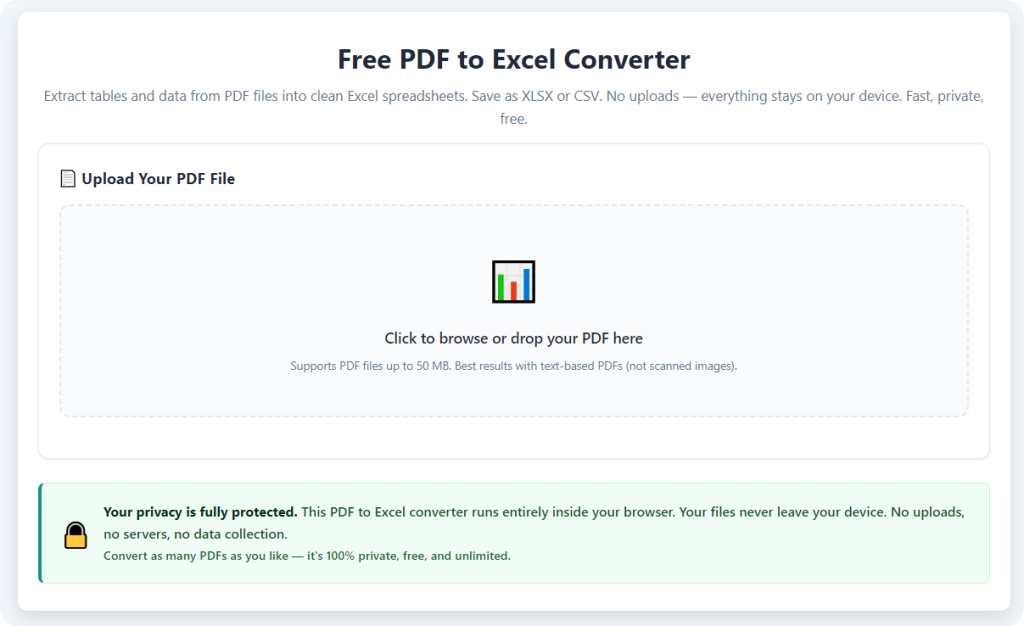
After learning the operation method, click the link below to enter the tool page for immediate use.