Let’s be honest—splitting PDFs can be such a headache. You find a tool, upload your file, split it, and then boom: the text is blurry, the images are pixelated, and all your hard work looks unprofessional. Or even worse, the tool is so complicated you spend 20 minutes figuring it out, only to end up with a low-quality mess. And don’t get me started on tools that claim to be free but hit you with hidden fees halfway through!
But what if I told you there’s a better way? The best split PDF tool without losing quality solves all these problems—and it’s way easier to use than you think. I’ve tested dozens of split PDF tools (yes, I’ve wasted hours on the bad ones) and I’m here to walk you through exactly how to use the best one, step by step. No jargon, no confusion, no quality loss—just crisp, clear split PDFs every time.
In this guide, I’ll keep it casual, like we’re chatting over coffee. Whether you’re a student splitting a textbook PDF into chapters, a professional extracting specific pages from a report, or just someone organizing personal files, this guide will show you how to use the best split PDF tool without losing quality like a pro. We’ll cover how to pick the right tool (because not all “quality-free” tools are created equal), step-by-step instructions for splitting PDFs, real-life scenarios, common mistakes to avoid, and pro tips to make the process even smoother. By the end, you’ll wonder why you ever struggled with splitting PDFs before.
Why the Best Split PDF Tool Without Losing Quality Is a Must-Have
Before we dive into the steps, let’s talk about why the best split PDF tool without losing quality is a total game-changer. It’s not just about getting a clear split—it’s about saving time, stress, and avoiding frustration. Here’s why you need this tool in your life:
• No quality loss (obviously!): This is the biggest win. The best split PDF tool without losing quality copies your pages directly from the original file, so text stays crisp, images stay sharp, and formatting stays intact[6]. No blurriness, no pixelation, no washed-out colors—your split PDFs look exactly like the original.
• Super easy to use: You don’t need to be a tech expert. The best tools have a simple, drag-and-drop interface that lets you split PDFs in 2-3 minutes[2][4]. No complicated menus, no confusing settings—just upload, select, split, and download.
• 100% free (no tricks): The best split PDF tool without losing quality is free—no hidden fees, no free trials that turn into paid subscriptions, no limits on how many PDFs you can split[2][4]. You can split as many files as you want, as often as you want, without spending a cent.
• Multiple split modes: Whether you want to split a PDF into individual pages, split by a specific page range (like pages 1-5), split every N pages (like every 10 pages), or extract specific pages, the best tool has you covered[2][3][4]. It’s flexible enough for any scenario.
• Works on any device: You can use the best split PDF tool without losing quality on your laptop, phone, or tablet—online or offline[1][4]. No matter where you are, you can split PDFs quickly and easily.
• Secure and private: The best tools encrypt your files during processing and delete them after you download them[4][6]. No need to worry about sensitive information (like contracts or personal docs) being stolen or stored on a random server.
Pro tip: I used to settle for low-quality split tools until I found the best split PDF tool without losing quality. It saved me so much time—no more redoing splits because the quality was bad, no more struggling with complicated tools. It’s one of those simple life hacks that makes your day-to-day easier.
How to Pick the Best Split PDF Tool Without Losing Quality (Avoid the Bad Ones!)
Not all split PDF tools are created equal. Some claim to be “quality-free” but compress your files (ruining quality), some are complicated, and some have hidden fees[6]. To make sure you’re using the best split PDF tool without losing quality, here’s what to look for (learn from my mistakes!):
1. Explicitly says “no quality loss”: The tool should clearly state that it preserves original quality—no compression, no blurriness[6]. Avoid tools that don’t mention quality at all.
2. Multiple split modes: Look for tools that let you split by page range, individual pages, every N pages, or extract specific pages[2][3][4]. This flexibility is key for different scenarios.
3. Simple interface: The tool should have a clean, intuitive design—something that says “Upload PDF,” “Select split mode,” and “Split”[2][4]. No confusing menus or unnecessary steps.
4. 100% free (no sign-up): Avoid tools that ask for your email, require you to sign up, or limit you to a few splits per day[2][4]. The best split PDF tool without losing quality is free, no strings attached.
5. No watermarks: Some free tools add a “split with X tool” watermark to your PDF[2][4]. Skip these—good tools don’t add any marks to your files.
6. Works online and offline (optional): The best tools let you split PDFs online (no downloads) or offline (for when you have no Wi-Fi)[1][4]. This flexibility is a huge plus.
7. Supports large files: It should handle large PDFs (50MB+), so you don’t have to split files into smaller chunks first[2][4].
Step-by-Step: How to Use the Best Split PDF Tool Without Losing Quality
Now that you know how to pick the best tool, let’s walk through exactly how to use the best split PDF tool without losing quality. These steps work for any top-tier tool, and they’re so simple you can do it in your sleep. I’ll use a real example so you can follow along.
Step 1: Prepare Your PDF File (Double-Check Quality First!)
Before you start, take 30 seconds to prepare your PDF. This ensures your split files look perfect:
• Open the original PDF: Double-click your PDF to make sure it’s not corrupted and that the quality is good (text crisp, images clear)[6]. If the original is blurry, the split files will be too—there’s no fixing a bad original!
• Note the pages you want to split: Decide how you want to split the PDF. Do you want to extract pages 1-5? Split every 10 pages? Split into individual pages? Write down the page numbers or split mode so you don’t forget[2][3].
• Save a copy (optional): If the PDF is important, save a copy of the original before splitting—just in case you make a mistake[4]. It only takes a second and gives you peace of mind.
Example: If you have a 20-page report and want to split it into three parts (pages 1-5, 6-12, 13-20), write down those ranges before opening the tool. This saves you from scrolling through the PDF to find the pages.
Step 2: Open the Best Split PDF Tool Without Losing Quality
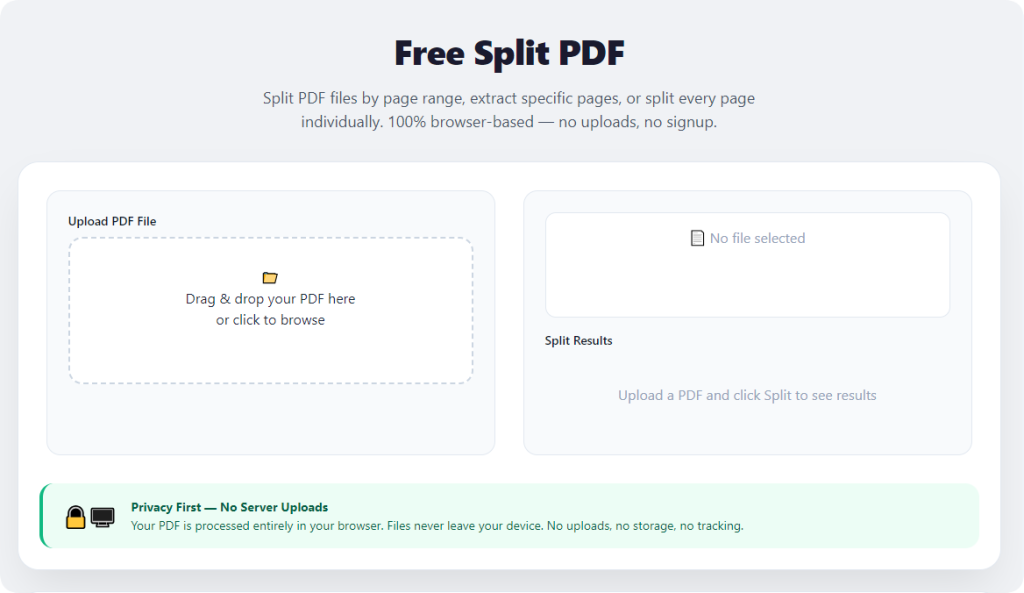
Open your web browser (Chrome, Safari, Edge—any browser works) and go to the tool[4]. If you’re using an offline tool, open it on your computer or phone. You’ll see a simple interface with a big upload zone that says something like “Upload your PDF” or “Drag and drop your PDF here.”
Pro tip: Bookmark the tool (if it’s online) so you can access it quickly next time—no more searching for “split PDF tool” every time you need it[4].
Step 3: Upload Your PDF File
This is the easiest part of using the best split PDF tool without losing quality. Here’s how to upload your file:
• Drag and drop (computer): Click and hold your PDF file and drag it into the tool’s upload zone[2][4]. This is the fastest way—takes 2 seconds.
• Select files manually (phone or computer): If drag and drop doesn’t work (e.g., on a phone), click the “Select file” button, navigate to your folder, and choose your PDF[2][4].
What to expect: Once you upload the file, the tool will process it for a few seconds and then show a preview of the PDF (usually thumbnails of each page)[4][6]. This helps you confirm you uploaded the right file and lets you select the pages you want to split.
Pro tip: Don’t worry about file size—the best split PDF tool without losing quality can handle large PDFs without slowing down[2][4]. If you have a huge file, it might take a few extra seconds to upload, but it will still work.
Step 4: Choose Your Split Mode (Customize to Your Needs)
The best split PDF tool without losing quality gives you multiple split modes to choose from—pick the one that fits your needs[2][3][4]. Here are the most common modes and how to use them:
1. Split by page range: This is perfect if you want to split the PDF into specific sections (e.g., pages 1-5, 6-12). Enter the start and end page numbers for each section, and the tool will create a separate PDF for each range[2][3].
2. Split into individual pages: If you want each page to be a separate PDF (e.g., splitting a 10-page PDF into 10 individual files), select this mode[2][4]. The tool will automatically create a separate file for every page.
3. Split every N pages: This is great for large PDFs (e.g., splitting a 100-page PDF into 10 files of 10 pages each). Enter the number of pages per split (e.g., 10), and the tool will split the PDF evenly[2][3][4].
4. Extract specific pages: If you only need a few pages (e.g., pages 3, 7, and 9), select this mode and click the thumbnails of the pages you want to extract[2][4][6]. The tool will create a single PDF with just those pages.
Pro tip: Use the preview to double-check your selection. Click on the thumbnails to make sure you’re selecting the right pages—no one wants to split the wrong pages and have to start over[4].
Step 5: Split Your PDF (and Check for Quality!)
You’re almost done! Here’s the final step to use the best split PDF tool without losing quality:
1. Click “Split”: Once you’ve selected your split mode and pages, look for a big button that says “Split PDF,” “Start Splitting,” or “Extract Pages”—click it[2][4].
2. Wait a few seconds: The tool will split your PDF—this takes 10-30 seconds, depending on the size of your file and the split mode[2][4].
3. Preview the split files (critical!): Before downloading, preview the split files to make sure the quality is intact[6]. Open one of the split PDFs and check that the text is crisp, images are clear, and formatting is correct. This is the most important step—don’t skip it!
4. Download your split PDFs: If the quality looks good, click the “Download” button (or “Download All” if you split into multiple files)[2][4]. The files will download to your device—save them in a folder so you can find them easily.
Pro tip: Some tools let you zip all the split files into one folder for easier downloading and sharing[4]. This is great if you split into multiple files—no more downloading each one individually.
Real-Life Scenarios: Using the Best Split PDF Tool Without Losing Quality
Let’s put these steps into action with real scenarios you’ll actually encounter. This will show you how easy it is to use the best split PDF tool without losing quality in everyday life.
Scenario 1: Student Splitting a Textbook PDF into Chapters
You’re a student, and you have a 200-page textbook PDF. You want to split it into chapters (pages 1-20, 21-40, etc.) so you can access each chapter easily without scrolling through the whole book. Here’s how to use the best split PDF tool without losing quality:
1. Prepare your PDF: Note the page ranges for each chapter (e.g., Chapter 1: 1-20, Chapter 2: 21-40).
2. Upload the textbook PDF to the tool.
3. Select “Split by page range” and enter each chapter’s page range.
4. Click “Split” and wait a few seconds.
5. Preview the split files to make sure the text is crisp (no blurriness!) and the chapters are correct.
6. Download all the split chapters and save them in a “Textbook Chapters” folder[2][4]. Done—now you can open each chapter quickly and study without hassle.
Scenario 2: Professional Extracting Pages from a Report
You’re a professional, and you have a 50-page work report. You need to extract pages 10-15 (the budget section) to send to your finance team. You don’t want the budget charts to get blurry—here’s how:
1. Prepare your PDF: Confirm pages 10-15 are the budget section.
2. Upload the report PDF to the tool.
3. Select “Extract specific pages” and click the thumbnails for pages 10-15.
4. Click “Split” and preview the extracted file to make sure the charts are sharp and the text is clear[6].
5. Download the extracted PDF and send it to your finance team. They’ll be impressed by the professional, high-quality result[2][4].
Scenario 3: Splitting Scanned PDFs (Photos/Documents) Without Losing Quality
You scanned a stack of old photos into a single PDF and want to split them into individual files (one photo per PDF) to share with family. You need the photos to stay clear—here’s how to use the best split PDF tool without losing quality:
1. Prepare your PDF: Open the scanned PDF to make sure the photos are clear (the original scan quality matters!).
2. Upload the PDF to the tool.
3. Select “Split into individual pages” (each photo is one page).
4. Click “Split” and preview a few split files to make sure the photos are sharp (no pixelation)[6].
5. Download all the individual photo PDFs and share them with your family. They’ll look just like the original scans[2][4].
Scenario 4: Splitting a Large PDF for Email (No Quality Loss)
You have a 30MB PDF that’s too large to email. You want to split it into smaller files (each under 10MB) so you can send them separately—without losing quality. Here’s how:
1. Prepare your PDF: Confirm the total pages (e.g., 30 pages).
2. Upload the PDF to the tool.
3. Select “Split every N pages” and enter 10 (so each split file is 10 pages, ~10MB).
4. Click “Split” and preview the split files to make sure quality is intact[6].
5. Download the three split files and email them separately. No more email size limits, no quality loss[2][4].
Common Mistakes People Make When Using the Best Split PDF Tool Without Losing Quality
I’ve made every single one of these mistakes, so learn from me! Even if you’re using the best split PDF tool without losing quality, these errors can ruin your split files:
1. Not checking the original PDF quality: If the original PDF is blurry or low-quality, the split files will be too[6]. Always double-check the original before splitting.
2. Selecting the wrong split mode: Choosing “split into individual pages” when you need “split by page range” will result in too many files (and extra work)[2][3]. Take 10 seconds to pick the right mode.
3. Ignoring the preview: Don’t just split and download—preview the split files to make sure the quality is good and the pages are correct[4][6]. It only takes 10 seconds and saves you from redoing the work.
4. Using a tool that’s not “lossless”: Even if you follow all steps, using a bad tool will still result in quality loss[6]. Make sure you’re using the best split PDF tool without losing quality (check the features we talked about earlier).
5. Splitting non-PDF files: The tool only splits PDFs—if you upload a Word or JPG file, it might convert it to PDF but lose quality[2][4]. Convert non-PDF files to PDF first (use a free converter) before splitting.
6. Forgetting to download the split files: Some tools delete your files after a few hours—download them right away to avoid losing them[4].
Pro Tips to Get the Most Out of the Best Split PDF Tool Without Losing Quality
Now that you know how to use the best split PDF tool without losing quality, these pro tips will help you make the most of it—saving time and ensuring perfect results every time:
1. Bookmark the tool: As I mentioned earlier, bookmarking it saves you time from searching for it every time you need to split PDFs[4].
2. Convert non-PDF files to PDF first: If you have Word, Excel, or image files, convert them to PDF using a free converter before splitting—this ensures no quality loss[2][4].
3. Use the “zip download” feature: If you split into multiple files, use the tool’s zip feature to download all files at once[4]. It’s faster and easier than downloading each one individually.
4. Save split files in a labeled folder: Name the folder something like “Split PDFs – Report” so you can find the files quickly later[4].
5. Test with a small PDF first: If you’re splitting an important PDF, test the tool with a small, unimportant PDF first to make sure it works[4][6].
6. Use offline mode when you have no Wi-Fi: If the tool supports offline use, use it when you’re on the go (e.g., plane, coffee shop with no Wi-Fi)[1][4].
7. Check for broken links/annotations: If your original PDF has hyperlinks or annotations, preview the split files to make sure they work—some tools may break them[6]. If you need to preserve them, choose a tool that explicitly supports links/annotations.
Frequently Asked Questions (FAQ) – Best Split PDF Tool Without Losing Quality
Q: Is the best split PDF tool without losing quality really free? A: Yes! The best ones are 100% free, no sign-up, no hidden fees, no limits on how many PDFs you can split or how many times you use it[2][4].
Q: Do I need to download software to use it? A: No! Most top tools are online—just use your web browser (Chrome, Safari, Edge, etc.). No downloads, no installation, no storage space used[2][4]. Some tools also have offline versions if you prefer.
Q: Will the split PDFs lose quality? A: Absolutely not! That’s the whole point of the best split PDF tool without losing quality—it copies pages directly from the original, so text stays crisp, images stay sharp, and formatting stays intact[6].
Q: Can I split a PDF into more than 2 files at once? A: Yes! You can split into as many files as you want—whether it’s 3, 10, or 100. Just choose the right split mode (page range, every N pages, etc.)[2][3][4].
Q: Is it safe to use for sensitive files? A: Yes—if you pick the right tool. The best split PDF tool without losing quality encrypts your files during processing and deletes them after you download them, so no one else can access them[4][6].
Q: Can I use it on my phone? A: Yes! The best split PDF tool without losing quality is mobile-friendly, so you can split PDFs on your phone, tablet, or laptop—anywhere, anytime[2][4].
Q: What if I split the wrong pages? A: Just re-upload your PDF, select the correct pages, and split again—it’s free and takes only a few seconds[2][4].
Final Thoughts – The Best Split PDF Tool Without Losing Quality Is a Lifesaver
Splitting PDFs shouldn’t be a hassle, and it definitely shouldn’t ruin the quality of your hard work. The best split PDF tool without losing quality takes the stress out of splitting—it’s free, easy to use, and keeps your files looking exactly like the original[4][6]. Whether you’re a student, a professional, or just someone organizing personal files, this tool is a must-have.
The key takeaway? Stop wasting time on tools that promise “no quality loss” but deliver blurry, messed-up files. The best split PDF tool without losing quality does what it says—no tricks, no hidden fees, no stress. It’s simple: prepare your PDF, upload, select your split mode, split, preview, and download. That’s it.
I’ve used this tool for years, and it’s saved me countless hours of redoing splits and stressing about quality. It’s perfect for textbooks, reports, scanned photos, and more. Once you use it, you’ll wonder how you ever split PDFs without it.
So next time you need to split a PDF, don’t settle for a tool that ruins your quality. Use the best split PDF tool without losing quality—you’ll get crisp, professional results in minutes, and you’ll never look back. Start splitting now, and say goodbye to blurry PDFs forever!
After learning the operation method, click the link below to enter the tool page for immediate use.