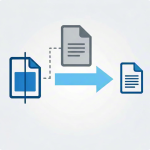
PDF files are widely used for formal documents, reports, forms and scanned materials thanks to their stable layout and universal compatibility. Yet many users need to turn PDF pages into standard image files for different purposes. JPG is one of the most popular image formats, easy to open, share and upload across nearly all platforms and devices.
A common headache during conversion is poor image quality. Many basic tools compress files too heavily, resulting in blurry text, faded graphics and distorted details. Once quality drops, the converted JPG becomes unsuitable for printing, social media posts or professional presentations. This makes finding a reliable method essential for every regular user.
Some desktop software offers conversion features but comes with complicated settings, expensive subscriptions or bulky installations. Free online tools often cut corners on resolution to speed up processing, leaving you with low-grade images. If you want crisp, true-to-original results, learning how to convert PDF to JPG without losing quality is the key skill you need.
This comprehensive tutorial walks you through every detail of lossless PDF to JPG conversion. We will cover common quality issues, advantages of high-standard conversion, key tool features, real use cases and a complete step-by-step workflow to help you get perfect clear images every single time.
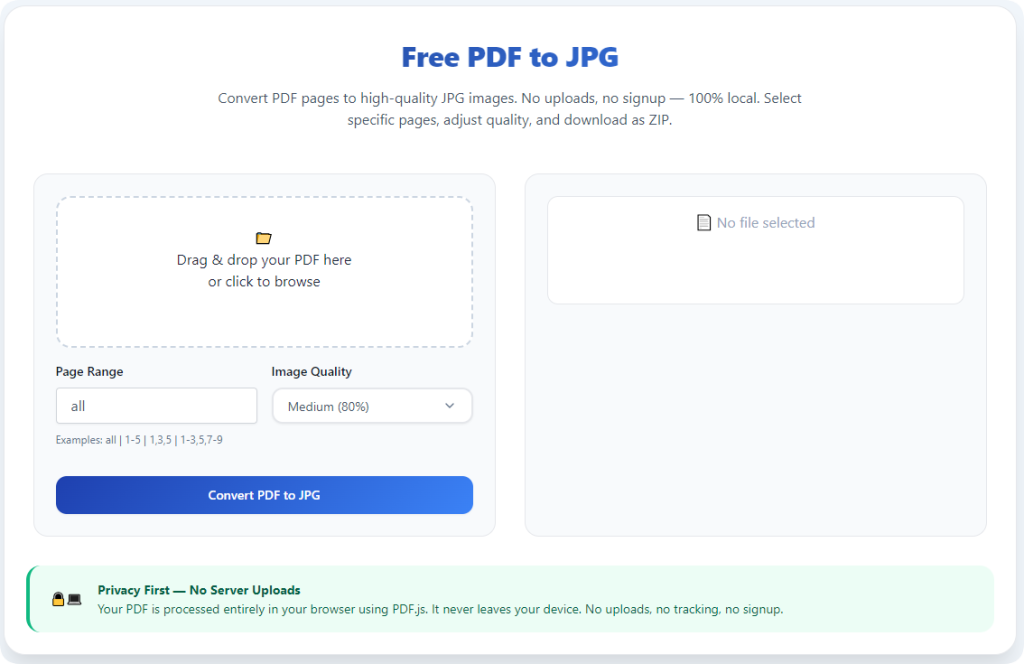
Why Quality Matters When You Convert PDF to JPG
Before you master how to convert PDF to JPG without losing quality, it is important to understand why keeping original resolution and clarity is so critical for different scenarios.
Clear text for reading and presentation
PDF files often contain small fonts, tables and detailed notes. Low-quality conversion turns sharp text into fuzzy lines that are hard to read. Lossless conversion keeps every letter and symbol neat and legible, just like the original document.
Reliable results for printing
Blurry JPG files produce messy printouts with washed-out details. When you convert PDF to JPG without losing quality, the images retain high resolution, so printed copies look professional and clean on paper.
Great visuals for online sharing
Many people share converted images on social platforms, messaging apps or websites. High-quality JPGs look polished and attractive, while compressed low-quality files appear unprofessional and unappealing to viewers.
Preserve original design and graphics
Brochures, flyers, charts and artwork inside PDFs rely on precise colors and lines. Poor conversion distorts colors, blurs borders and damages graphic elements. Keeping full quality protects the creator’s original design.
Reusable files for long-term storage
If you save converted JPGs for future use, low-quality images will degrade further over time. Lossless conversion creates stable, high-resolution files that stay clear no matter how many times you open or reuse them.
For all these reasons, taking the time to learnhow to convert PDF to JPG without losing quality saves you from redoing work and ensures your files fit every intended use.
Common Quality Problems in Basic PDF to JPG Conversion
Most ordinary converters struggle to balance speed and image clarity. These typical flaws explain why standard tools fail, and why you need dedicated methods to convert PDF to JPG without losing quality.
Excessive file compression
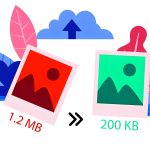
Many basic tools apply heavy compression to reduce file size quickly. This process removes fine details from images and text, leading to overall blurriness. The faster the conversion, the more quality is lost.
Low default resolution settings
Generic converters use low DPI values by default. Lower resolution makes files load faster, but every element looks pixelated, especially when you zoom in or print the final JPG.
Color distortion and fading
Some tools alter color tones during format switching. Bright shades become dull, and contrast levels shift, making charts, logos and colored content look unnatural compared to the original PDF.
Broken lines and jagged edges
Thin lines, table borders and graphic outlines often turn jagged after conversion. This small defect makes the whole image look rough and unfinished for professional use.
Uneven cropping and layout shifts
A few unreliable converters accidentally crop page edges or shift content positions. You end up with incomplete images even if the overall clarity seems acceptable at first glance.
All these issues can be fully avoided when you follow proper techniques to convert PDF to JPG without losing quality with trusted tools and correct settings.
Key Features of Quality-Focused PDF to JPG Converters
A reliable tool built to convert PDF to JPG without losing quality comes with a set of practical features designed to protect every detail from the original document.
Adjustable high resolution options
Top converters let you set high DPI levels manually. Higher resolution captures more details, ensuring text, lines and graphics stay sharp in the finished JPG files.
Controllable compression levels
Instead of forcing heavy compression, quality tools let you choose compression strength. You can keep compression light to preserve clarity, or adjust it slightly only when you need smaller file sizes.
Accurate color reproduction
Professional converters maintain original color tones, brightness and contrast. Charts, photos and colored layouts look exactly the same as they appear inside the source PDF.
Full page preservation
The entire page content stays intact with no unwanted cropping or shifting. Every corner, margin and element from the original page transfers completely into the JPG format.
Batch conversion support
You can convert single pages or multiple pages in one batch. Even when processing a whole multi-page PDF, the tool keeps consistent quality across every exported image.
Simple and clear interface
Quality settings are easy to find and adjust. You do not need professional technical knowledge to set up the converter for lossless output.
No hidden watermarks
Trustworthy converters do not add extra logos or text stamps on high-quality outputs. Your clean JPG files remain ready for personal, academic and business use.
Common Use Cases for High-Quality PDF to JPG Conversion
The ability to convert PDF to JPG without losing quality serves a wide range of daily tasks for students, office workers, creators and home users.
Schoolwork and study materials
Students convert lecture notes, textbook pages and research papers into JPGs for quick sharing and mobile viewing. Clear images make reading and reviewing study content comfortable anywhere.
Business documents and presentations
Professionals turn reports, charts, proposals and slides into images for meetings and client presentations. High-quality JPGs look formal and reliable during face-to-face or online sharing.
Social media and online posting
Many users share document snippets, artwork and informational content on social platforms. Sharp JPG images attract more attention and deliver information clearly to online audiences.
Printing flyers, forms and posters
When you need to print digital flyers, official forms or creative posters, lossless conversion ensures every printed copy looks bright, clear and true to the original design.
Scanned document archiving
Scanned PDFs often hold important records and old files. Converting them into high-quality JPGs creates a lightweight archive that is easy to organize, view and back up long-term.
Design and creative projects
Designers work with PDF artwork, templates and layouts. Converting to clear JPGs allows them to reuse elements in other creative projects without losing visual details.
Step-by-Step Guide: How to Convert PDF to JPG Without Losing Quality
Follow this simple, structured workflow to convert PDF to JPG without losing quality. Each step focuses on protecting image clarity and getting reliable results.
Step 1: Prepare Your Source PDF
Open your PDF and review all pages. Remove blank, damaged or unnecessary pages first. Create a backup of the original file so you can start over if you need to adjust settings later.
Note pages with small text, fine lines or rich colors, as these sections need extra care during conversion.
Step 2: Open a High-Quality PDF Converter
Launch a dedicated tool designed to convert PDF to JPG without losing quality. Choose a tool that offers resolution and compression controls for full quality management.
Step 3: Upload Your PDF File
Upload the document via drag-and-drop or standard file selection. The tool will load your file steadily, whether you work with a single page or a large multi-page PDF.
For bulk tasks, upload one document at a time to keep quality consistent across all outputs.
Step 4: Adjust Quality and Resolution Settings
This is the most important step. Set the resolution to a high value to keep text and graphics sharp. Lower the compression level to avoid blurriness and color fading.
Select whether to convert selected pages or the entire document according to your needs.
Step 5: Preview Sample Outputs
Check a preview of the generated JPG images. Zoom in to examine text edges, lines and colors. If any part looks blurry, go back and tweak resolution or compression settings again.
Never skip preview, as it helps you fix quality issues before full conversion.
Step 6: Start Full Conversion Process
Once you are satisfied with the preview, start the full conversion. The tool will process every page and turn them into separate high-quality JPG files.
Do not close the window while processing runs to prevent incomplete or corrupted files.
Step 7: Download and Verify Final JPG Files
Download the folder or individual images to your device. Open each JPG, zoom in and check clarity, colors and layout. Test printing one sample to confirm the quality works for physical copies as well.
Your high-quality images are now ready for sharing, posting, printing or storage.
Common Conversion Issues and Practical Fixes
Even when using good tools to convert PDF to JPG without losing quality, minor problems can appear. Use these quick solutions to keep your outputs clear and complete.
Text still looks blurry
Raise the resolution setting and reduce compression strength. Low resolution is the top reason for fuzzy text in converted images.
Colors look dull or different
Check color mode settings inside the converter. Keep the original color profile enabled to maintain bright, accurate tones from the PDF.
File size becomes too large
If high quality creates oversized files, make small adjustments to compression instead of lowering resolution. This balances clarity and file size gently.
Pages get cropped accidentally
Disable auto-crop features in the tool settings. Keep full page view enabled to preserve all margins and outer content.
Conversion runs slowly
High-quality processing takes a little longer. Ensure a stable connection and avoid opening too many other programs while converting large files.
Expert Tips for Lossless PDF to JPG Conversion
Use these professional tips every time you convert PDF to JPG without losing quality to get the best possible results consistently.
- Always keep the original PDF saved for future re-conversion with different settings.
- Use higher resolution for files with small fonts, charts and detailed graphics.
- Avoid maximum compression if you plan to print the converted JPG files later.
- Process long PDFs in smaller batches to prevent slowdowns and incomplete outputs.
- Zoom in during preview to spot tiny blurs or distorted lines you might miss at normal view.
- Do not upload private or confidential documents to public conversion tools for data safety.
- After conversion, organize JPG files clearly so you can find and reuse them easily later.
Final Thoughts
PDF to JPG conversion is a routine task for countless users, but poor quality can ruin the whole purpose of the work. Basic converters prioritize speed over clarity, leaving you with blurry, faded and unprofessional images.
Learning how to convert PDF to JPG without losing quality changes the entire experience. With proper tools and correct settings, you retain every detail, color and line from the original document.
Whether you need images for studying, business presentations, social media, printing or archiving, lossless conversion delivers reliable, polished results every time. You will no longer waste time redoing conversions or fixing low-quality pictures.
Stick to quality-focused conversion methods and tools. Once you build this simple workflow into your daily routine, converting PDF to JPG will always be fast, easy and guaranteed to produce sharp, perfect images for any use.
After learning the operation method, click the link below to enter the tool page for immediate use.