Anyone who’s ever worked with HTML files and needed to turn them into usable PDFs knows exactly how annoying generic free tools can be. I don’t think it’s just me—almost everyone runs into the same handful of annoying issues every single time they need a quick conversion.
You spend time tweaking every little detail of your HTML layout. You fix font spacing, adjust image alignment, clean up table formatting, and get everything looking just right in your browser. Then you go to convert it to a PDF for sharing, printing, or submitting, and boom—your whole file is covered in big, ugly watermarks. It’s such a letdown, honestly. All that careful work just gets overshadowed by random branded overlays you can’t remove without paying for an upgrade.
I’ve dealt with this frustrating scenario way too many times. Early on, I had no clue there were better options out there. I’d either settle for messy watermarked files for quick tasks or waste minutes signing up for tool accounts just to unlock clean downloads. Neither option makes any sense for simple, everyday conversions. That’s why I only use a solid HTML to PDF converter no watermark free online for all my conversion work now.
I’m not copying any generic online templates here. Every single point in this guide comes from my own trial and error, messy conversions, ruined project files, and hours of testing random tools. I’ve fixed broken layouts, reworked blurry exports, and learned exactly what to avoid the hard way. I’ll break everything down in simple, casual language—no stuffy tech jargon, no rigid structured fluff that sounds robotic.
Why Most Free HTML to PDF Online Tools Are Not Worth Using
Let’s be completely honest here. Most free HTML to PDF tools online flat-out mislead users. They advertise free, clean conversions on their homepage, but they hide all their flaws until after you’ve already uploaded your file and waited for processing.
Watermarks are by far the worst offender. Nearly every random free tool slaps semi-transparent logos and promotional text across every page of your finished PDF. Sometimes these marks sit right on top of key text, images, or data tables, making your entire file unreadable. I’ve had school projects and small client deliverables completely ruined by this exact issue before I found reliable tools.
Forced account signups are another massive hassle I hate. You’ll upload your HTML file, wait through the full conversion process, and right before downloading, a pop-up blocks you. It demands your email, account registration, or social login for basic access. I’ve gotten endless spam emails from these tools after one single use, and unsubscribing always takes extra unnecessary time.
Formatting inconsistencies drive me crazy too. Your HTML file can look absolutely perfect on every browser you test it on—crisp images, aligned text, clean tables, proper spacing. But once you run it through a cheap converter? Everything falls apart. Text gets cut off, images warp, custom CSS styling disappears entirely, and tables shift out of place. It’s so unpredictable and unreliable.
A lot of these tools also over-compress your files without warning. You end up with fuzzy, low-resolution PDFs that look super unprofessional for client sharing, school submissions, or official printing. There’s no way to adjust quality settings, no way to fix the blur—you just get whatever low-quality file the tool outputs.
Worse yet, basic free tools struggle badly with complex HTML files. If your content has custom styling, embedded graphics, multi-page layouts, or interactive elements, conversions often crash halfway through or only process half your content. It’s so frustrating to wait for a slow upload just to get a failed conversion error.
If you’re tired of wasting time on watermarked exports, broken formatting, forced signups, and blurry results, a trusted HTML to PDF converter no watermark free online solves all these everyday headaches for good.
Real Benefits of Using HTML to PDF converter no watermark free online
I’ve tested dozens of these online conversion tools over the years, and the gap between restricted generic tools and a genuine HTML to PDF converter no watermark free online is massive. There’s honestly no comparison for regular personal, school, and small business use.
The best part, hands down, is 100% watermark-free exports every single time. No hidden branding, no tiny corner logos, no overlay text whatsoever. Your converted PDF looks identical to your original HTML design, with zero unwanted additions. This alone makes the tool indispensable for anyone who shares PDFs with others.
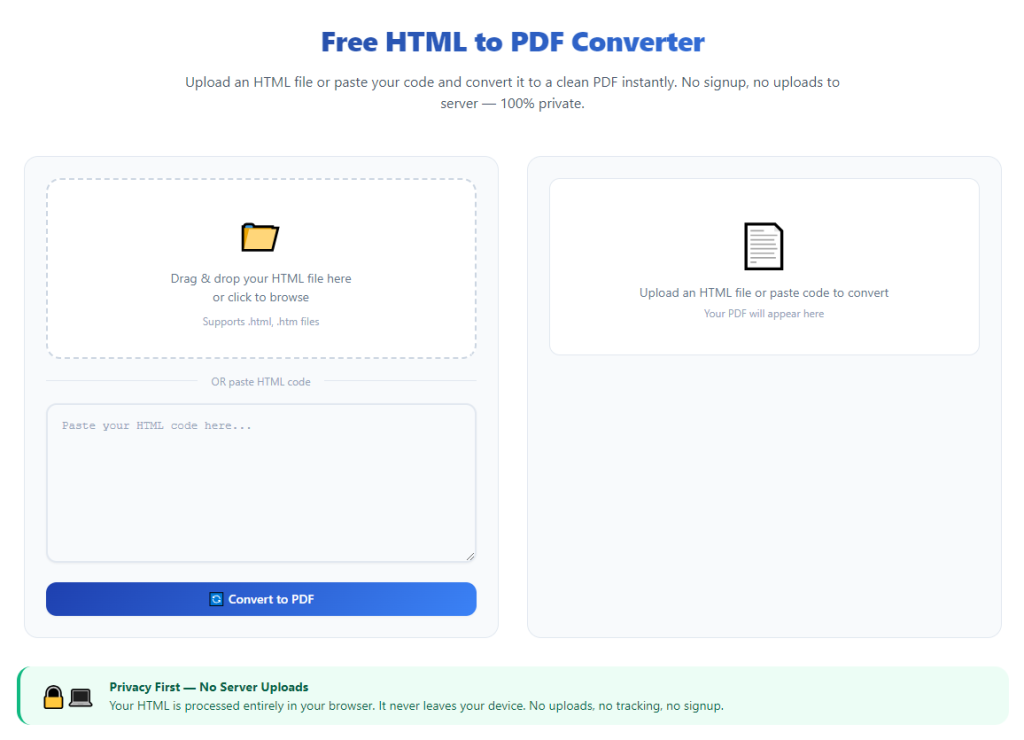
I also love that there’s zero account creation required. No email input, no password setup, no verification steps, no subscriptions. The entire process is straightforward: open the tool, upload your file or paste a webpage link, convert, download, and close the tab. No extra work, no spam risks, no hidden catches.
The layout and quality retention is night and day compared to cheap alternatives. Reliable free converters use modern browser-based rendering, so they replicate your HTML exactly how it appears on Chrome, Safari, or Edge. Every font, color, spacing detail, table alignment, and custom CSS style stays fully intact after conversion.
No hidden fees or locked features is another huge win. So many “free” tools cap file sizes, limit how many conversions you can do daily, or slow down downloads unless you pay for premium. A real HTML to PDF converter no watermark free online keeps all core conversion features completely free and unlimited for standard use.
There’s no software to download or install either. Everything runs smoothly in your regular web browser. I’ve used this type of tool on my work desktop, personal laptop, and even my phone when I needed a last-minute conversion on the go. It works on every device with zero setup needed.
Privacy is another big plus most people overlook. Since you never sign up or submit personal information, there’s no user data to store or sell. Trusted tools automatically delete all your uploaded HTML files and conversion data right after you download your finished PDF. That means no sensitive work or personal files linger on external servers.
I’ve also noticed way fewer conversion errors with these quality tools. Complex layouts, image-heavy HTML files, and multi-page documents process without crashing, partial exports, or missing content—issues I run into constantly with cheaper, unvetted converters.
Key Features to Look for in a Trusted Watermark-Free HTML PDF Converter
Not every tool that claims to offer watermark-free, free online conversions actually delivers. I’ve fallen for misleading marketing countless times. Some tools hide watermarks until download, others force signups for complex files, and many ruin formatting on longer documents.
After tons of testing and wasted time on bad platforms, I’ve put together a simple checklist of must-have features. These are the details you need to verify before you trust any HTML to PDF converter no watermark free online with your important files.
First, unconditional watermark-free exports are non-negotiable. Never trust the tool’s marketing text alone. Test a quick sample HTML file first to confirm no branding or overlays show up on the final PDF. If any watermark appears at all, skip that tool entirely.
Zero mandatory registration at any step is also critical. Uploading, previewing, and downloading should all be accessible without email entries, password creation, or social login pop-ups. Any forced signup mid-workflow means the tool isn’t truly free and unrestricted.
Full CSS styling and layout retention makes all the difference in final file quality. Top converters render HTML content just like modern web browsers do, preserving responsive layouts, custom colors, image positioning, and text formatting. Avoid any tool that strips styling or warps page alignment.
Dual support for direct HTML file uploads and live webpage URL conversion is super practical. Some days you have a saved local HTML file, other days you need to convert a live web page instantly. Quality tools handle both methods with zero quality difference.
Solid file size tolerance matters more than people think. Image-heavy HTML files and multi-page layouts can be fairly large. Low-quality tools reject big files or compress them excessively, while reliable free converters process standard large files smoothly.
Automatic instant file deletion is essential for privacy. Always confirm the tool wipes your uploaded content post-conversion. You never want personal, client, or business HTML files stored on public servers long-term.
A clean, minimal interface with no intrusive pop-up ads is a small but important detail. Cluttered tools with constant redirects and ads slow down your workflow and create unnecessary distractions during simple conversions.
Common Real-Life Uses for HTML to PDF converter no watermark free online
This tool isn’t just for random one-off conversions. I rely on it regularly for so many daily tasks across work, school, personal projects, and small business needs. It fits into way more everyday workflows than most people realize.
Web developers and designers use this constantly for client approvals. When building custom web pages, landing page templates, or UI layouts, you need to share static, clean previews for feedback. Watermarks ruin the professional look of your design work, so a clean HTML to PDF conversion is absolutely essential here.
Students and educators benefit a ton too. Many class projects require building custom HTML portfolios, research pages, or presentation layouts. Converting these files to polished, unmarked PDFs makes submissions look professional and ensures your original work stays unaltered.
Corporate and small business teams use this tool for internal documentation. A lot of dashboards, data reports, billing pages, and internal guides run on HTML. Converting these pages to clean PDFs makes sharing finalized records with team members or stakeholders simple and organized.
Freelancers rely on this conversion tool for client deliverables all the time. I frequently turn custom HTML templates and webpage mockups into PDF previews for clients. Unwanted watermarks would make my work look unpolished and unprofessional, so a free watermark-free converter is a staple in my workflow.
Personal archiving is another great use case. If you want to save web articles, custom local HTML templates, or personal webpage designs as permanent offline copies, this tool lets you create clean, unmarked PDF archives with zero clutter.
Small business owners also love this simple workflow. You can convert custom HTML receipts, order confirmations, event flyers, and promotional pages into printable PDFs instantly. The clean results are perfect for printing, emailing to customers, or storing for business records.
Simple Step-by-Step Workflow (Beginner-Friendly, No Tech Skills Needed)
This is the exact casual workflow I use every single time I convert HTML to PDF. It’s super simple, no confusing technical settings, no complicated adjustments, and it consistently delivers clean, perfect results.
Start by prepping your HTML content first. You can either save your finished HTML file to your device or copy the full URL of the live webpage you want to convert. I always do a quick browser check to fix small spacing or image issues upfront—it saves me from redoing conversions later.
Pull up your trusted HTML to PDF converter no watermark free online in any standard web browser. There’s no login screen, no software setup, no complicated menus. The upload or URL input section is always front and center on the main page.
Pick your preferred conversion method. Drag and drop your saved HTML file or select it from your device storage, or paste your copied webpage URL into the input box. I always double-check my selection to make sure I’m converting the right content, no mistakes.
You can tweak basic layout settings if you need to. Most quality tools let you adjust page size, orientation, and margins for custom documents. I stick to default settings for standard files, but it’s nice to have flexibility for specialized layouts.
Initiate the conversion and wait just a few seconds. Even longer, image-heavy HTML files process extremely fast. A simple progress indicator lets you track when your PDF is fully ready for download.
Never skip the preview step—this is so important. Most people rush to download right away, but minor layout shifts or cut-off content can happen occasionally. A quick page preview lets you fix small issues before saving the final file.
Once your preview looks flawless, download your finished PDF. The file will be completely free of watermarks, logos, or any extra branding. Save it directly to your device or cloud storage for easy access anytime.
I always do a quick re-save in my default PDF reader after downloading. This small step locks in all formatting permanently, so your file looks consistent on any device or PDF reader someone uses to open it.
That’s truly all there is to it. Fast, easy, clean conversions every single time.
Common Mistakes That Ruin Your HTML to PDF Conversion Results
I made every single one of these mistakes when I first started using online conversion tools. These tiny, easy errors are why so many people end up with blurry, broken, or watermarked PDFs—even when using decent platforms.
Skipping the preview step is the most common mistake by far. It’s tempting to download immediately once conversion finishes, but small layout glitches pop up every now and then. A quick 10-second check saves you from sharing flawed, unpolished files.
Using unoptimized HTML files leads to tons of avoidable issues. If your HTML code has broken links, missing images, or messy unorganized CSS, those flaws will carry straight over to your PDF. A fast browser preview of your HTML beforehand fixes most of these problems.
Falling for fake “no watermark” tools happens all the time. Lots of platforms advertise zero watermarks on their homepage but add hidden branding on final downloads. Always test a tiny sample file first before processing important work documents.
Ignoring file size limits causes frequent conversion failures. Extra-large HTML files with tons of high-res images can crash basic tools. Compressing images slightly beforehand makes the conversion process far smoother and more reliable.
Converting dynamic auto-updating web pages creates inconsistent results. Live pages with real-time data can shift content mid-conversion. For stable, clean results, save a static HTML copy first before running the conversion.
Mixing up file versions is another silly mistake I’ve made multiple times. I’ve almost shared old watermarked test files instead of my new clean exports. Simple clear file labeling completely fixes this issue.
Quick Personal Tips for Better, Cleaner Conversions
These are just small personal habits I’ve picked up over time to make my HTML to PDF workflow smoother and more reliable. They’re tiny tweaks, but they cut out almost all conversion errors and frustrations.
Bookmark your trusted HTML to PDF converter no watermark free online right away. Having one-click access means you never have to scramble for a safe tool last minute during tight deadlines.
Preview your HTML content across a couple different browsers first. This ensures your layout is universal and prevents weird formatting surprises after you convert to PDF.
Compress large images within your HTML files before conversion. Smaller, optimized file sizes lead to faster processing and sharper, cleaner PDF exports with zero quality loss.
Keep a dedicated folder just for your finished converted PDFs. This separates clean, unmarked final files from old test drafts and messy work-in-progress versions.
If you work on a team, stick to one consistent converter tool for everyone. It keeps all team-generated PDF files uniform, clean, and professional across all projects.
Final Thoughts
It’s honestly surprising how many unnecessary barriers come with basic HTML to PDF conversion. Most free online tools flood your work with watermarks, force annoying account signups, destroy your careful formatting, or spit out blurry, low-quality files for no logical reason.
A reliable HTML to PDF converter no watermark free online eliminates every single one of these annoying issues. It delivers crisp, perfectly formatted, completely unmarked PDF exports with zero fees, zero account requirements, and zero hidden restrictions. It works amazingly well for students, web designers, freelancers, business teams, and anyone who regularly converts HTML content for sharing, printing, or long-term archiving.
Once you get used to this simple, hassle-free conversion workflow, you’ll never want to go back to faulty, restrictive traditional tools. It’s one of those small daily workflow upgrades that makes routine digital tasks feel far simpler, faster, and way less stressful overall.
Learn how to use this tool correctly by reading our step-by-step tutorial.